
Design Custom Labels From Scratch
Label Editor is a browser-based label design tool that lets you build fully custom label templates for your products, packaging, or shipments. Add your own text, images, barcodes, and dynamic fields - then generate print-ready labels from your spreadsheet data or directly from Amazon and Walmart label PDFs. Works with thermal, inkjet, and laser printers in any size you need.
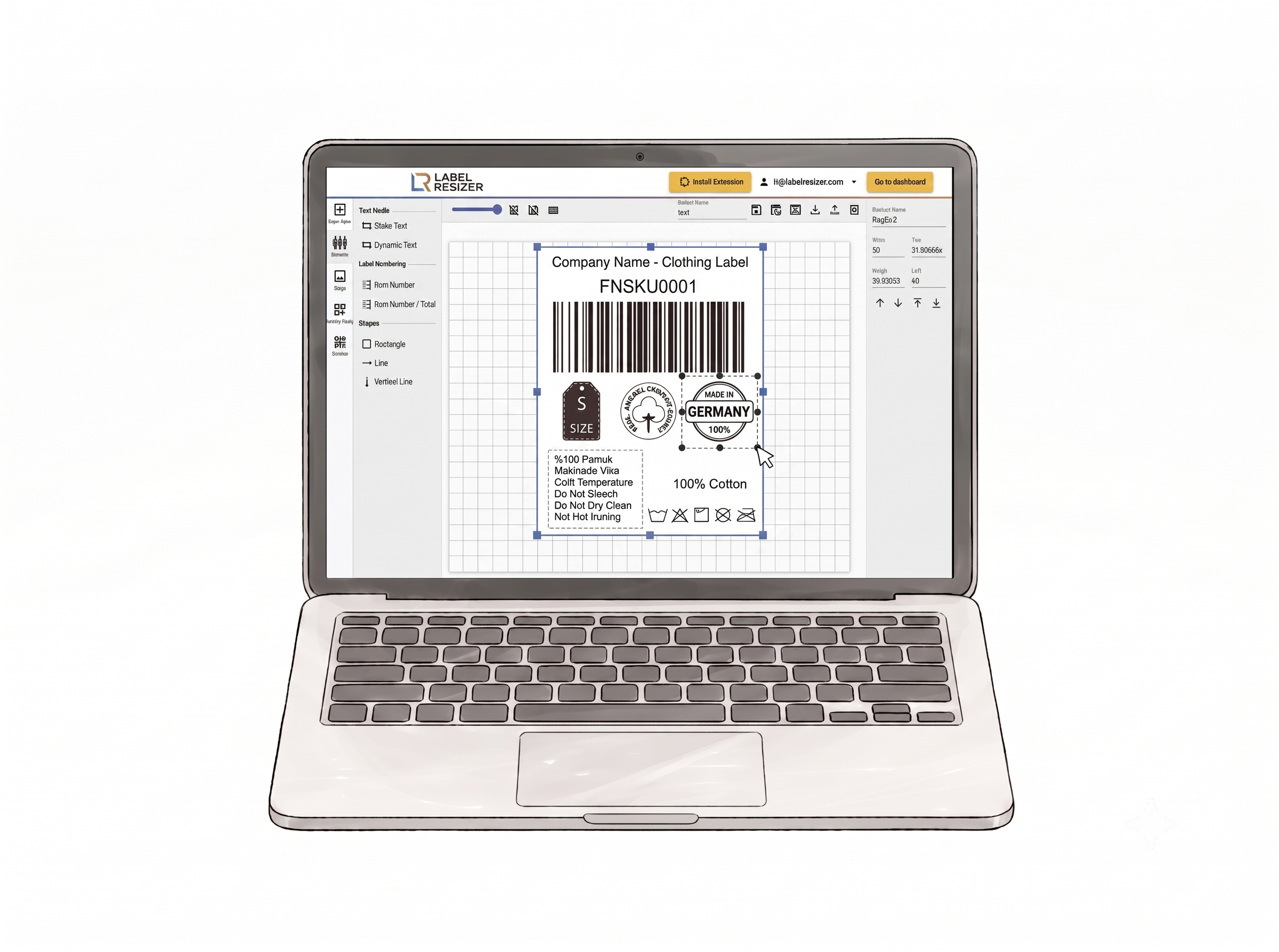
Build Any Label Layout You Need
Full canvas control
Place text, images, barcodes, shapes, and dynamic fields anywhere on the label. Resize, reposition, and layer elements freely. Use the grid and snap tools for precise alignment.
Static and dynamic content on the same label
Static text and images stay the same on every label - brand names, logos, fixed warnings. Dynamic fields pull different data for each label - product names, serial numbers, SKUs, or any variable content from your spreadsheet.
Barcodes in 7 formats
Add 1D barcodes - Code 128, EAN-13, EAN-8, UPC-A - or 2D barcodes - QR Code, Data Matrix, PDF417. Set them as static with a fixed value or dynamic, pulling data from your spreadsheet column by column.
Any size, any orientation
Choose from Avery and thermal label presets or enter fully custom dimensions in inches or millimeters. Switch between portrait and landscape orientation based on your layout needs.
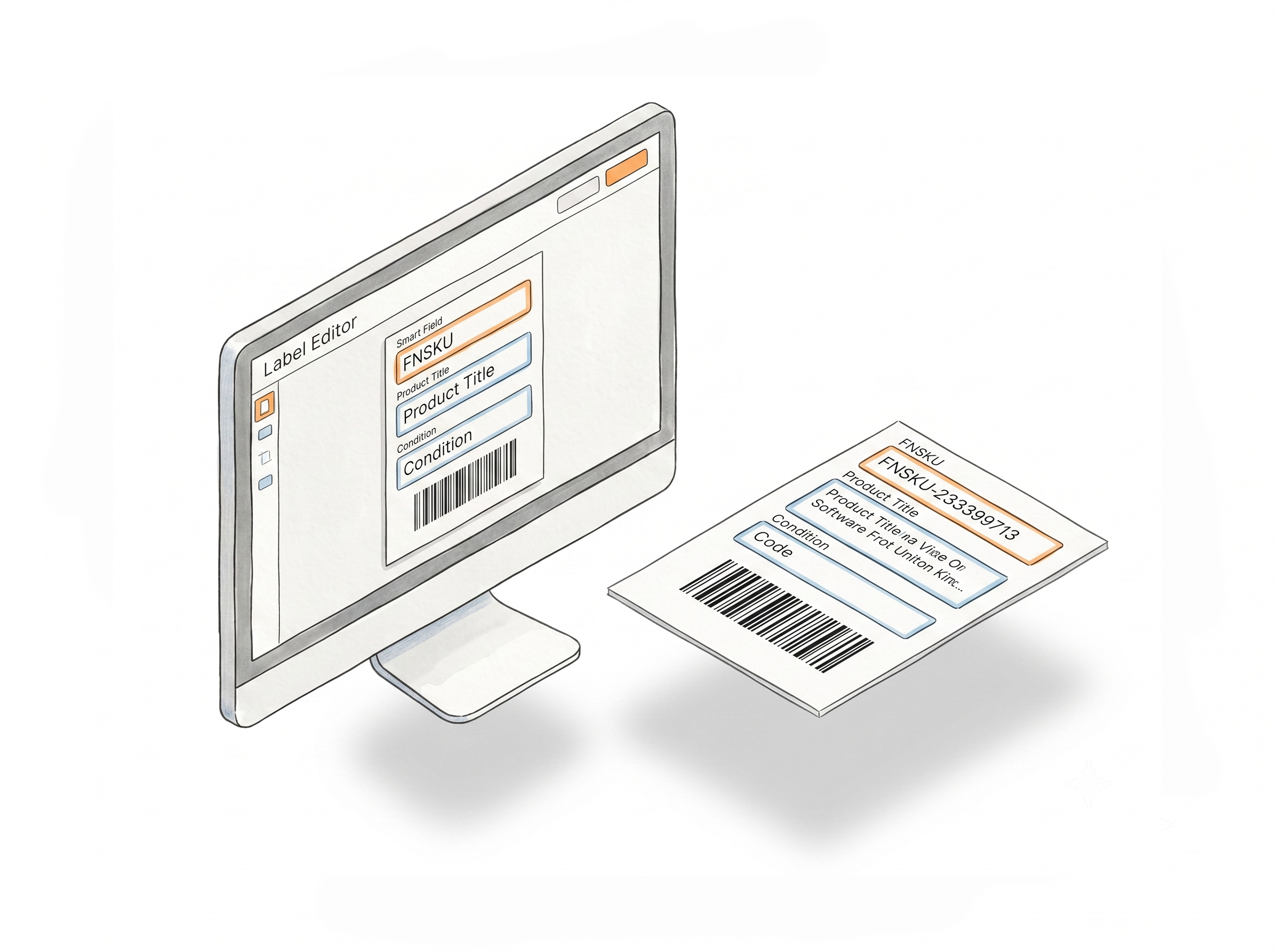
Smart Fields: Auto-Mapped for Amazon and Walmart
Pre-linked to Amazon and Walmart data
Smart Fields are a special set of dynamic elements - FNSKU, Product Title, Condition, Merchant SKU, and Free Text fields - that automatically pull data from Amazon or Walmart without any spreadsheet input. They work with both the Label Resizer extension and PDF upload workflows.
Use the extension without leaving Seller Central
Designs built with Smart Fields are available directly inside the Label Resizer Chrome and Firefox extension on Amazon Seller Central and Walmart Seller Center. Select your saved design from the dropdown and your fields populate automatically.
Compatible with both PDF upload and spreadsheet upload
Designs using only Smart Fields (and static elements) work with both PDF-based and spreadsheet-based label generation. Designs with custom dynamic fields outside of Smart Fields only work with spreadsheet upload.
Powerful Tools for Every Label You'll Ever Need
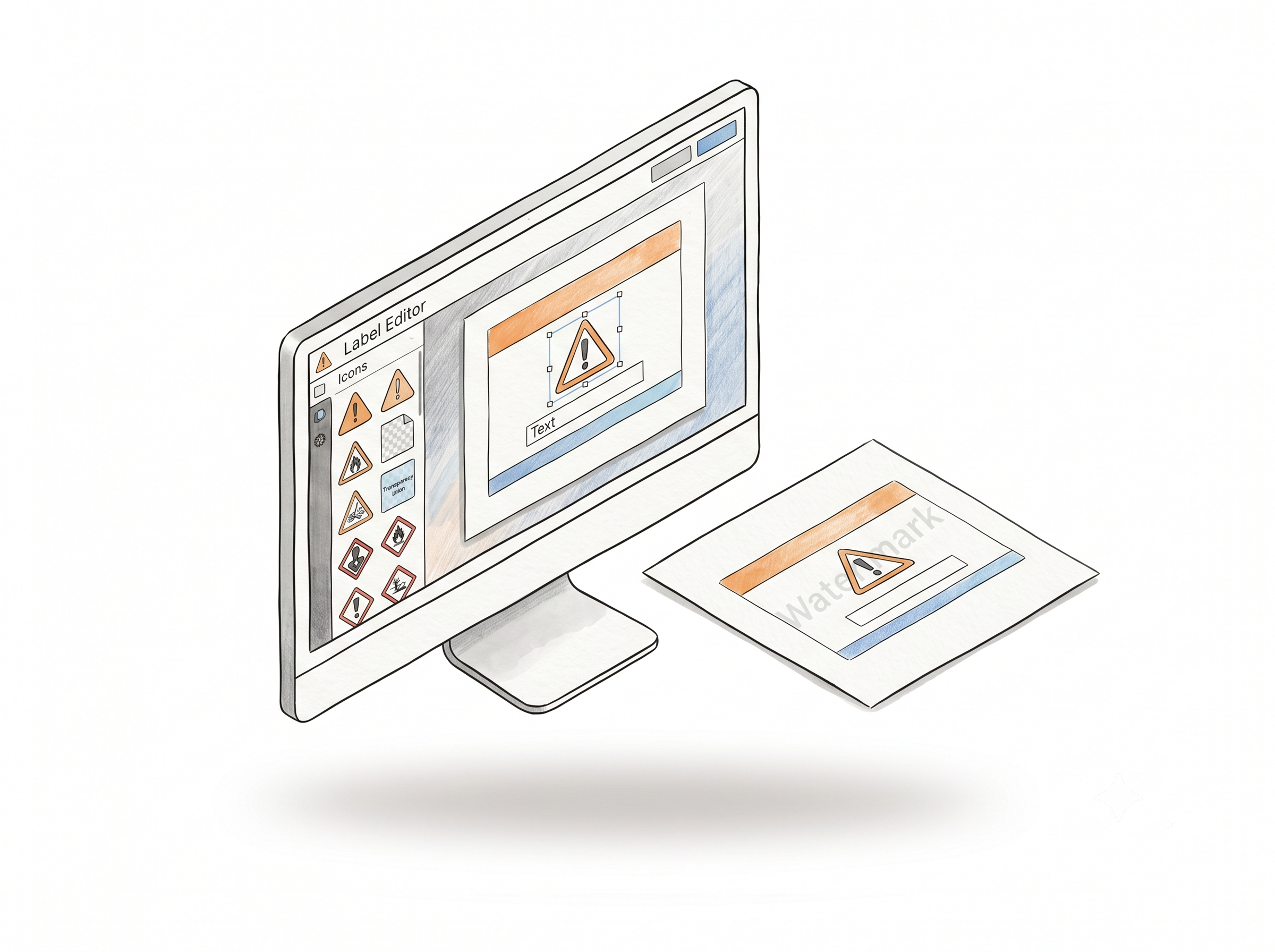
Built-in image library for Warning & Transparency labels
All images used on Warning Labels and Transparency Labels - and more - come pre-loaded in the system. Use them in any custom design, or build your own Warning Label and Transparency Label layouts from scratch.
Preview before you generate
Once your design is ready, use the Preview feature to download a watermarked sample PDF. Check layout, text fit, image placement, and alignment before committing to a full print run.
Design labels for anything, anywhere
From warehouse shelves to home storage boxes - if it needs a label, you can design it here. Build completely custom layouts in a wide range of sizes for any purpose and print them exactly the way you want.
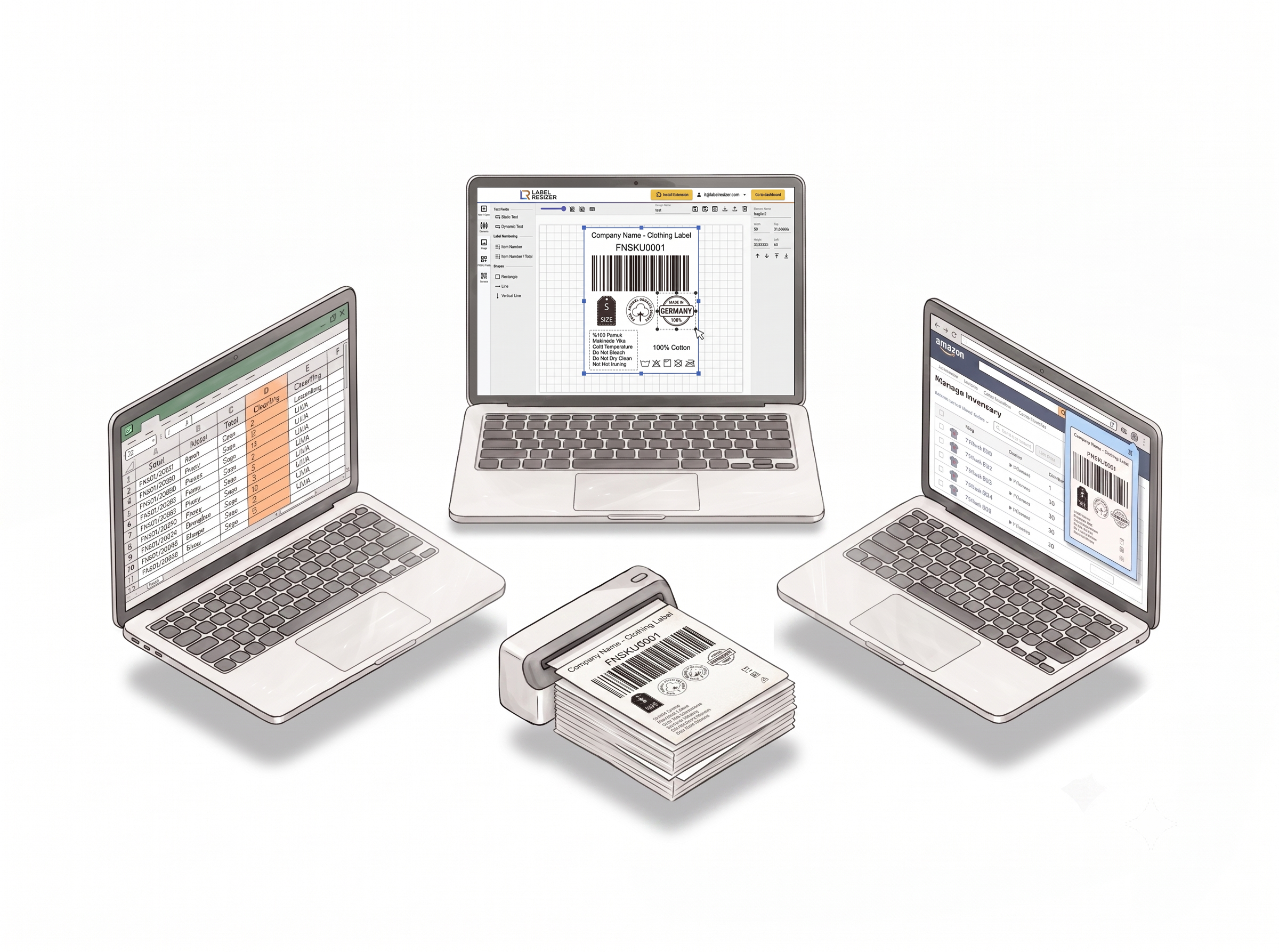
How It Works
Design your template once, generate labels from data as many times as you need.
Step 1: Create Your Design
Open Label Editor, choose your label size and orientation, and build your layout. Add static text, images, shapes, barcodes, and Smart Fields. Name your dynamic elements - these names become your spreadsheet column headers.
Step 2: Preview and Save
Click Preview to generate a sample PDF and check your layout. Make any adjustments, then save your design. It's now available across the Label Resizer web tool and browser extension.
Step 3: Generate Your Labels
Apply your design via PDF upload (Amazon or Walmart label PDFs), spreadsheet upload, or directly through the extension inside Seller Central or Walmart Seller Center. Labels generate instantly and download as a PDF.
Done!
Choose A Plan
Get 100 Product Labels And 10 Shipping Labels Free Every Month - No Credit Card Needed
Frequently Asked Questions
Everything you need to know about designing and generating custom labels with Label Editor.
What is the difference between Static Text and Dynamic Text?
Static Text displays the same content on every label - such as a brand name, fixed warning, or product description. Dynamic Text pulls different content for each label from a spreadsheet file - such as serial numbers, SKUs, or variable product details. Both can be used on the same label design.
What are Smart Fields and how are they different from regular dynamic fields?
Smart Fields are a set of pre-linked dynamic elements - including FNSKU, Product Title, Condition, Merchant SKU, and Free Text fields - that automatically map to data from Amazon or Walmart. They work with both PDF upload and the browser extension without requiring a spreadsheet. Regular dynamic text or image fields outside of Smart Fields only work with spreadsheet upload and are not compatible with PDF or extension workflows.
Can I use my Label Editor design inside Amazon Seller Central?
Yes, but only if your design uses Smart Fields for its dynamic content. Designs built with Smart Fields are available in the Label Resizer Chrome and Firefox extension dropdown inside Seller Central and Walmart Seller Center. Designs with custom dynamic fields outside of Smart Fields won't appear in the extension.
How does the spreadsheet template work?
When you save a design containing dynamic fields, you can download a spreadsheet template directly from the editor. The column headers in this template match the element names you assigned to your dynamic fields. Fill in your product data row by row and upload the file - the system generates one label per row using your design layout.
Can I add my own logo or product images to a label?
Yes. You can upload a static image - such as a logo or certification mark - that appears the same on every label. For variable product images, use the Dynamic Image field and provide image URLs in your spreadsheet. The system fetches and renders each image during label generation.
What barcode formats does Label Editor support?
Label Editor supports Code 128, EAN-13, EAN-8, and UPC-A for 1D barcodes, and QR Code, Data Matrix, and PDF417 for 2D barcodes. Each barcode can be set as static (fixed value on every label) or dynamic (value pulled from your spreadsheet per label).
What is the difference between PDF upload and spreadsheet upload for label generation?
PDF upload works when your design uses only Smart Fields and static elements - the system reads product data directly from your Amazon or Walmart label PDF and maps it automatically. Spreadsheet upload works with any design, including those with custom dynamic fields, and requires you to fill in and upload a data file. Designs with custom dynamic fields outside of Smart Fields only support spreadsheet upload.
Can I preview my design before generating labels?
Yes. The Preview feature generates a watermarked sample PDF using placeholder data so you can check your layout, text fit, image placement, and barcode rendering before running a full label generation. Preview data is not carried over to your actual labels.
How many templates can I create in the Label Editor?
The number of templates you can save depends on your plan. Free accounts do not have access to template creation. Paid plans each include a different template limit - check your plan details for the exact number. Labels generated using your saved templates count toward your product label usage limit.