

Stop Mixing Up Product Labels - Separator Labels Keep Every FNSKU Group Clean
When Amazon or Walmart generates a batch PDF with multiple products, all labels run together in one continuous file. Label Resizer's Separator feature inserts a dedicated label between each FNSKU group, so you always know exactly where one product ends and the next begins - before a single wrong label gets applied.
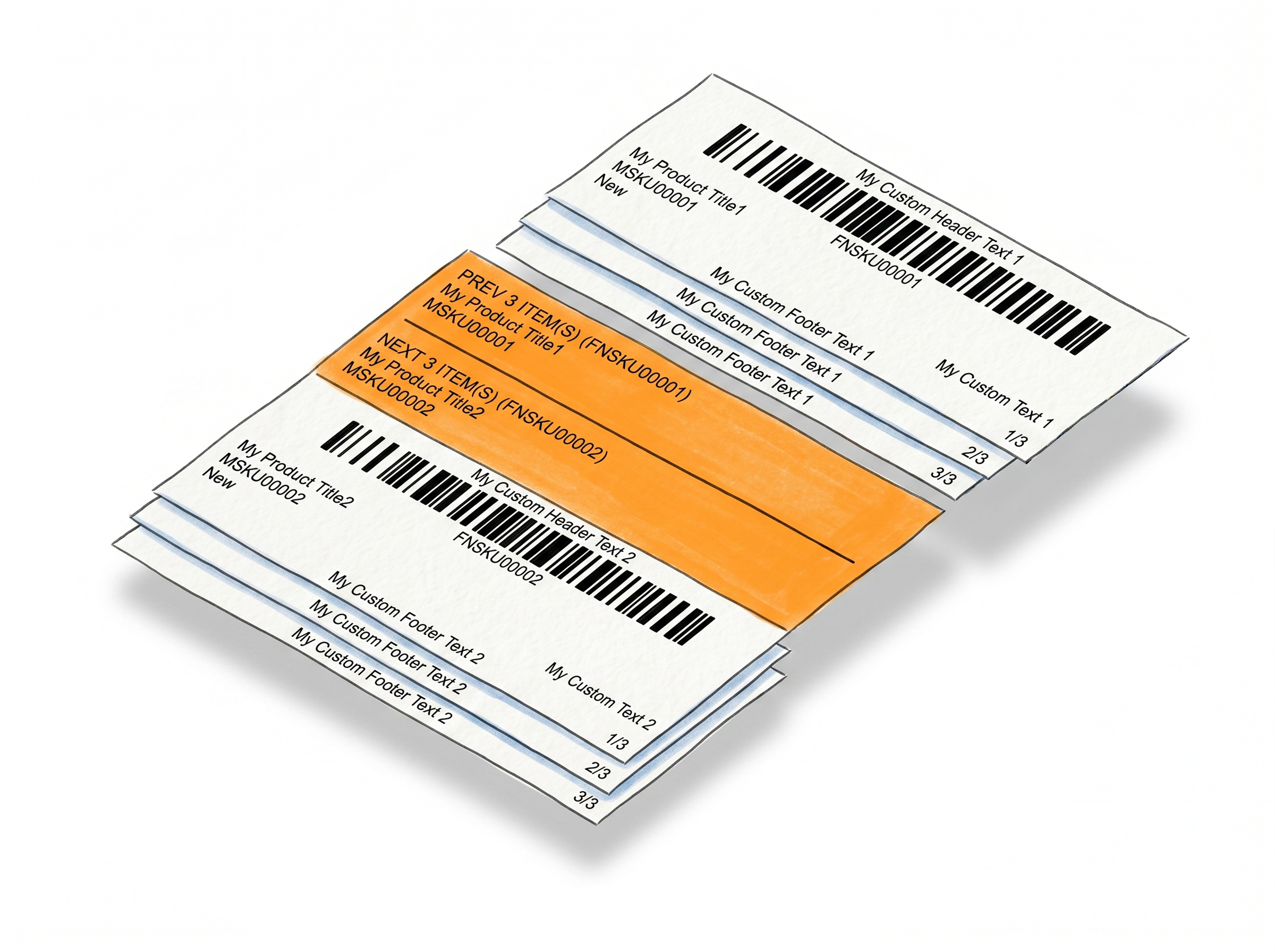
Prev/Next Separator - See What's Coming and What Just Ended
Every transition labeled, every group clear
Full product context at every boundary - no manual cross-referencing, no relying on memory.Full product context on every separator
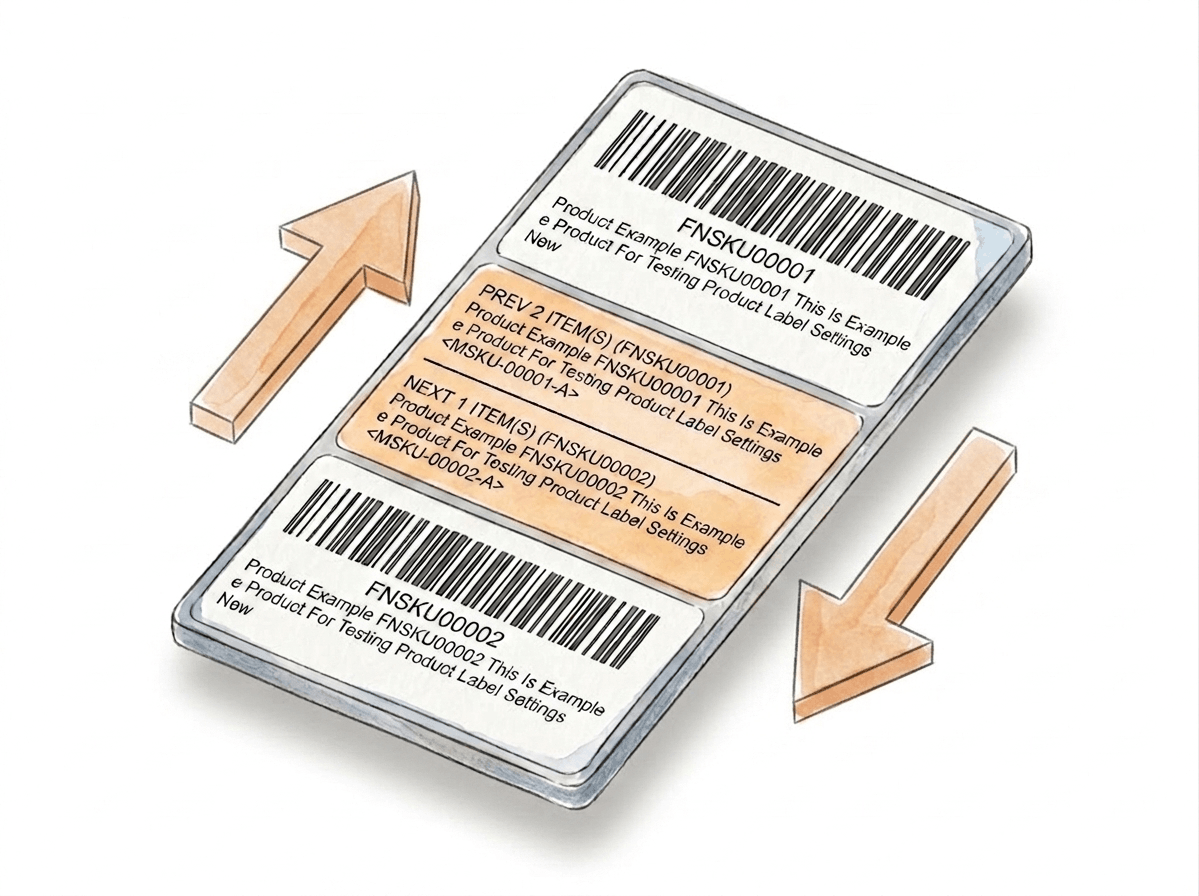
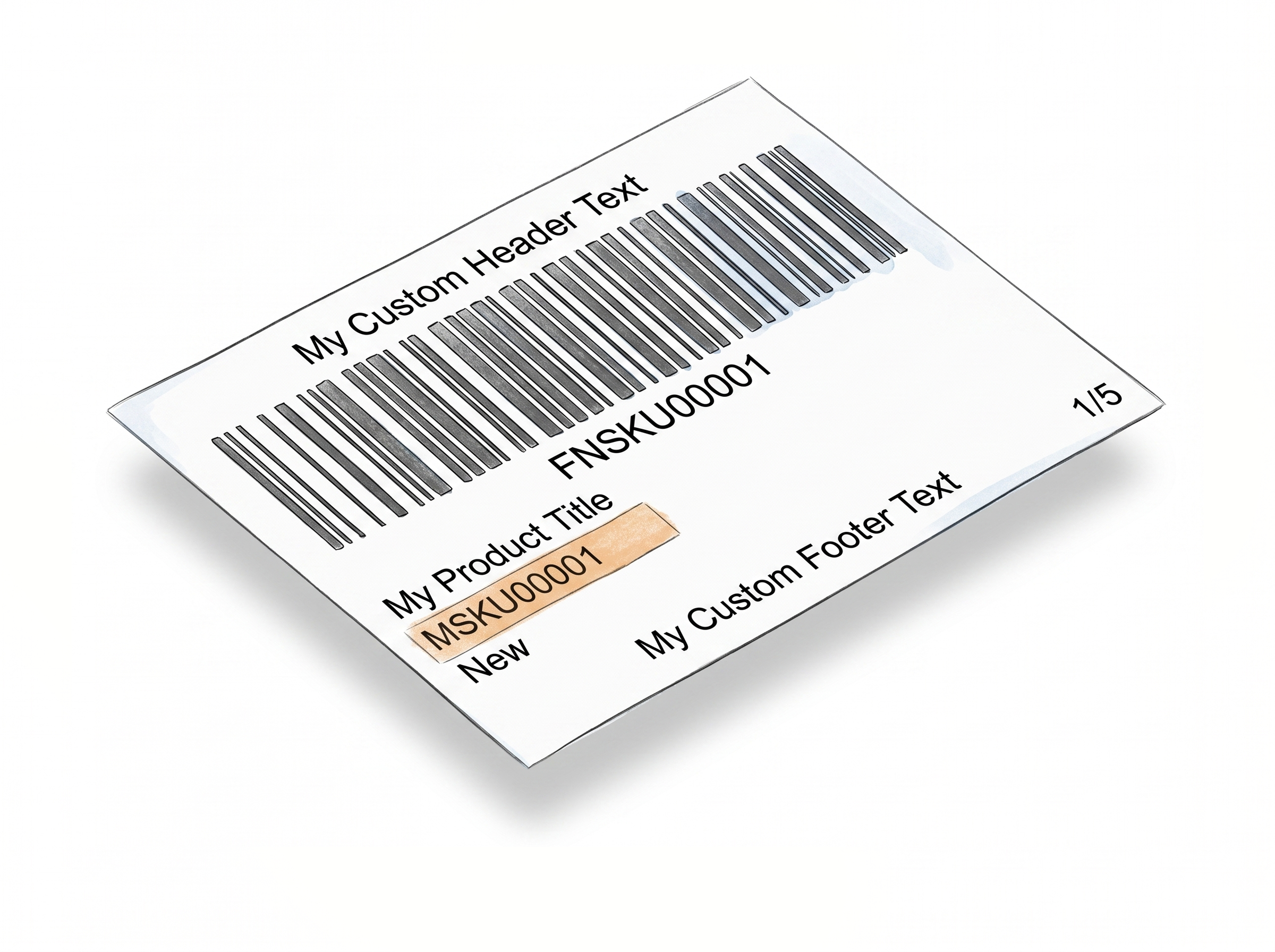
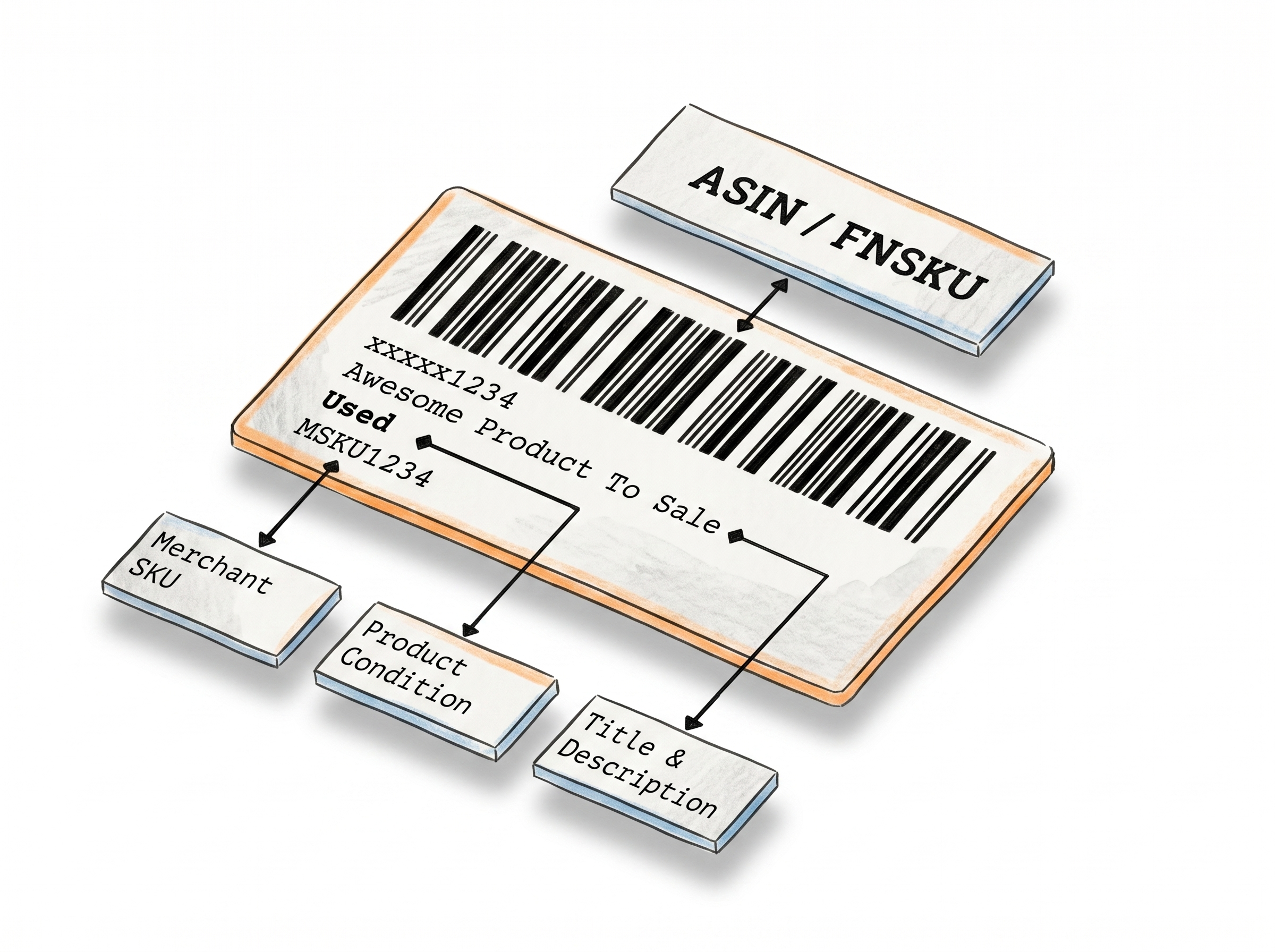
Each separator label shows summary information for both the completed group and the next one - including barcode text, ASIN or FNSKU number, MSKU, and product title. No guessing, no cross-referencing.
Automatically inserted between every group
Separators appear between FNSKU or ASIN groups without any manual step. Generate your labels as normal - the separators are already there when the PDF comes out.
The direct fix for wrong-label mistakes
Pasting the wrong label on a product is one of the most avoidable FBA errors. A visible transition label between groups eliminates the ambiguity that causes it.
Works across Amazon and Walmart batches
Whether you're prepping an Amazon FBA shipment or a Walmart WFS batch, Prev/Next separators keep mixed-product label sets organized the same way.
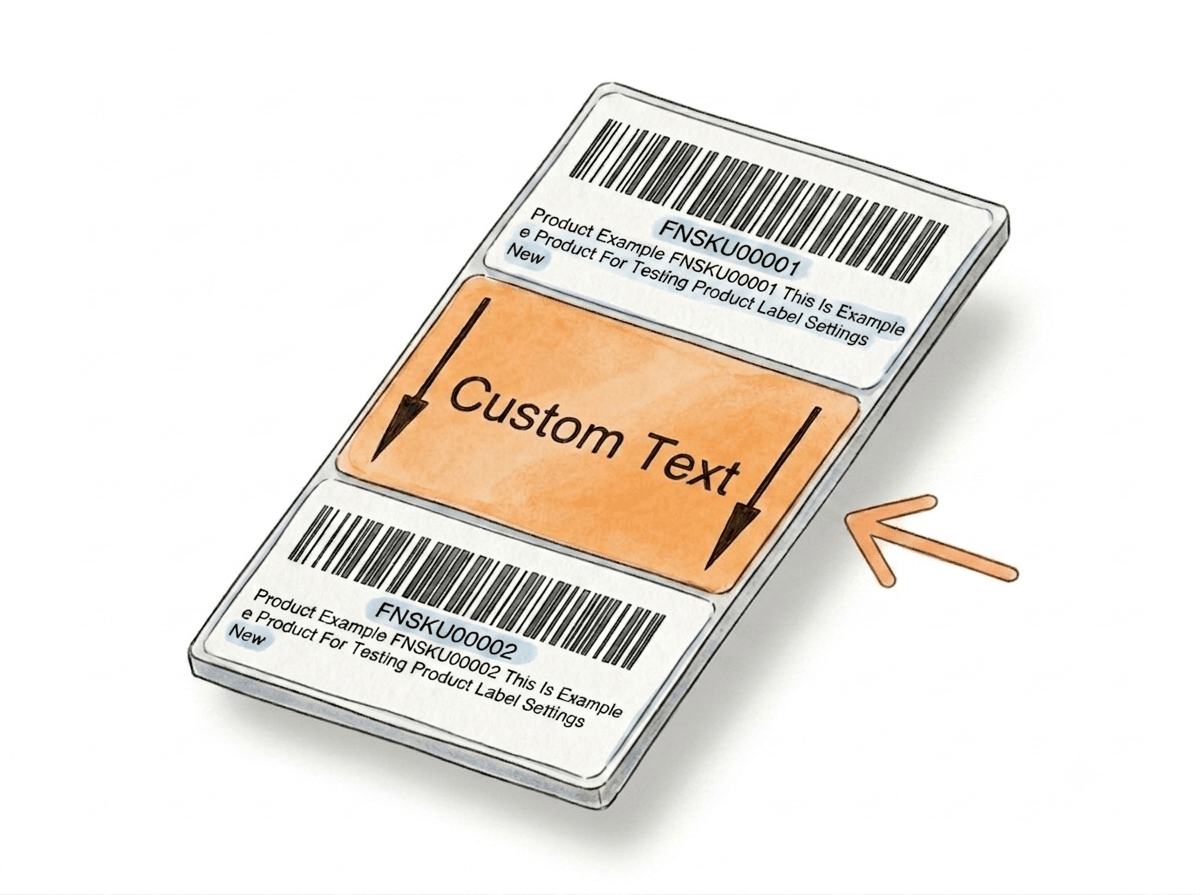
Custom Text Separator - Label Your Groups Your Way
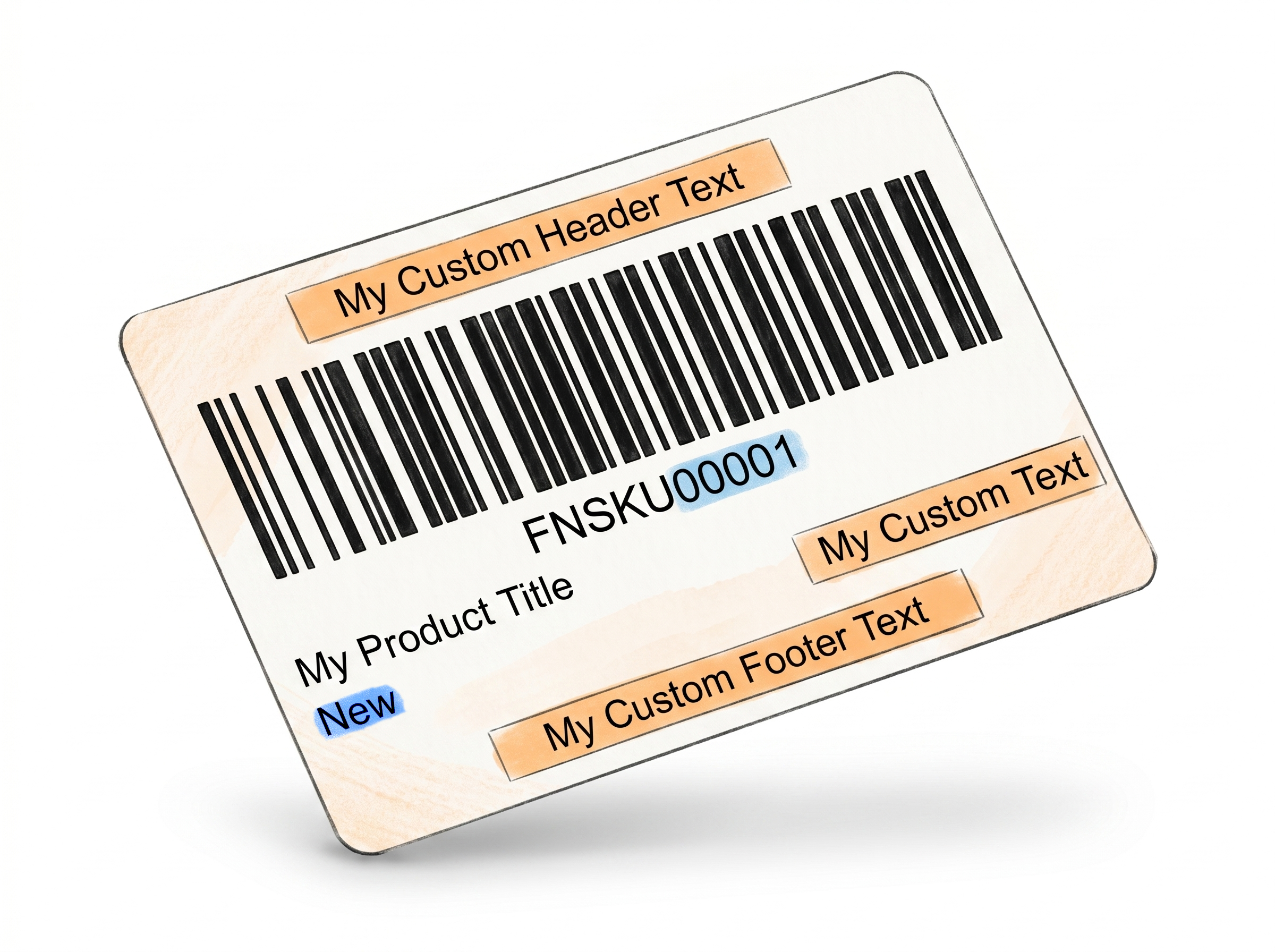
Your separator, your rules - freeform text that fits your exact workflow.
Write whatever makes sense for your workflow
The Custom Text separator lets you define exactly what appears on the separator label - product nicknames, warehouse codes, prep notes, or anything else your team uses to stay organized.
A popup prompts you before each generation
When Custom Text is selected, a popup appears before labels are generated asking for your separator text. You control what goes on every boundary label, every time.
More flexible than fixed summary fields
Prev/Next separators pull structured data automatically. Custom Text is for when you need something that doesn't fit a template - a short instruction, a bin location, a batch reference number.
Page Break option for sheet labels
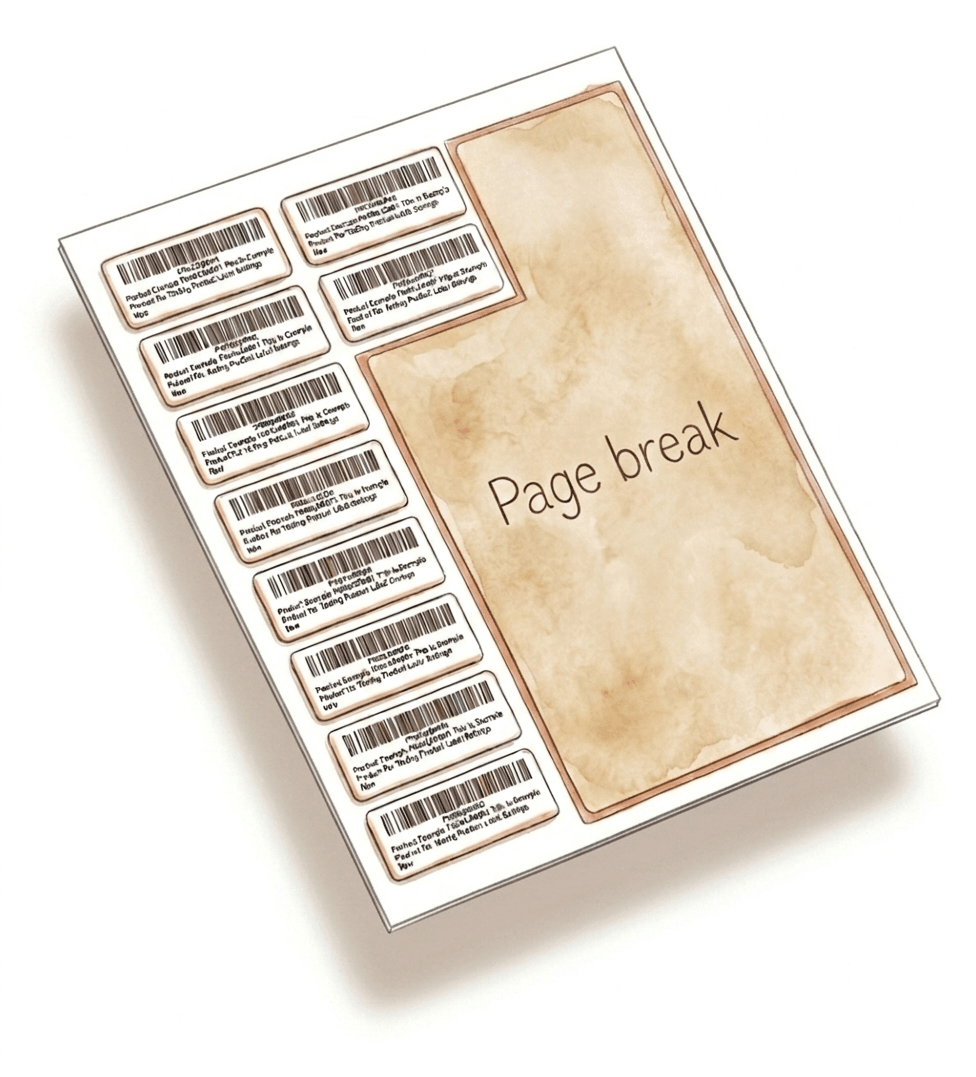
If you're printing on paper or sticker sheets - 21-up, 24-up, 30-up, or 40-up Avery-type formats - the Page Break option starts a fresh page at each FNSKU group boundary, so no product's labels ever span across a sheet break.
Page Break Option for Sheet Labels
For sheet-based label printing, Page Break replaces separator labels and ensures every FNSKU group stays perfectly contained on its own page.
Built specifically for sheet label formats
Page Break is designed for sheet-based printing formats like 21-up, 24-up, 30-up, and 40-up labels. It ensures each FNSKU group starts on a clean, new page when printing on fixed label sheets.
Used instead of separator types in sheet mode
When you use sheet labels, Page Break replaces separator label types like Prev/Next or Custom Text. Instead of inserting a label between groups, it controls how groups are split across pages.
Prevents mixing across label sheets
Without page breaks, a single product group can continue onto the next sheet, causing confusion during application. Page Break ensures each FNSKU group stays fully contained on its own page.
Zero manual layout management
Once enabled, Page Break is automatically applied during PDF generation. You don’t need to adjust spacing, move labels, or reformat sheets - everything is handled at generation time.
Why This Matters in a Real Prep Workflow
The bigger the batch, the more essential the separator - built into your PDF before you even open it.
Amazon batches one PDF for all your products
Every FNSKU in a shipment gets stacked into the same file. Without a visual break, you're relying on memory or manual counting to know where product A ends and product B starts.
One wrong label can cost you the review
A customer receiving a product with the wrong barcode sticker triggers a return, a complaint, and potentially a negative review that takes weeks to recover from. Separator labels remove the condition that causes this mistake.
Scales with batch size
For a 2-product batch, separators are convenient. For a 15-FNSKU shipment prepped over several hours, they're essential. The larger and more complex the batch, the more value each separator adds.
No slowdown in your process
Separators are added at generation time. There's nothing to print separately, nothing to insert manually. They come out in the right position in the PDF, ready to use.

How It Works
One setting, automatic separators on every batch.
Step 1: Enable Separator in Label Settings
Go to Product → Product Label Settings in your Label Resizer dashboard. Toggle on "Add Separator," select your preferred type - Prev/Next, Custom Text, or Page Break - from the dropdown, and save.
Step 2: Enter Custom Text if Applicable
If you selected Custom Text Separator, a popup appears before label generation asking for the text to display on each separator. Enter it, confirm, and proceed.
Step 3: Generate and Use
Labels are generated as normal. Separator labels appear automatically between each FNSKU group in the output PDF. Use them as visual guides during labeling and packing - each one marks a clean transition point.
Done!
How to Add Separator Between Amazon Product Labels
Everything You Need for Smarter Product Labeling
Label Resizer gives you full control over how your product labels are created, organized, and printed.
Other Product Labeling Features

Flexible Ways to Generate Product Labels


Choose A Plan
Get 100 Product Labels And 10 Shipping Labels Free Every Month - No Credit Card Needed
Monthly Yearly 2 months free
Frequently Asked Questions
Everything you need to know about separator labels for your FBA and WFS batches.
What information does the Prev/Next separator label show?
It shows summary data for both the group that just ended and the group about to begin - including ASIN or FNSKU, MSKU, and product title for each side. This gives you full context at the transition point without looking anything up.
Can I use Custom Text and Prev/Next separators at the same time?
No, you select one separator type per session from the settings dropdown. If your workflow needs both types of information, the Prev/Next separator covers structured product data automatically, while Custom Text is better for freeform or team-specific labels.
What is the Page Break option and when should I use it?
Page Break is designed for paper or sticker sheet labels - formats like 21-up, 24-up, 30-up, or 40-up. Instead of inserting a label, it forces a new page to start at each FNSKU group boundary. This keeps each product's labels on complete, clean sheets without mixing across rows.
Does the separator affect my label count or FNSKU quantities?
No. Separator labels are additional - they don't replace or count as product labels. Your FNSKU quantities remain exactly as specified; separators are purely organizational.
Do separators work with both the web uploader and the browser extension?
Yes. As long as the separator setting is enabled in Product Label Settings, it applies automatically regardless of whether you generate labels through the web uploader or the browser extension.
What happens if I have only one FNSKU in my batch?
With only one product group, there are no transitions to mark, so no separator label is inserted. Separators only appear between groups when there are two or more FNSKUs in the same batch.