
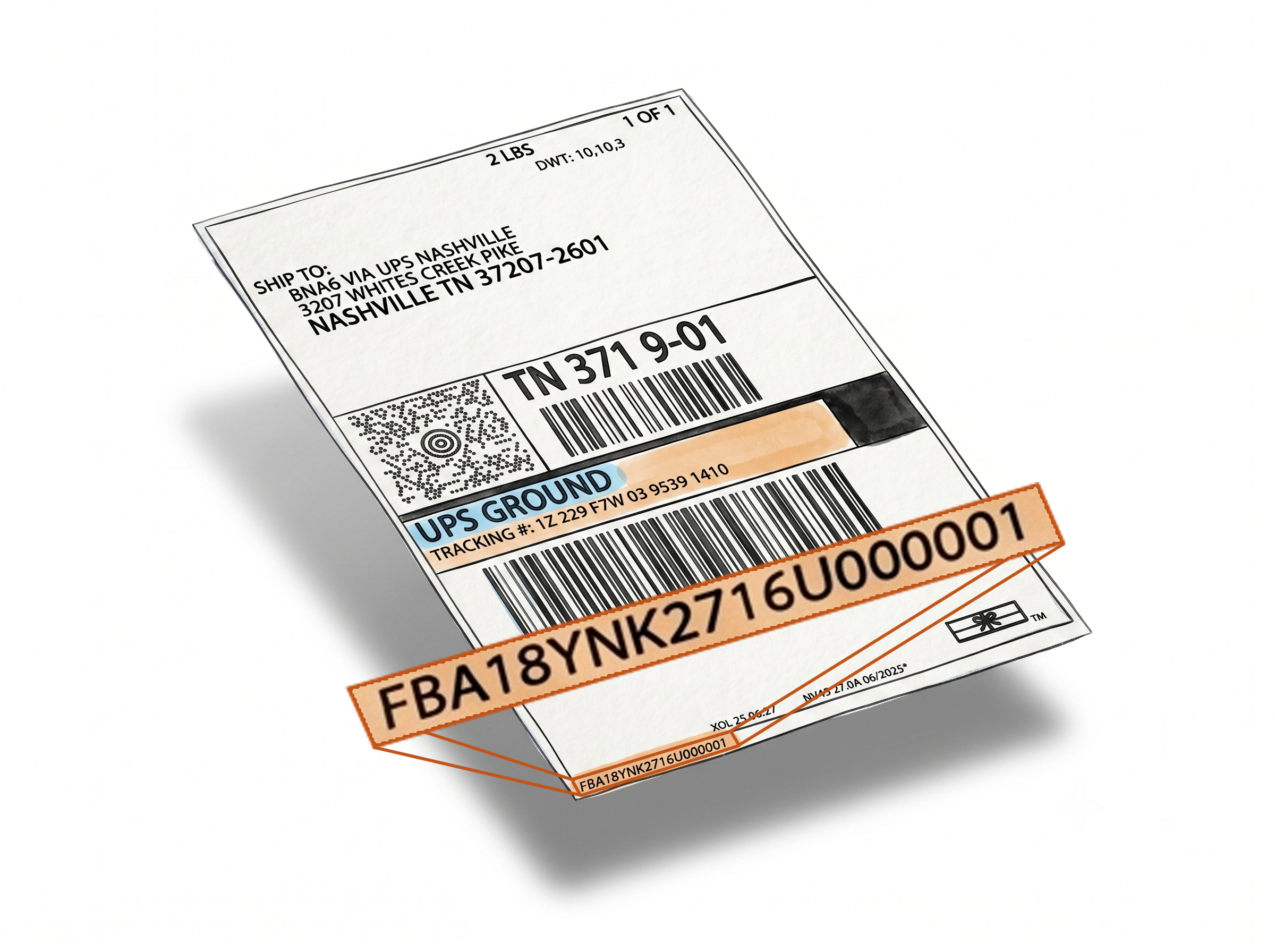
Merge Amazon FBA Split Shipment Box Labels by SKU - No Manual Sorting. No Switching PDFs.
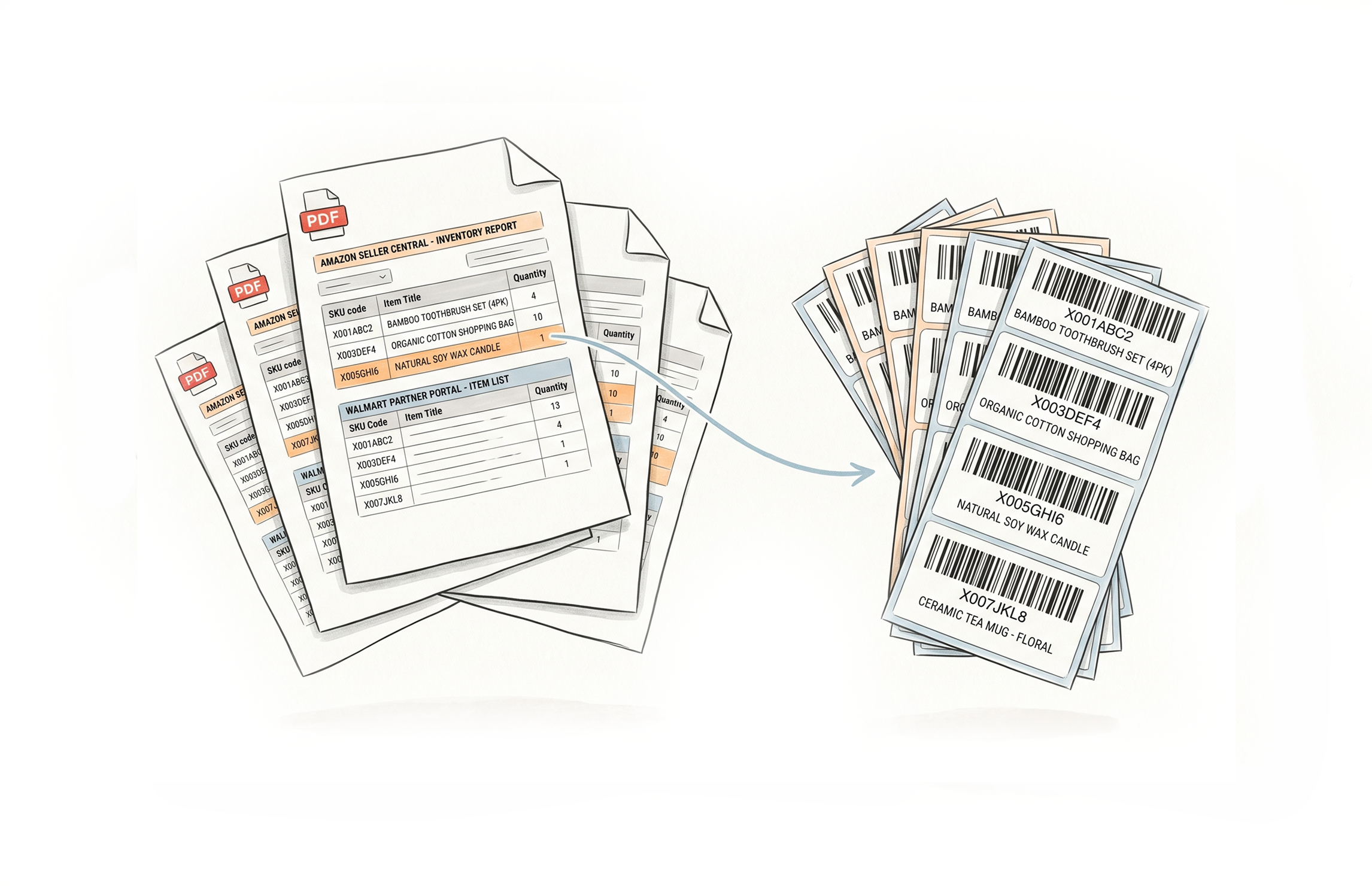
When Amazon splits your FBA shipment, box labels for the same SKU end up scattered across separate PDFs - forcing warehouse staff to sort manually before they can even start packing. Label Resizer fixes this in two ways: a one-click merge directly inside Seller Central via the Chrome & Firefox extension, or a Web Uploader for teams working outside Seller Central. Either way, labels are grouped by SKU, separator labels are inserted between transitions, and your output is a clean sorted PDF or per-SKU ZIP - ready to print.
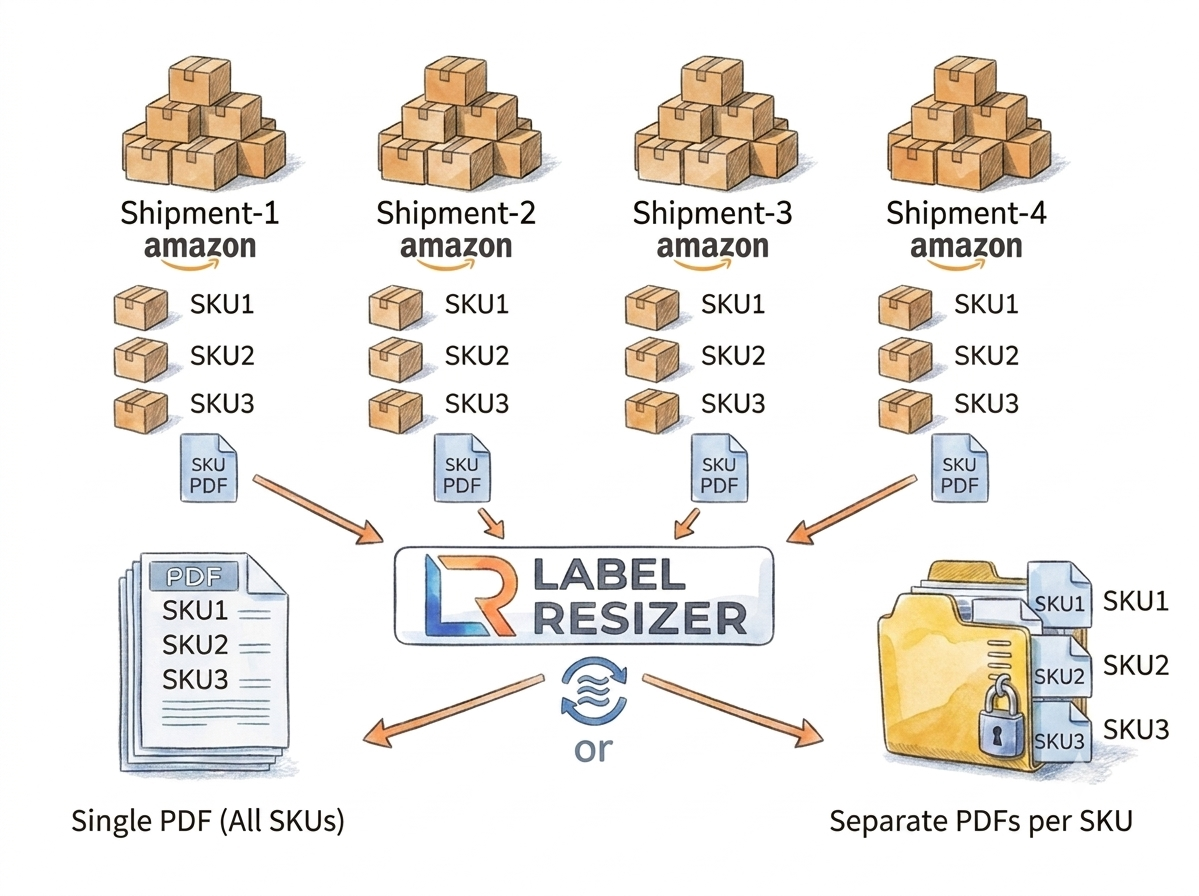
Two Ways to Merge Your Split Shipment Labels
Use the Chrome Extension for a seamless in-Seller-Central experience, or the Web Uploader when you prefer to work with downloaded files.
Chrome & Firefox Extension
Merge split shipment box labels directly inside Send to Amazon with one click. No downloading, no switching tabs. The extension adds a merge button to your Box Labels section and handles everything automatically - grouping, sorting, and downloading your labels by SKU.
Web Uploader
Download box label PDFs from Seller Central, upload 2–10 files to Label Resizer, and merge them online. Ideal for teams managing shipment files outside Seller Central. Download a single sorted PDF or a ZIP with separate PDFs per SKU.
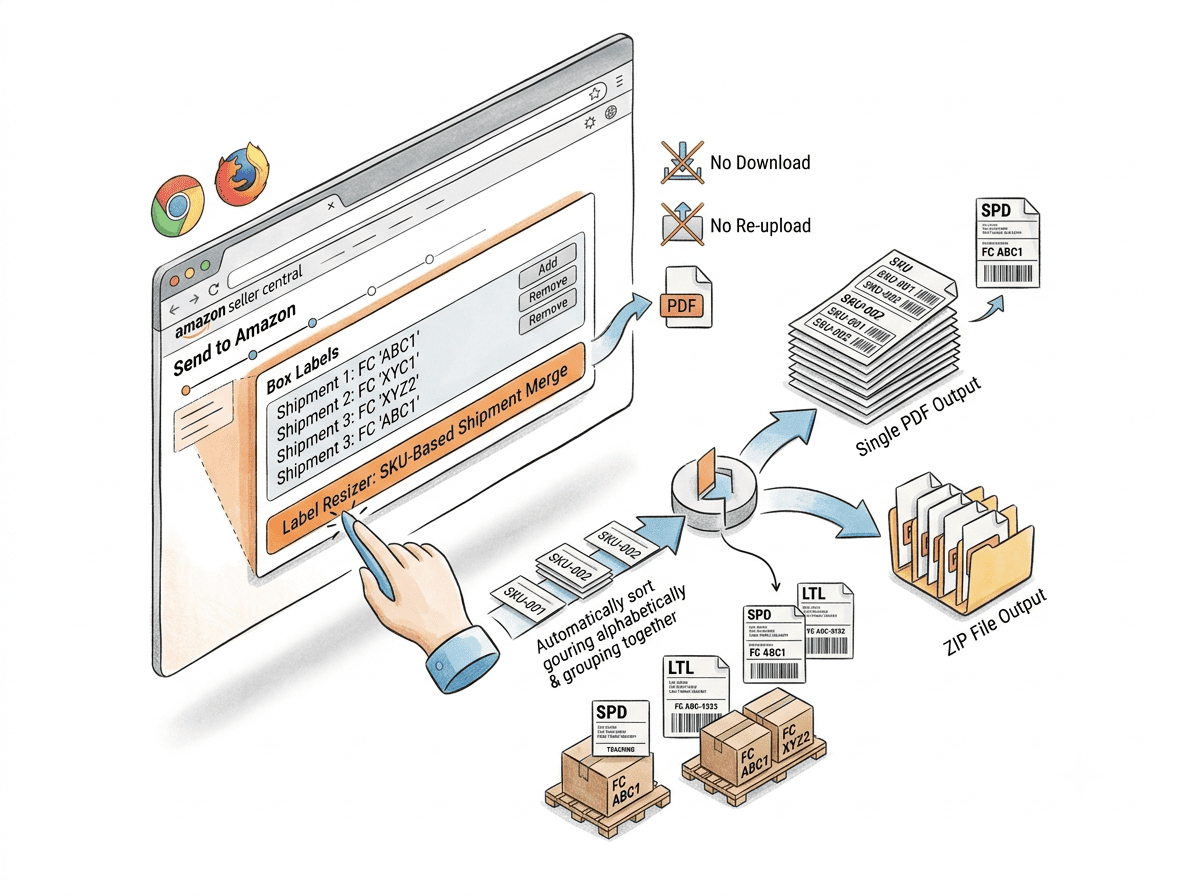
Chrome & Firefox Extension: One Button Inside Send to Amazon
One click inside Seller Central - all split shipments merged by SKU
No downloading, no re-uploading, no switching between PDFs. The extension handles it entirely within Send to Amazon.Merge button appears directly in Seller Central
After installing the Label Resizer extension, a "Resize – SKU-Based Shipment Merge" button appears under your split shipments in the Box Labels section of the Send to Amazon workflow. No need to open Label Resizer separately or download individual PDFs first.
Labels grouped and sorted automatically
The extension pulls box labels from all shipments in the split, groups them by SKU, and sorts them alphabetically. Output is either a single PDF with all SKUs or a ZIP file with a separate PDF per SKU - based on your settings in Shipping Label Settings.
Supports SPD and LTL shipments
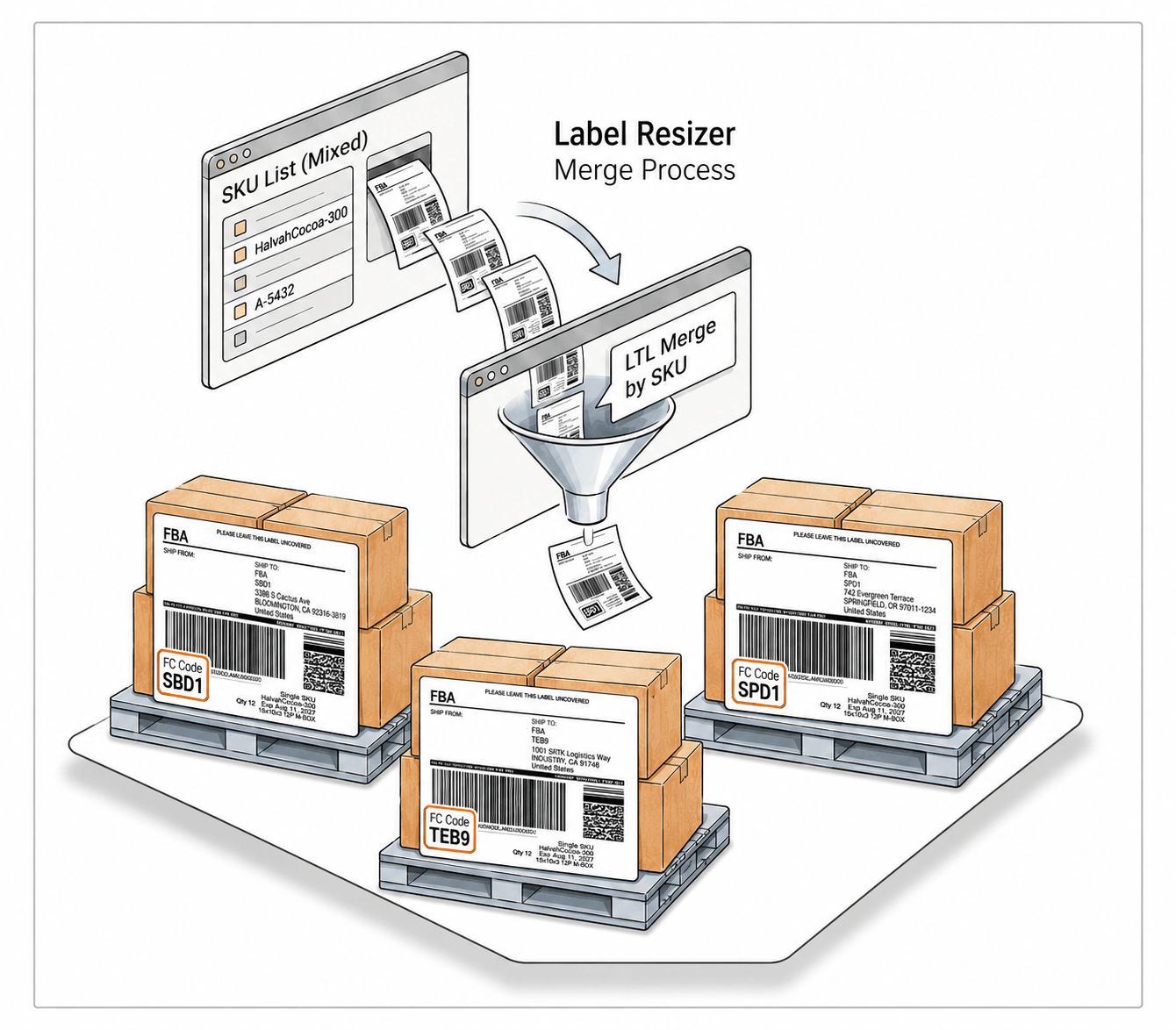
Works for both Small Parcel Delivery and Less Than Truckload shipments. For LTL, the Fulfillment Center code is printed on each label to prevent boxes from being mixed across different fulfillment centers.
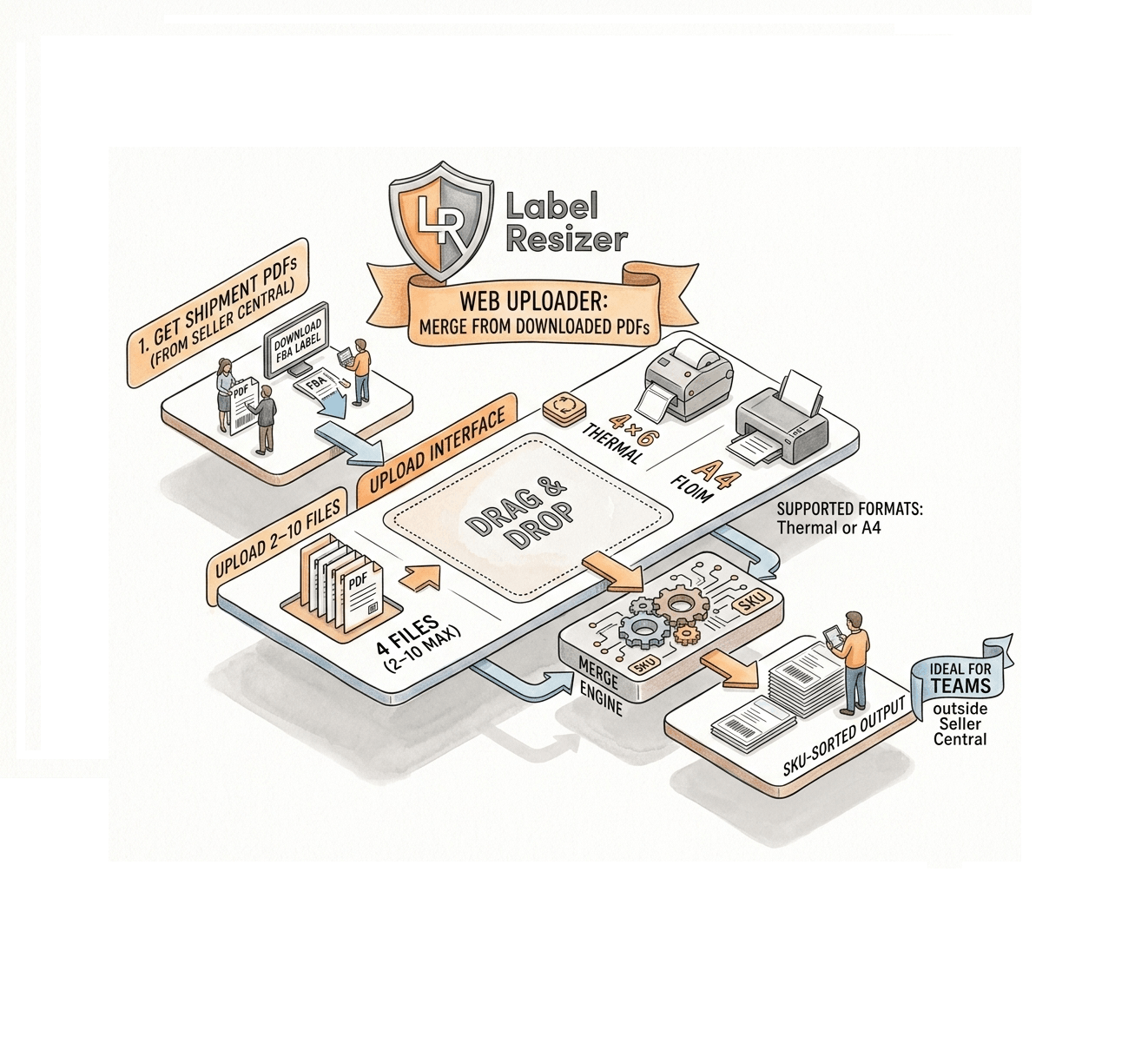
Web Uploader: Merge from Downloaded PDFs
Download your shipment PDFs from Seller Central, upload them to Label Resizer, and get back a clean SKU-sorted output - no extension required.
Upload 2–10 box label PDFs at once
Log in to Label Resizer, go to SKU-Based Box Label Merge, and drag and drop your PDF files into the upload area - or click to select them. You can upload between 2 and 10 PDF files from different shipments.
Supported formats: 4×6 Thermal or A4
All uploaded PDFs must be in the same label format: either Thermal printing – 4×6 inches or One label per A4 paper. The 3-1/3" × 4" US Letter format is not supported.
Ideal for teams outside Seller Central
The Web Uploader workflow is perfect for warehouse teams or operations staff who manage shipment files independently and prefer to work without installing a browser extension.
Separator Labels: Prevent SKU Mix-Ups in the Warehouse
Clear SKU boundaries, printed right into your label set
No manual dividers, no sticky notes. Separator labels are generated automatically as part of the merge.Automatic separators between every SKU transition
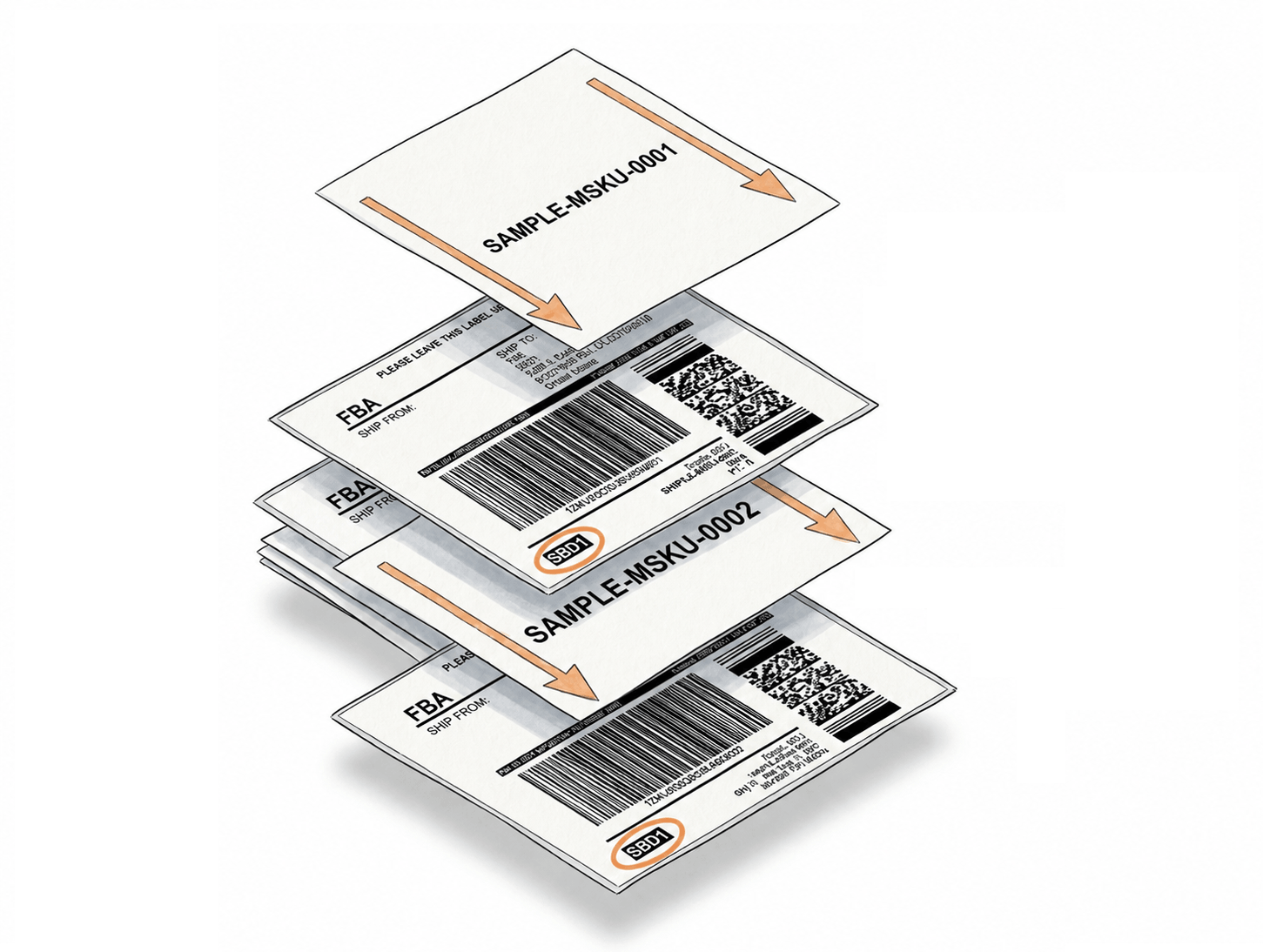
Label Resizer automatically inserts a separator label each time the SKU changes in the merged output. Warehouse staff can immediately see where one SKU ends and the next begins - without counting or guessing.
Separator includes SKU name for clear identification
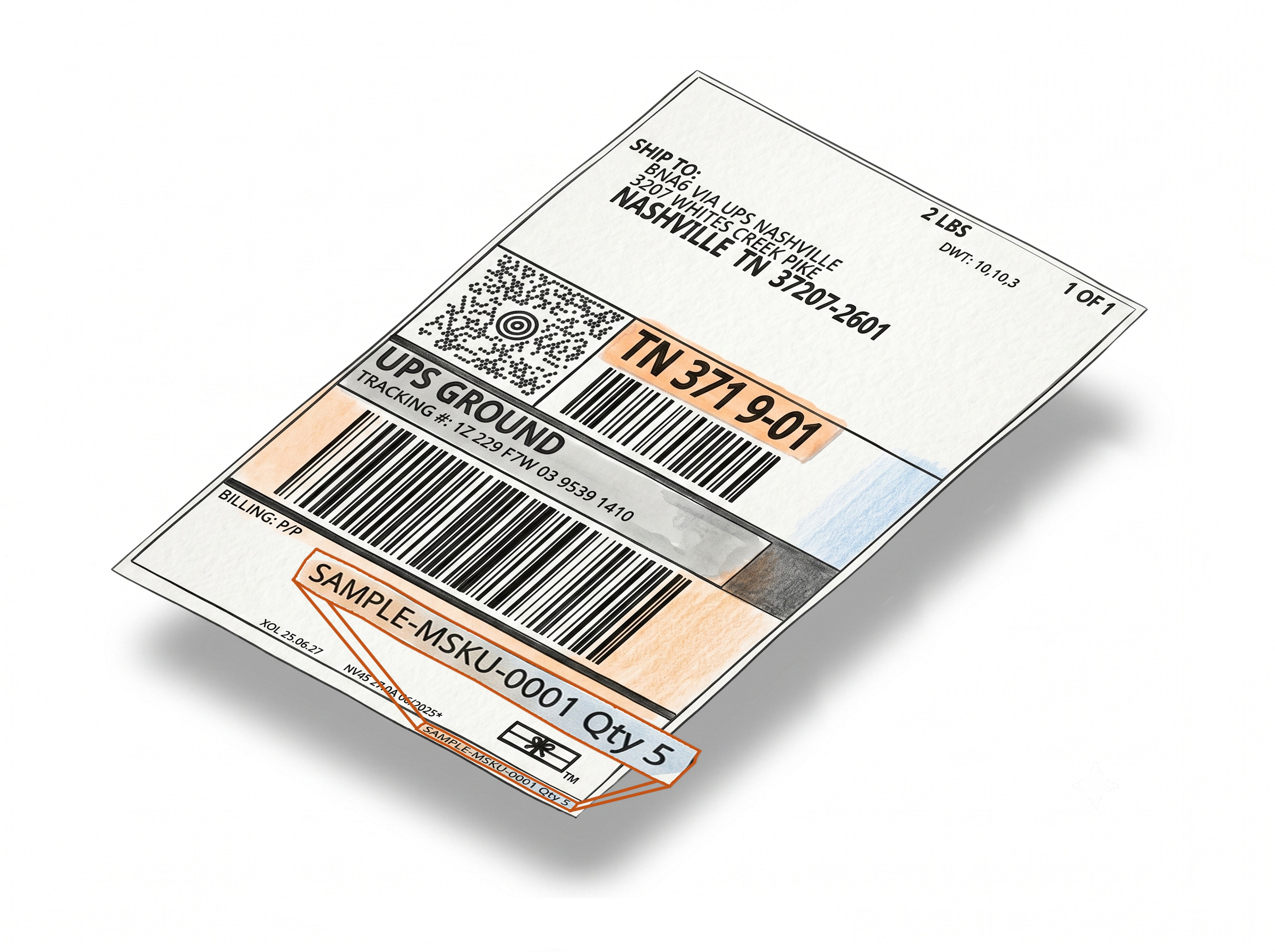
In the Web Uploader workflow, each separator label displays the SKU name. In the Chrome Extension workflow, you can customize the separator text and assign specific text per SKU - giving you full control over how groups are labeled.
Reduce packing mistakes on the warehouse floor
With clear SKU boundaries printed directly into the label set, warehouse teams spend less time verifying and more time packing. Separator labels are especially valuable for large shipments with many SKUs.
LTL Support, Flexible Output & Background Processing
Works for SPD and LTL. Scales from small shipments to thousands of boxes. Output format configured once, applied every time.
Fulfillment Center codes on LTL labels
For LTL shipments, Label Resizer clearly prints the Fulfillment Center code on each label during the merge. This prevents boxes destined for different fulfillment centers from being mixed during pallet preparation and warehouse organization.
Single PDF or separate PDFs per SKU
Choose your output format in Shipping Label Settings: a Single PDF with all SKUs sorted alphabetically, or a ZIP file with a separate PDF for each SKU. Your preference is saved and applied automatically to every future merge.
Background processing for shipments over 1,000 boxes
Large shipments run as a background job. You receive a notification when processing starts and another when it completes - with a direct download link. All completed background jobs remain available on the SKU-Based Box Label Merge page for 48 hours.
Configure Once, Use Every Time
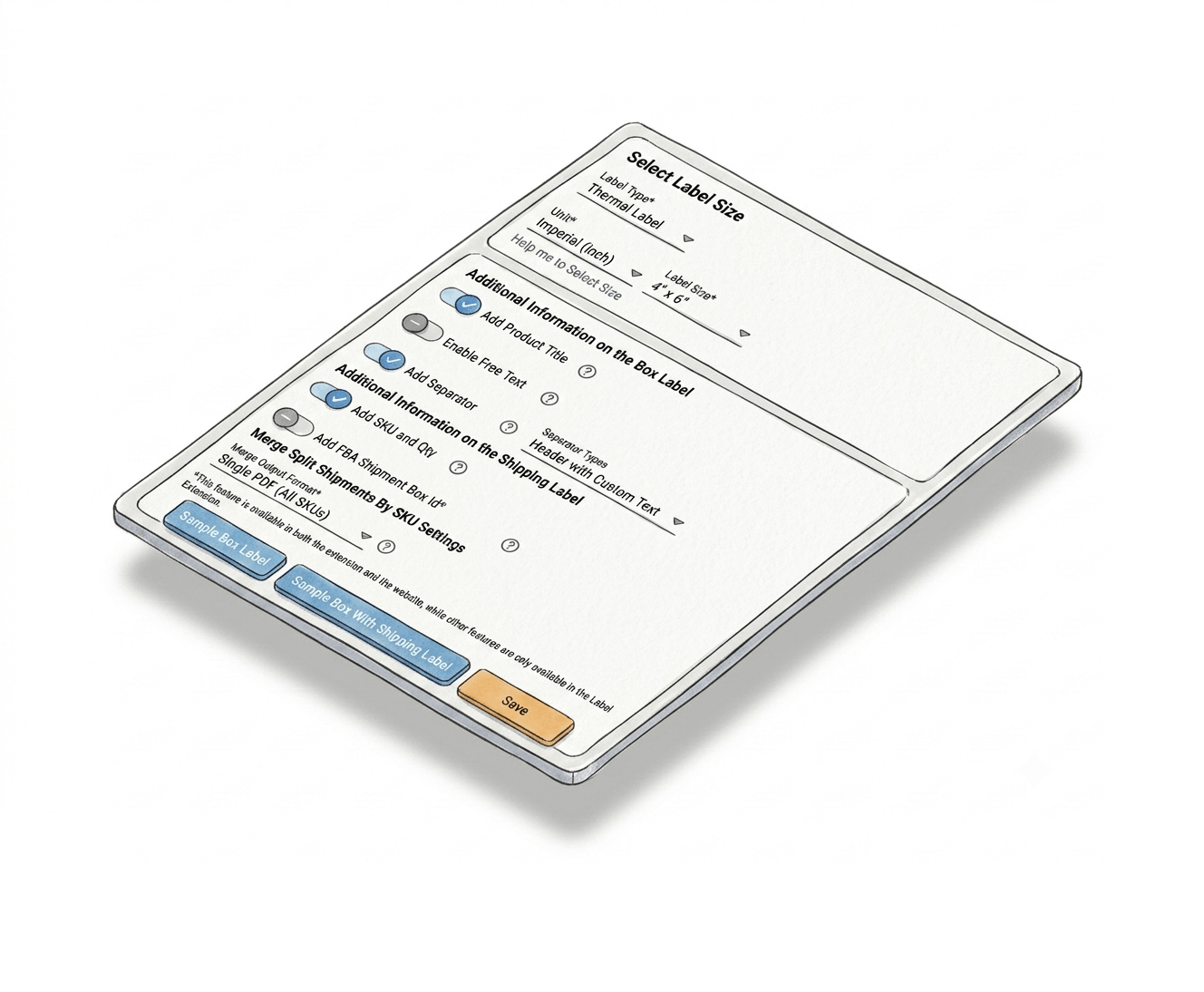
Configure once in Shipping Label Settings - every merge after that runs with your preferences applied automatically.
Set your preferences in Shipping Label Settings
Before your first merge, go to Shipping Label Settings in Label Resizer. Choose your label size, output format (Single PDF or Separate PDFs per SKU), and enable any additional options - Add Product Title, Add Free Text, Add Separator, and more. Save once and your preferences apply to every session automatically.
All box label customizations carry through
Any features enabled in Shipping Label Settings - product titles, custom text, separators, SKU-level text - are applied during every merge. Configure them once; they work across all future sessions without re-entering anything.
Labels resized to your selected format
The merge output respects your chosen label size automatically. No reformatting or resizing needed after download.
How It Works: Chrome & Firefox Extension
Merge split shipment labels directly inside Seller Central - no file management required.
Step 1: Configure Your Settings
Go to Shipping Label Settings in Label Resizer. Choose your label size, output format (Single PDF or Separate PDFs per SKU), and enable any additional box label features - product title, free text, separators, or per-SKU text. Save your settings.
Step 2: Open Your Shipment in Seller Central
Navigate to the Box Labels section of your FBA shipment in Send to Amazon. The Label Resizer extension adds a "Resize – SKU-Based Shipment Merge" button directly to the page.
Step 3: Click Merge
Click the merge button. Label Resizer automatically accesses labels from all split shipments, groups them by SKU, inserts separator labels, and begins processing - no downloads or file management needed.
Step 4: Download Your SKU-Sorted Labels
For shipments under 1,000 boxes, your file downloads automatically when ready. For larger shipments, you receive a notification with a download link when the background job completes. Labels are grouped by SKU, separators included, ready to print.
Done!
How It Works: Web Uploader
Upload your downloaded PDFs, merge online, download your sorted output.
Step 1: Download Box Label PDFs from Seller Central
Download all box label PDFs for your split shipments from Amazon Seller Central. All files must be in the same format: Thermal printing – 4×6 inches or One label per A4 paper. The 3-1/3" × 4" US Letter format is not supported.
Step 2: Open SKU-Based Box Label Merge in Label Resizer
Log in to Label Resizer, click Shipping in the left menu, then select SKU-Based Box Label Merge from the submenu.
Step 3: Upload Your PDF Files
Drag and drop 2–10 PDF files into the upload area, or click to select them. You can also adjust label size and output format using the icons on the page, and view your label generation history.
Step 4: Download Your SKU-Sorted Output
For shipments under 1,000 boxes, the file downloads automatically when ready. For larger shipments, a background job runs and you can download the result from the job list within 48 hours. Your output will be a single sorted PDF or a ZIP with per-SKU PDFs, based on your settings.
Done!
Everything You Need for Smarter Shipments
Every tool you need to label, pack, and ship your FBA inventory with confidence.
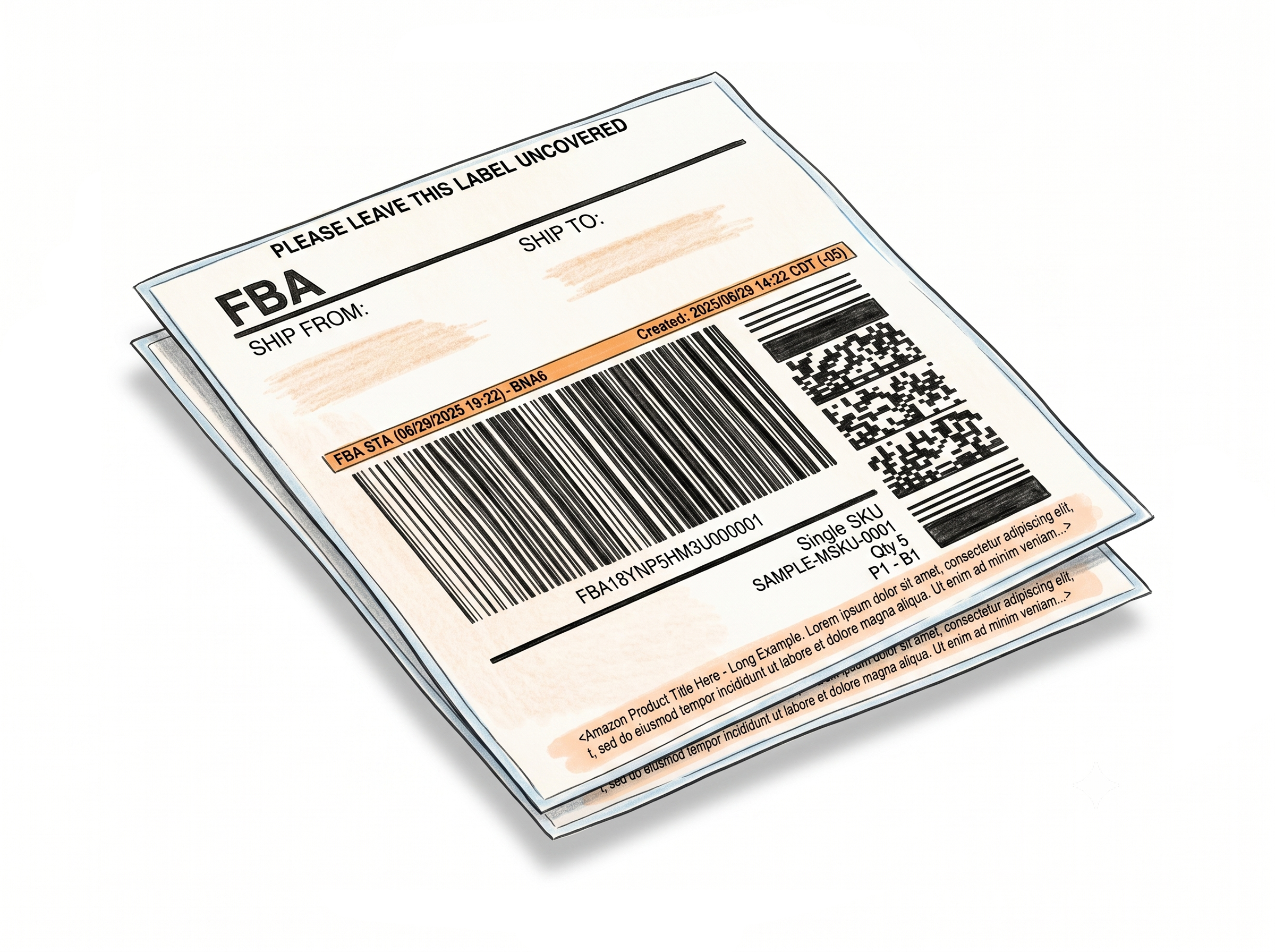
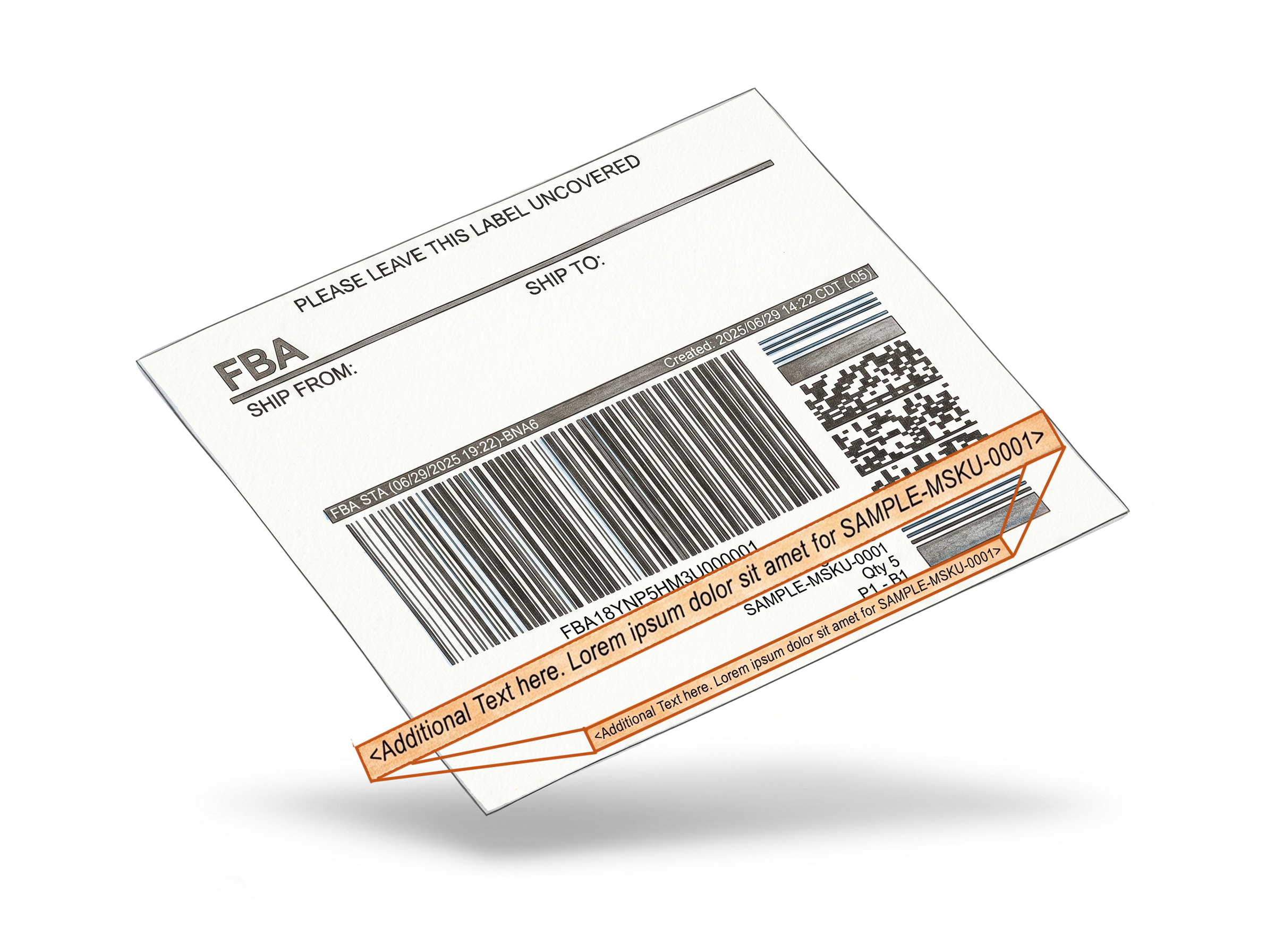
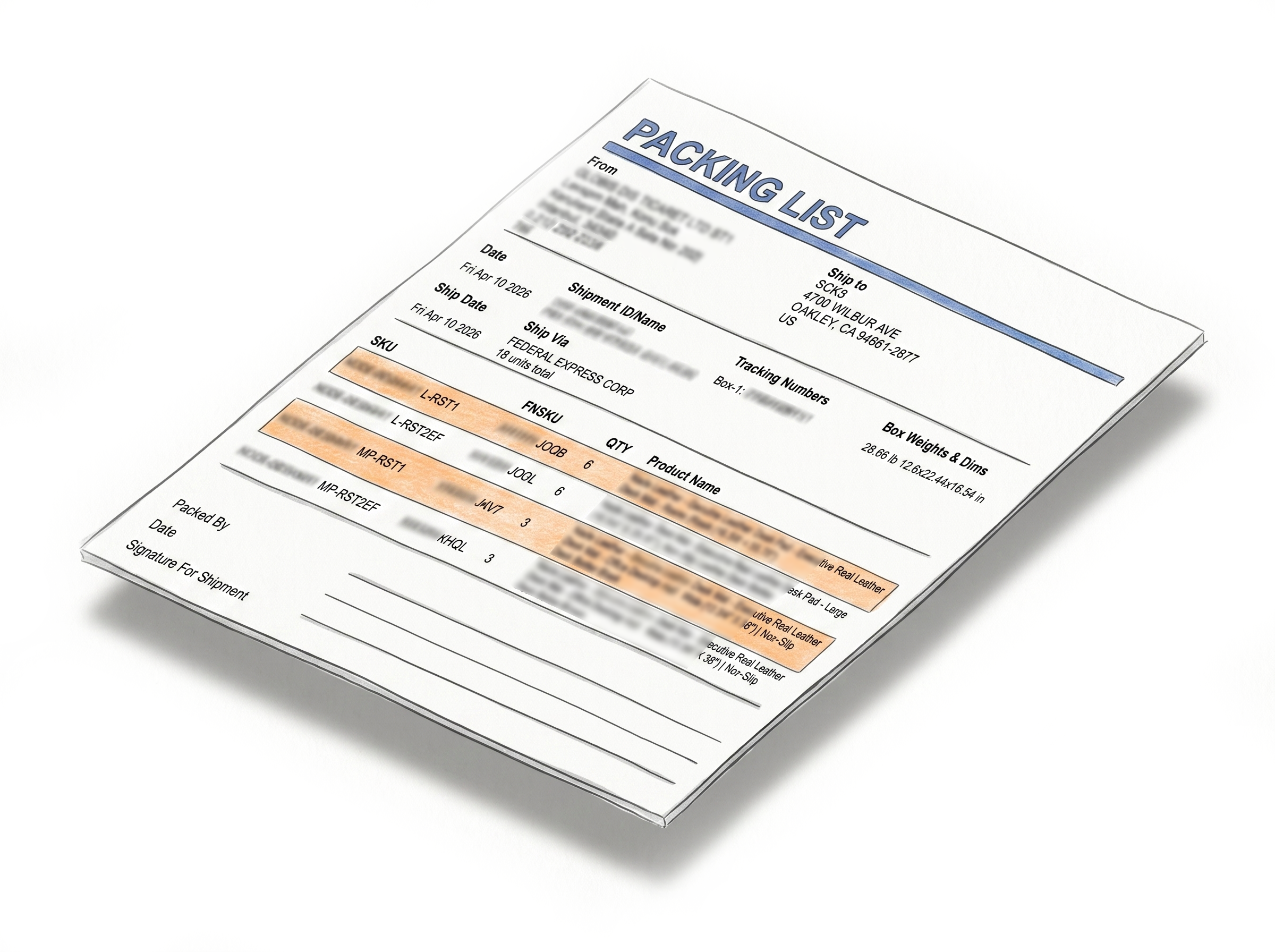
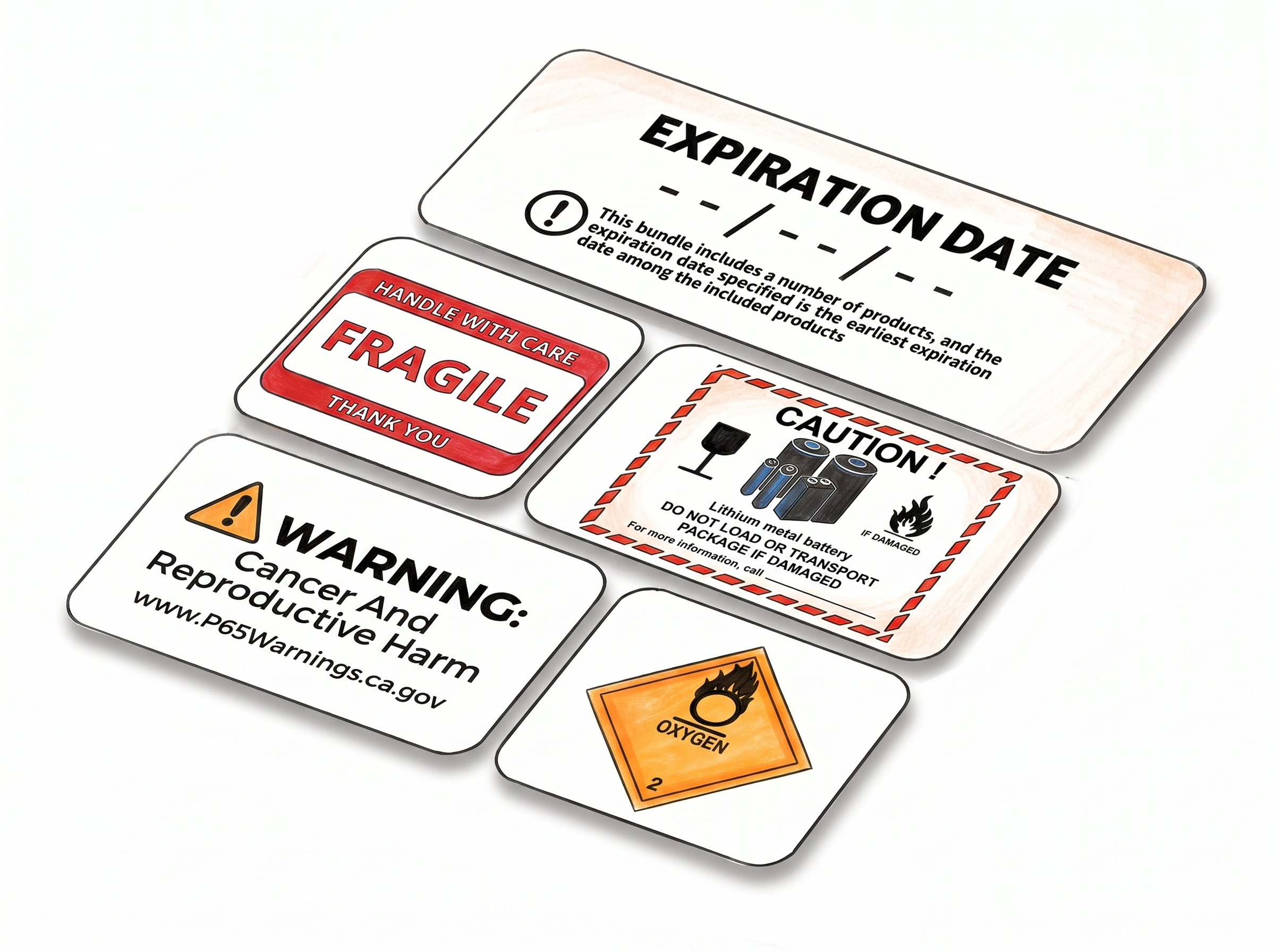
Shipping, Box Label AndPacking Slip Customization

Multiple Ways to Generate


Choose A Plan
Get 100 Product Labels And 10 Shipping Labels Free Every Month - No Credit Card Needed
Monthly Yearly 2 months free
Frequently Asked Questions
Everything you need to know about merging Amazon FBA split shipment box labels by SKU.
Why are my FBA box labels scattered across multiple PDFs in the first place?
When you create an FBA shipment in Send to Amazon, Amazon's fulfillment network optimization automatically splits your inventory across multiple fulfillment centers. Each split generates a separate shipment with its own box label PDF - so boxes for the same SKU end up spread across different files. This makes warehouse preparation harder because staff have to switch between PDFs, print shipment by shipment, and sort labels manually before they can pack by SKU.
What does Label Resizer actually do with these split shipment labels?
Label Resizer collects box labels from all split shipments, groups them by SKU, sorts them alphabetically, inserts separator labels between each SKU transition, and produces a single clean output - either one merged PDF with all SKUs in order, or a ZIP file with a separate PDF per SKU. The result is a label set your warehouse team can print and work through SKU by SKU, without any manual sorting.
What are the two ways to use this feature?
There are two workflows. The Chrome & Firefox Extension works directly inside Seller Central - a merge button appears in the Box Labels section of Send to Amazon and handles everything without you downloading any files. The Web Uploader is a standalone tool where you download box label PDFs from Seller Central, upload 2 to 10 files to Label Resizer, and merge them online. Both produce the same output and support the same features.
Which workflow is right for me - the Extension or the Web Uploader?
If you work inside Seller Central and want the fastest path with no file management, use the Chrome or Firefox Extension. One click and your labels are merged. If your warehouse team handles shipment files independently outside Seller Central, or if installing a browser extension is not an option in your environment, use the Web Uploader. Both deliver the same SKU-sorted output.
What PDF formats does the Web Uploader accept?
The Web Uploader accepts Amazon box label PDFs in two formats: Thermal printing – 4×6 inches and One label per A4 paper. All files in a single upload must be in the same format - you cannot mix the two. The 3-1/3" × 4" US Letter format is not supported. You can upload between 2 and 10 PDF files per session.
What output options are available and how do I configure them?
You can choose between two output formats: a Single PDF with all SKUs sorted alphabetically, or a ZIP file containing a separate PDF for each SKU. You set this preference once in Shipping Label Settings along with your label size and any additional options - product title, custom free text, separator customization, and more. These settings are saved and applied automatically to every merge session going forward, regardless of which workflow you use.
What are separator labels, and are they different between the two workflows?
Separator labels are blank-style divider labels automatically inserted every time the SKU changes in the merged output. They give warehouse staff a clear visual cue - no counting pages or checking headers to know a new SKU has started. In the Web Uploader workflow, each separator displays the SKU name. In the Chrome Extension workflow, you can fully customize the separator text and assign different text per SKU, giving you more control over how each group is identified on the warehouse floor.
Does this work for both SPD and LTL shipments?
Yes, both shipment types are supported. For LTL (Less Than Truckload) shipments, Label Resizer additionally prints the Fulfillment Center code on each label during the merge. This is important for LTL because a single pallet may contain boxes destined for different fulfillment centers - the FC code ensures nothing gets mixed during pallet preparation and warehouse organization.
What happens with large shipments that have more than 1,000 boxes?
Shipments under 1,000 boxes process instantly and download automatically when ready - you stay on the page. Shipments over 1,000 boxes run as a background job so the processing does not block your workflow. You receive a notification when the job starts and another when it completes, with a direct download link in the notification. All completed background jobs remain available on the Merge Box Labels by SKU page for 48 hours.
What do I need to get started?
You need a Label Resizer account - both workflows require you to be logged in. For the Chrome or Firefox Extension workflow, you also need the browser extension installed. You can start a free trial with no credit card required.