
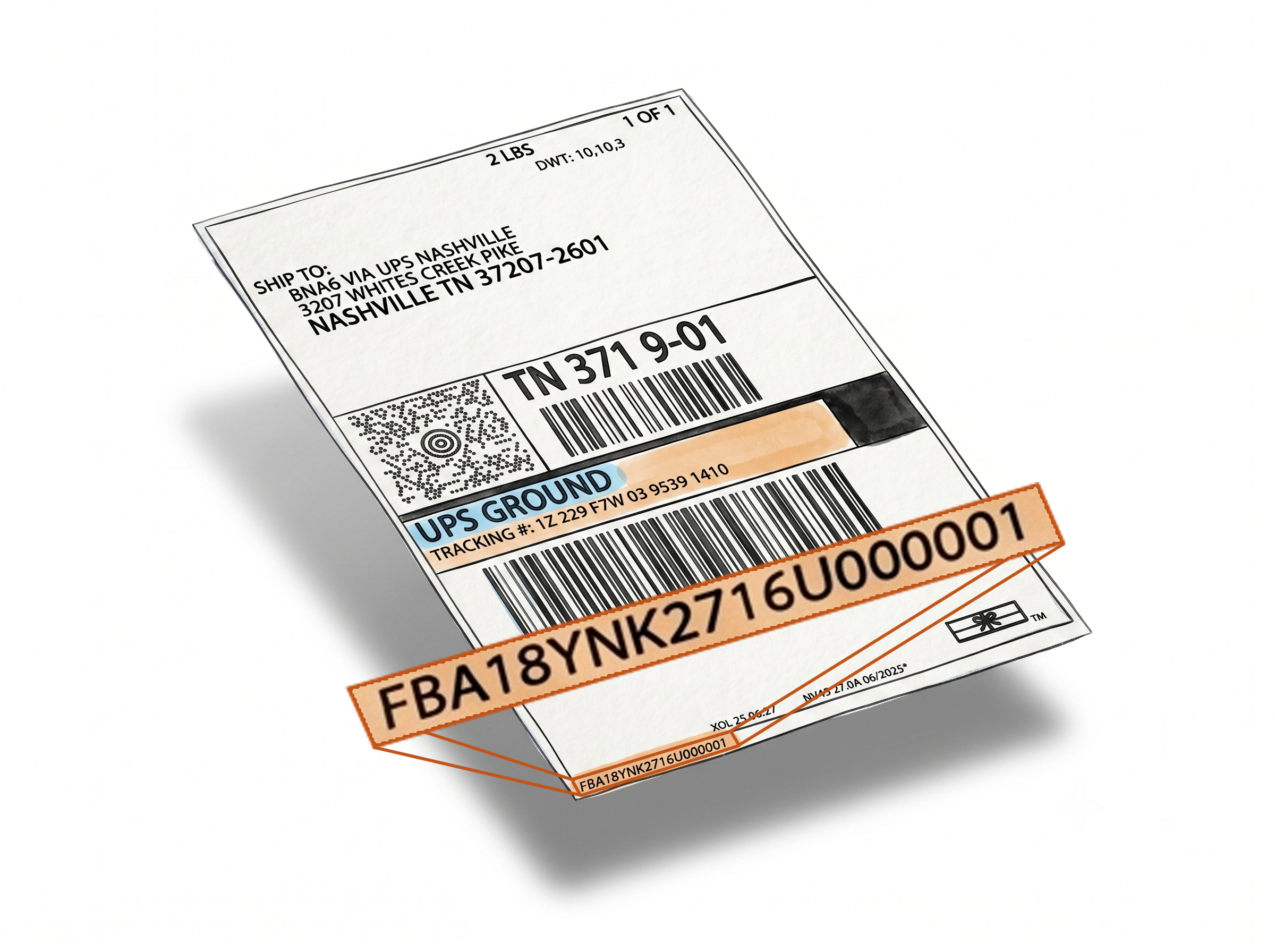
Keep Multi-SKU FBA Box Labels Organized with Separators
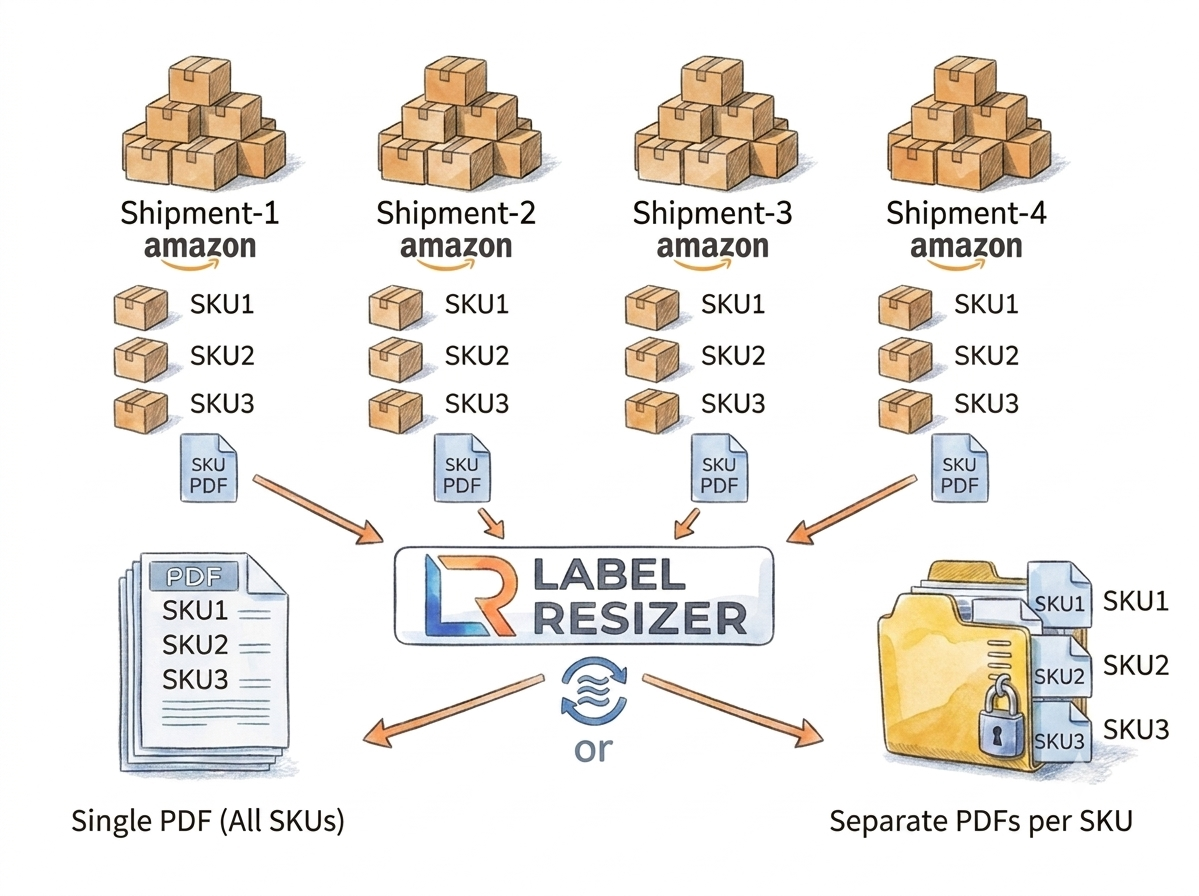
The Separator feature inserts a clear divider between Box Label groups when printing Amazon FBA shipment labels through the Label Resizer extension.
Supported for Send to Amazon and AWD shipment workflows, across both LTL and SPD shipment types. Choose between a header with custom text per SKU or a page break - so warehouse staff always know exactly where one product ends and the next begins.
Two Separator Types for Different Workflows
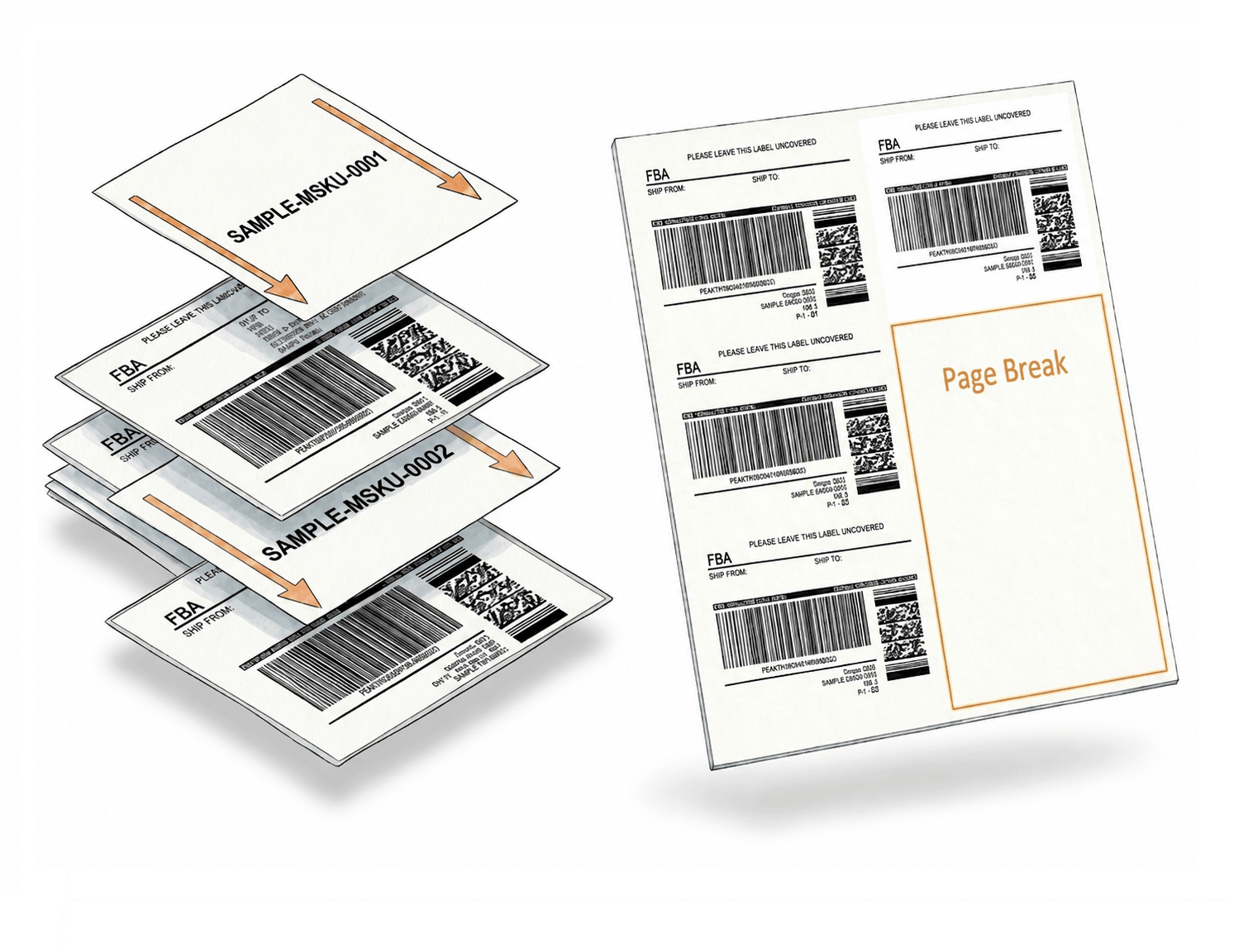
Header or page break - choose the separator that fits your workflow
Set it once and every multi-SKU print session stays clearly organized from the first label to the last.Header with custom text
Inserts a labeled divider at the start of each SKU group. When printing through the extension, a popup lets you enter custom separator text per SKU. If you leave the field blank, the Merchant SKU is used automatically - so every divider is always clearly labeled without any extra input.
Page break
When using Paper/Sticker or UP Thermal label formats, a page break is automatically inserted when transitioning between SKUs. No labels from one SKU bleed onto the page of another.
Enable once, applies to every session
Choose your separator type in Shipping Label Settings and save. The separator is applied automatically every time you print box labels through the extension - for LTL and SPD shipments alike, with no manual setup per shipment.
Fewer Mix-Ups, Better Warehouse Flow
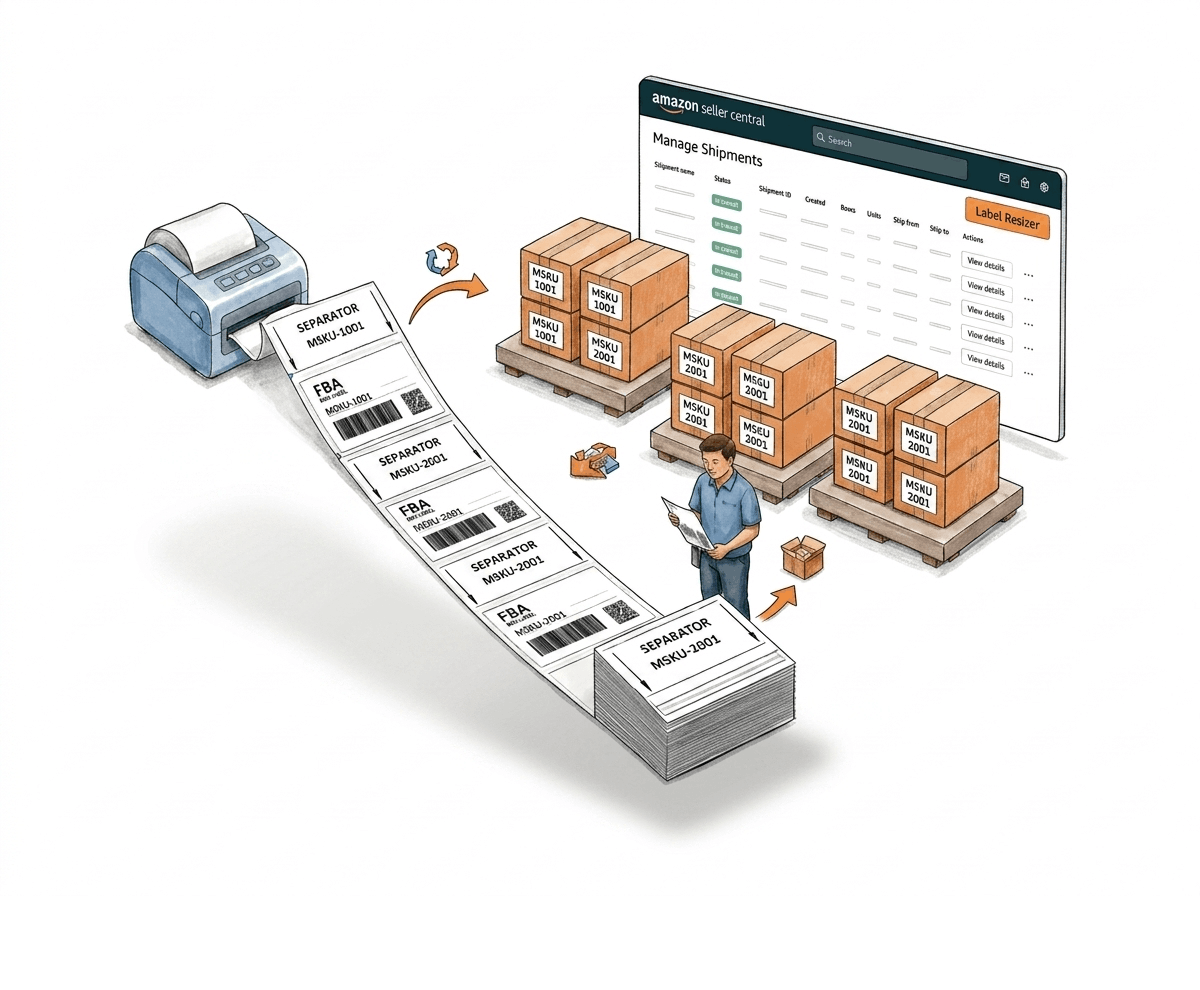
Separators turn a mixed stack of labels into a clearly organized, SKU-by-SKU print run - for both LTL and SPD shipments.
Clear visual breaks between product groups
In bulk Send to Amazon and AWD shipments with multiple SKUs - whether LTL or SPD - unlabeled transitions between label groups are one of the most common causes of packing errors. Separators eliminate the ambiguity.
Prevents label overlap and misalignment
Page break separators ensure clean formatting on continuous rolls and sticker sheets - each SKU group starts on a fresh page rather than running into the previous one.
Faster sorting for warehouse staff
When every SKU group has a clearly labeled header or a physical page break, staff can move through the print stack quickly without stopping to check which label belongs to which product.
How It Works
Pick your separator type, enable it once - it applies automatically to every LTL and SPD session after that.
Step 1: Enable the Separator Feature
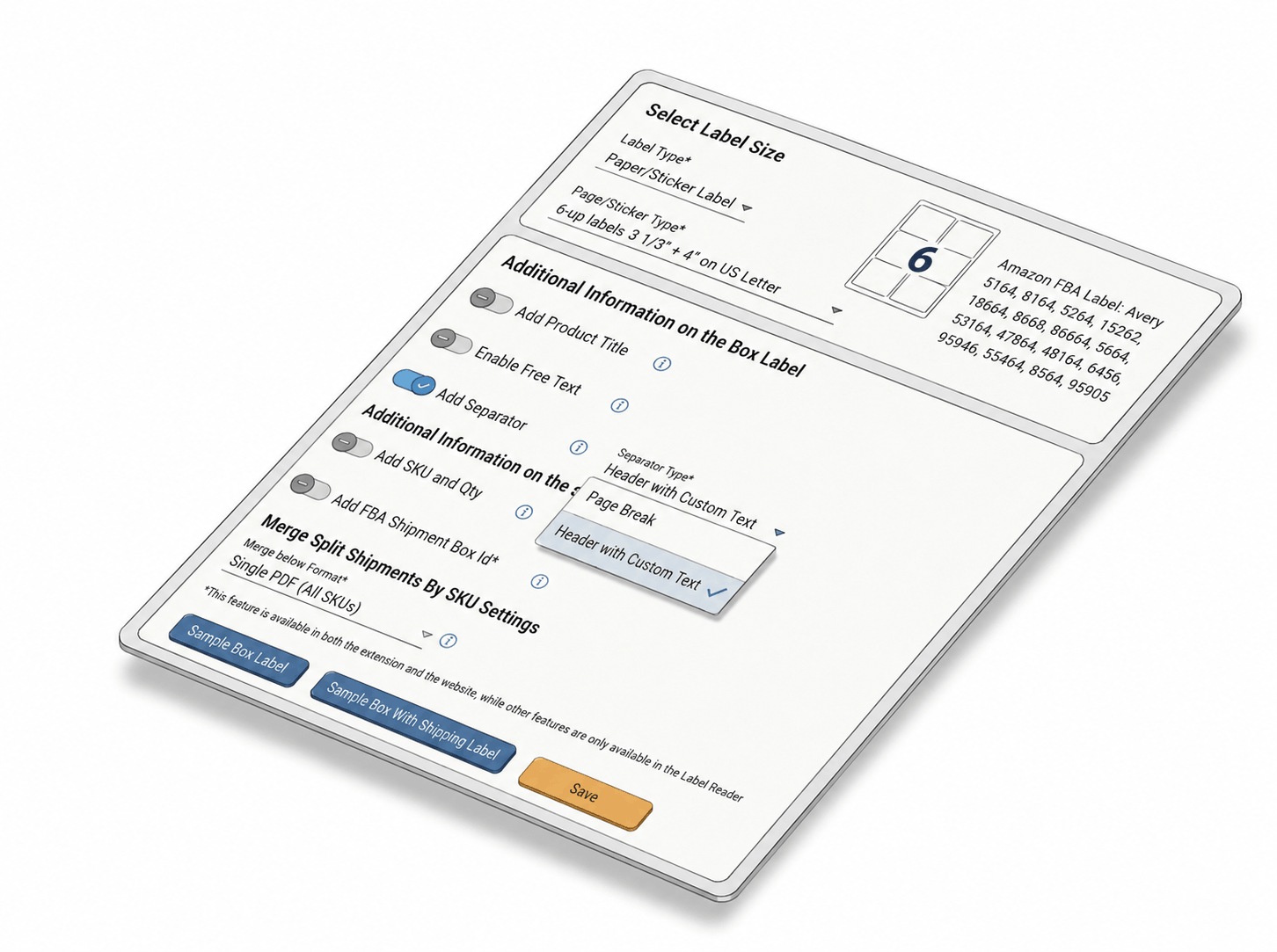
Go to Shipping → Shipping Label Settings in Label Resizer. Enable Add Separator, select your separator type - Header with Custom Text or Page Break - and click Save.
Step 2: Enter Separator Text (if using Header)
When printing box labels through the extension inside Seller Central, a popup appears per SKU. Enter the separator text for each product group. If you leave the field blank, the Merchant SKU is used automatically.
Step 3: Print with Clean Separators
The selected separator type is applied automatically across all Box Labels in the session - for Send to Amazon and AWD shipments, including LTL and SPD shipment types. Labels are organized and clearly divided, ready for the warehouse floor.
Done!
How to Add Separator Between Amazon Box Label Single SKU Groups
Everything You Need for Smarter Shipments
Every tool you need to label, pack, and ship your FBA inventory with confidence.
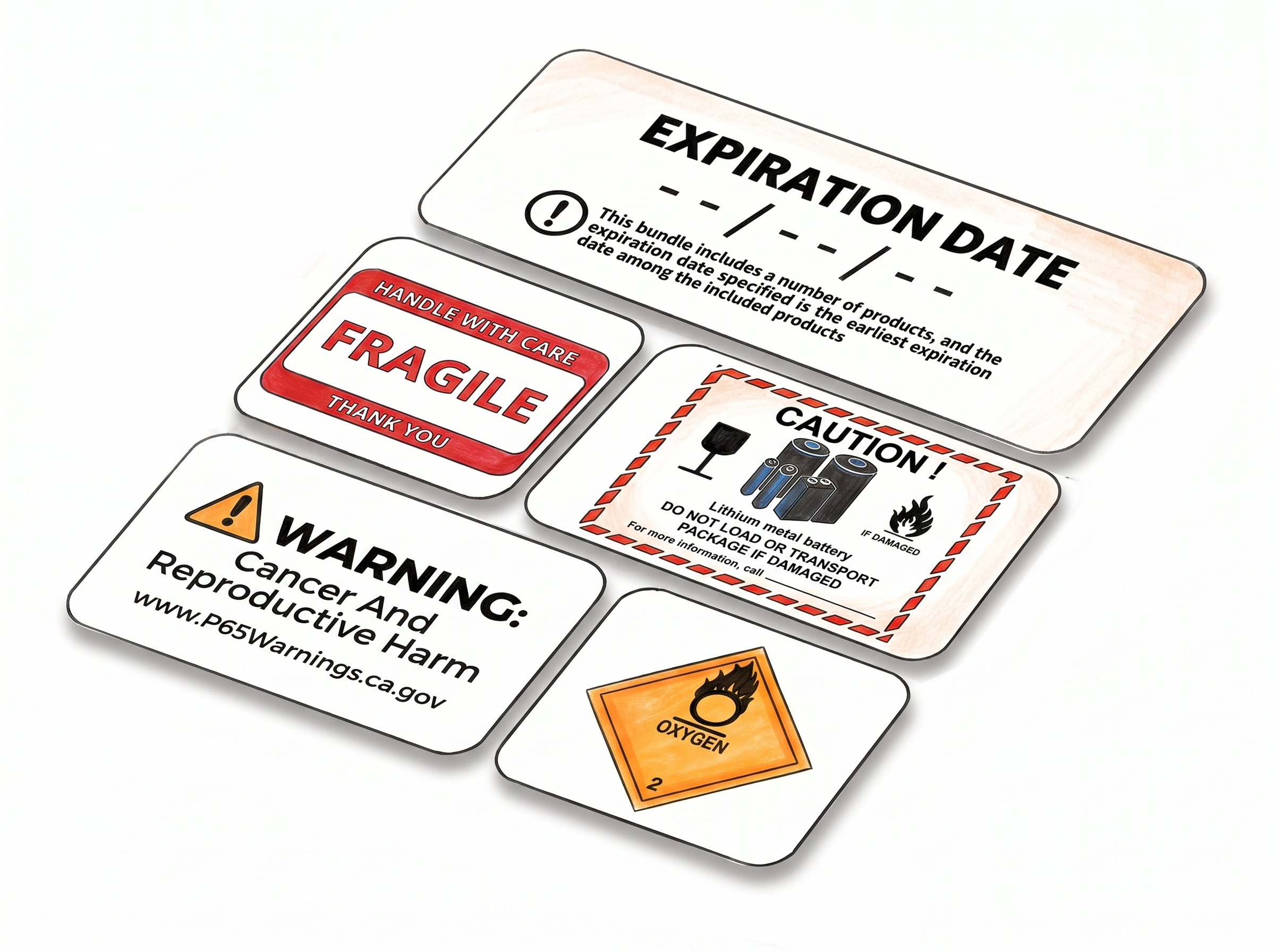
Shipping, Box Label AndPacking Slip Customization
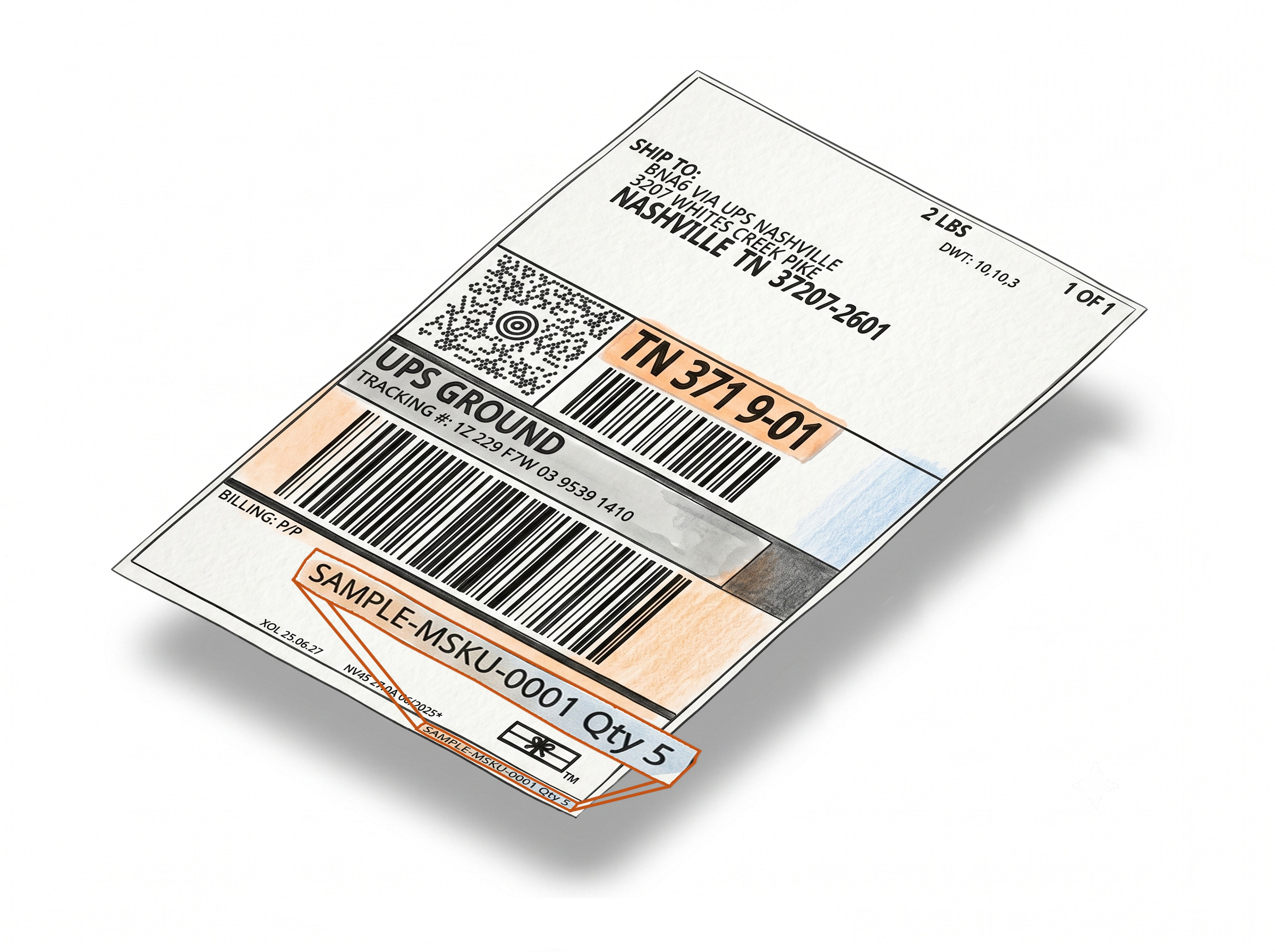
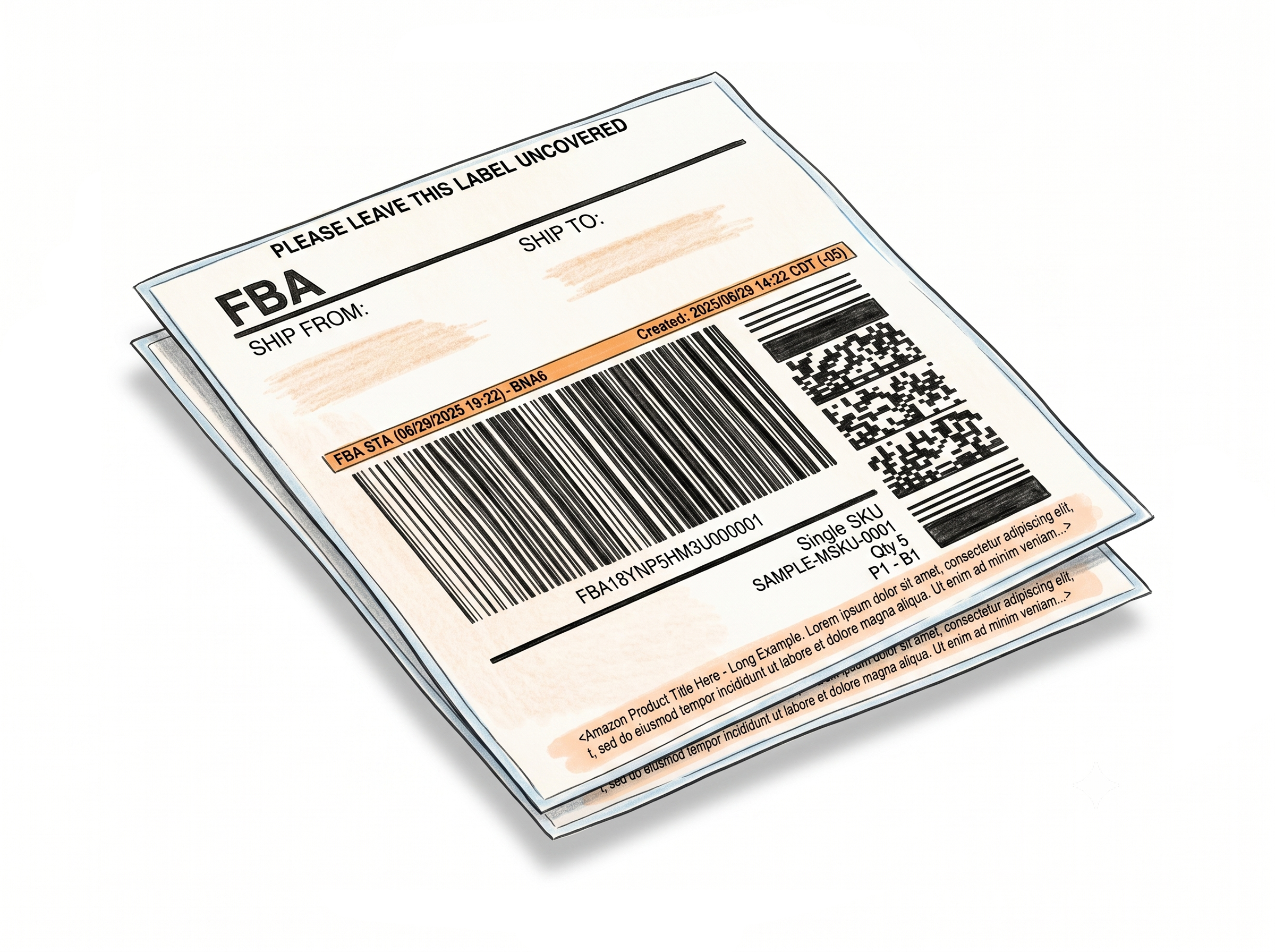
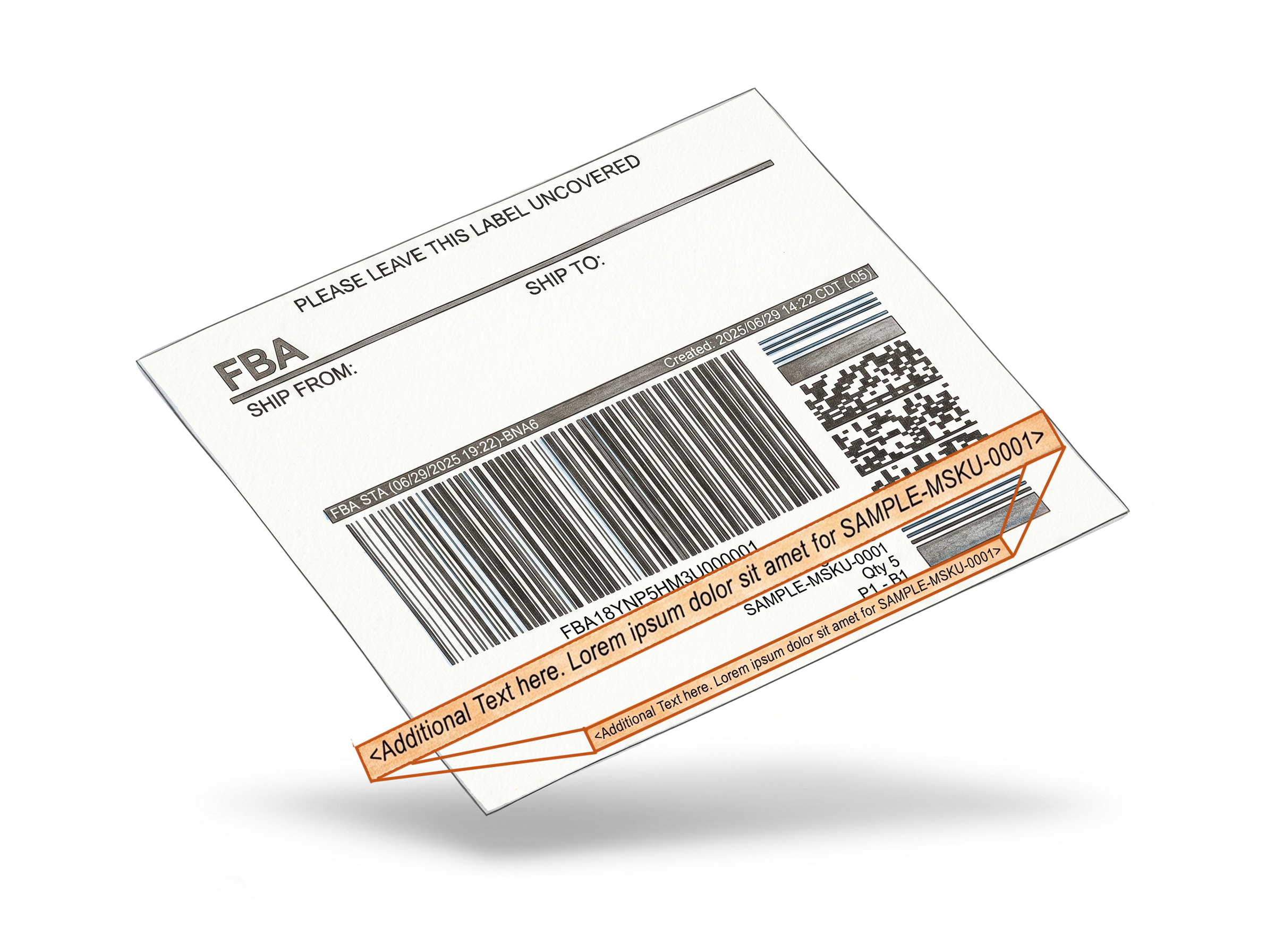
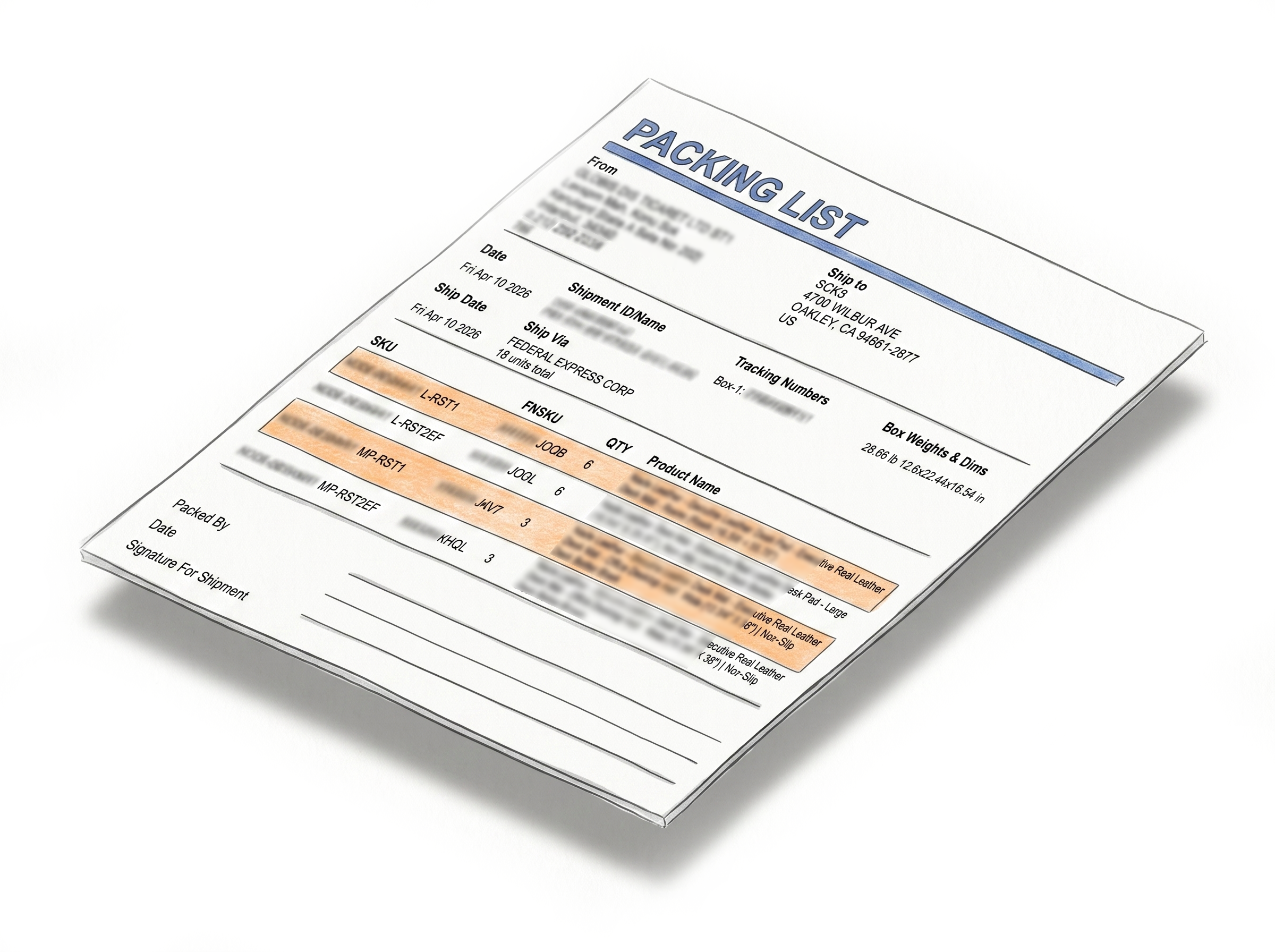
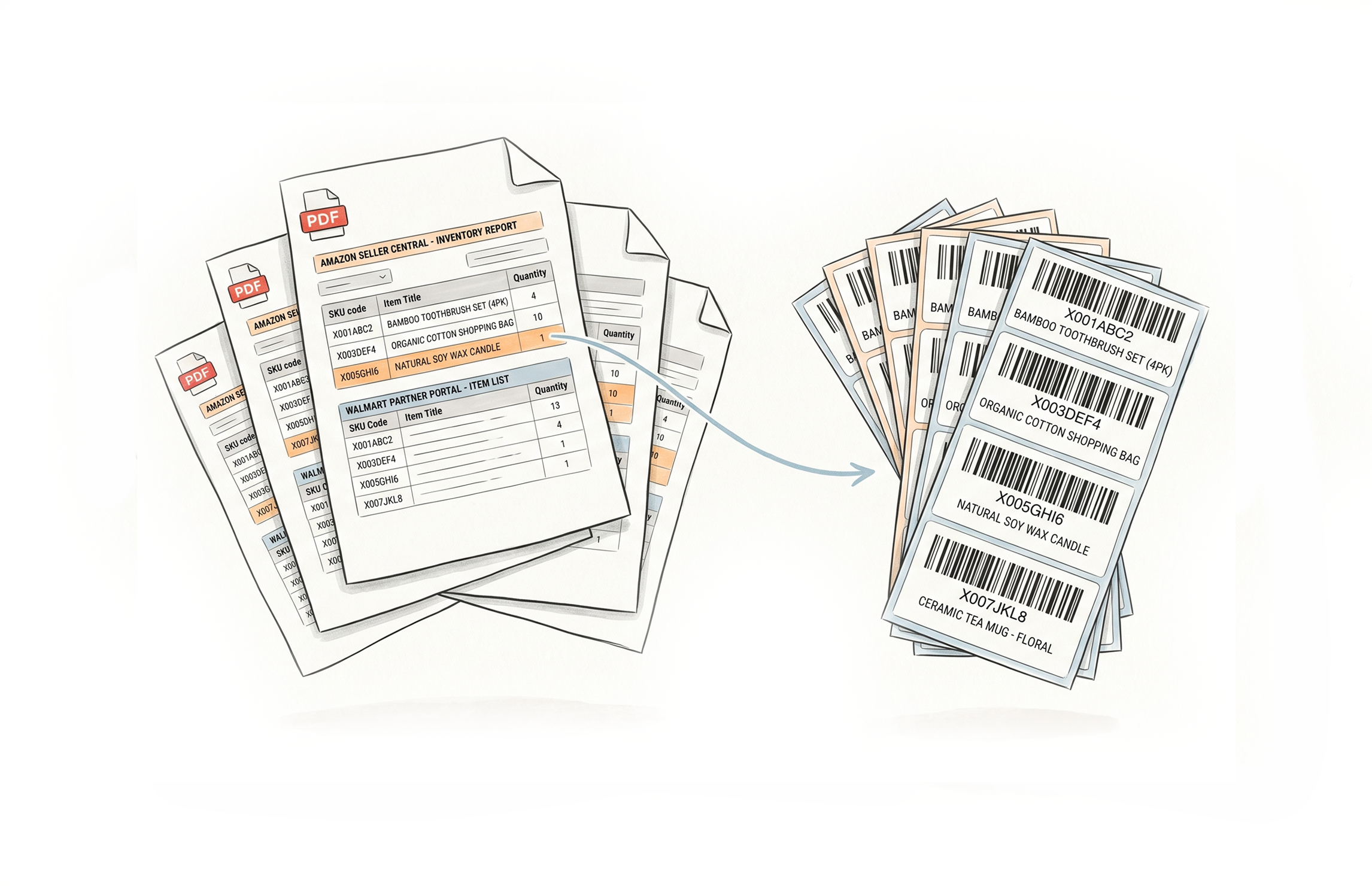
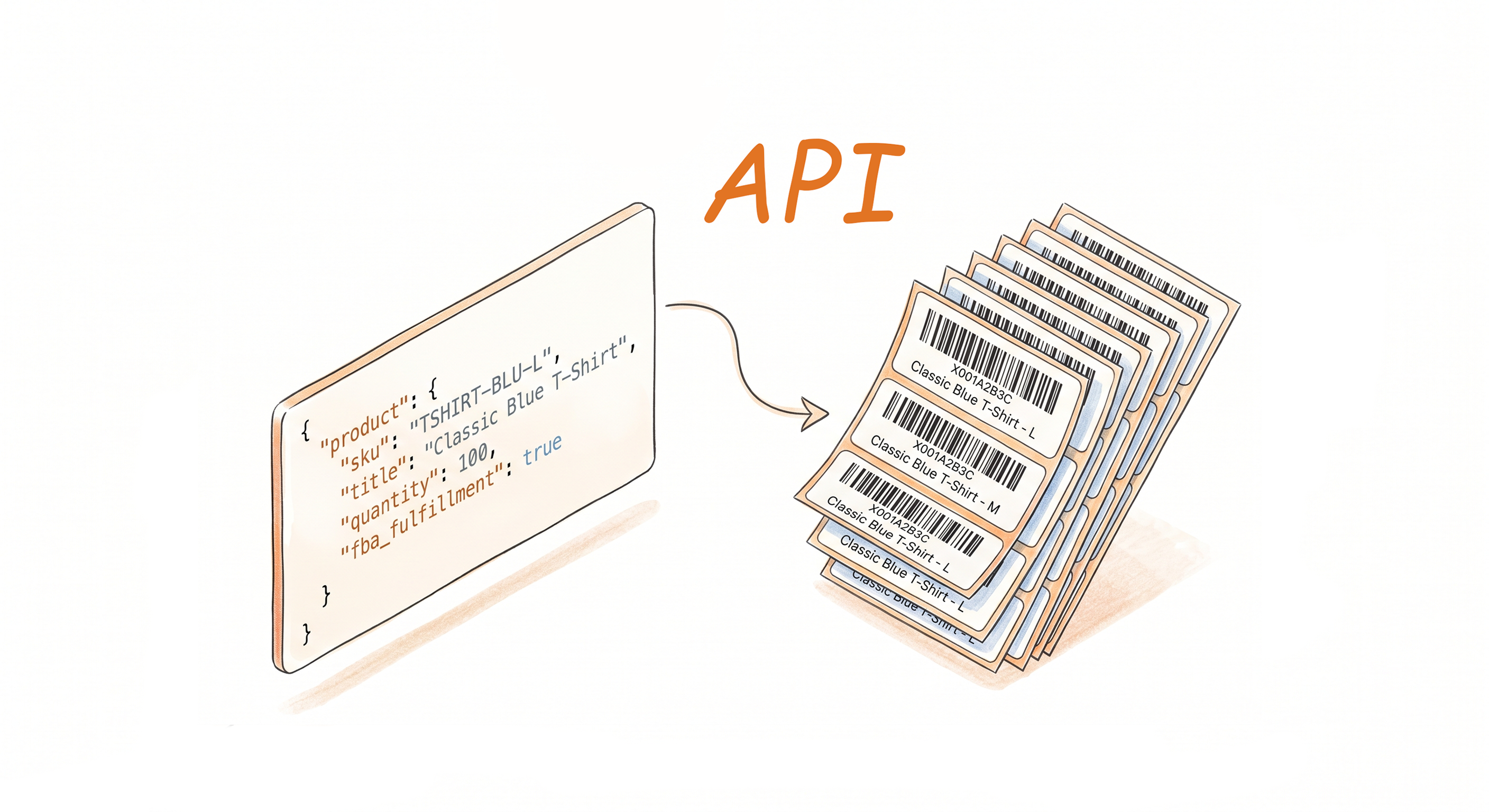
Multiple Ways to Generate

Choose A Plan
Get 100 Product Labels And 10 Shipping Labels Free Every Month - No Credit Card Needed
Monthly Yearly 2 months free
Frequently Asked Questions
Everything you need to know about adding separators between Amazon FBA Box Label groups - for LTL and SPD shipments.
What's the difference between the Header and Page Break separator types?
The Header with Custom Text option inserts a divider label at the start of each SKU group with text you specify per SKU. If you leave the field blank, the Merchant SKU is used automatically. The Page Break option starts a new page when switching between SKUs, preventing label overlap on sticker sheets and continuous thermal rolls.
What happens if I leave the custom separator text blank?
If no custom text is entered in the popup, the separator label automatically displays the Merchant SKU for that Box Label group - so your labels are always clearly identified without any extra input.
Which Amazon shipment types does the separator feature support?
The Add Separator feature supports Box Labels for both Amazon FBA shipment workflows: Send to Amazon and Amazon Warehouse and Distribution (AWD). Within those workflows, it works for both LTL (Less Than Truckload) and SPD (Small Parcel Delivery) shipment types.
Does the separator work for LTL shipments?
Yes. The Add Separator feature works for LTL (Less Than Truckload) shipments in both Send to Amazon and AWD workflows. Separators are inserted between Box Label groups in the same way as for SPD shipments - either a header with custom text or a page break.
Does the separator work for SPD shipments?
Yes. SPD (Small Parcel Delivery) shipments are fully supported. The separator is inserted between Box Label groups during printing, keeping each SKU group clearly divided whether you are using a header label or a page break.
Is there a difference between how separators work for LTL vs SPD shipments?
No. The separator behavior is the same for both LTL and SPD shipment types. You choose your separator type once in Shipping Label Settings, and it is applied automatically to every print session regardless of shipment type.
Can I enter different separator text for each SKU?
Yes. When using the Header with Custom Text option, the extension shows a popup for each SKU during the printing session where you can type a unique separator text per product group. If you leave the field empty, the Merchant SKU is used automatically.
Which label formats support the Page Break separator?
Page break separators apply when using Paper/Sticker Type or UP Thermal label formats. They ensure each SKU group begins on a new page rather than continuing from the previous group.
Does the separator feature work with the web uploader?
No. The Add Separator feature works exclusively through the Label Resizer Chrome and Firefox extension inside Amazon Seller Central.
Do I need a Label Resizer account to use this feature?
Yes. A logged-in Label Resizer account and the Chrome or Firefox extension are required. You can start a free trial with no credit card needed.