Step by Step Guide
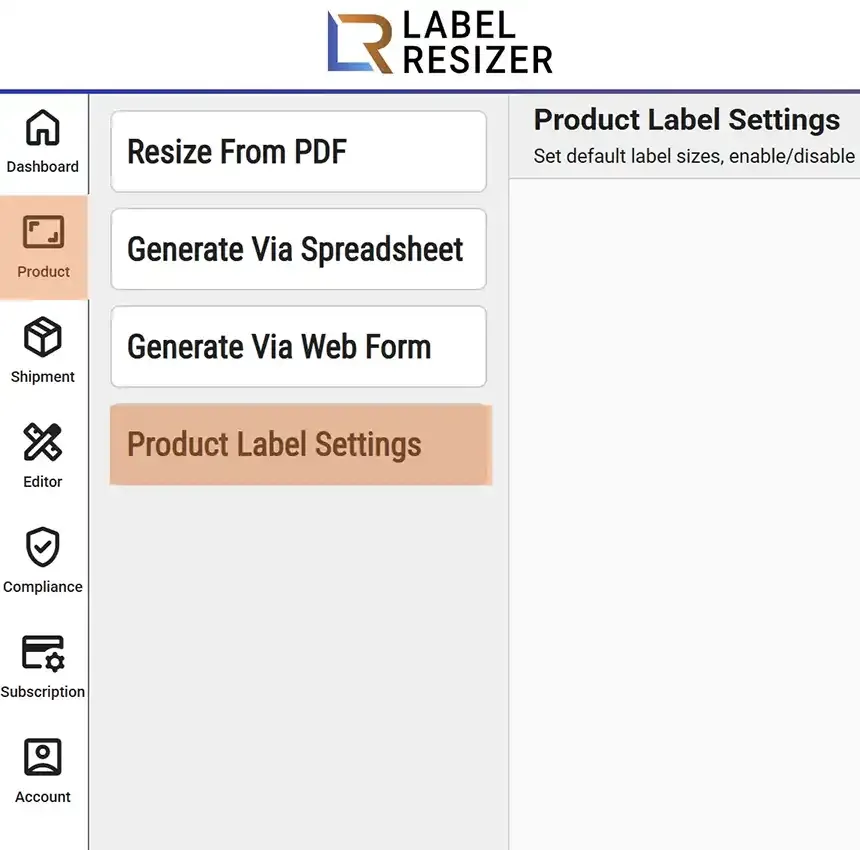
- 1After logging into Label Resizer, click on Product from the leftmost menu then select Product Label Settings from the sub-menu.
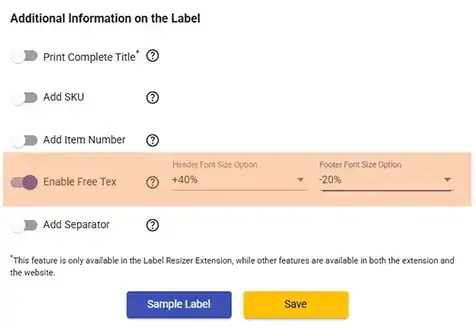
- 2In product settings, enable the Enable Free Text slider. Set your preferred font sizes for Header and Footer texts. Then save settings.
- 3
A popup screen opens whenever you resize labels with Enable Free Text activated. You can add individual header, footer, and side text for each FNSKU independently or apply the same text to all labels. If you leave fields empty, no additional text will appear on your labels.
Texts you enter for each FNSKU are saved and automatically displayed in future sessions. The "Save and Close" button only saves your entries - it does not perform the resize action.
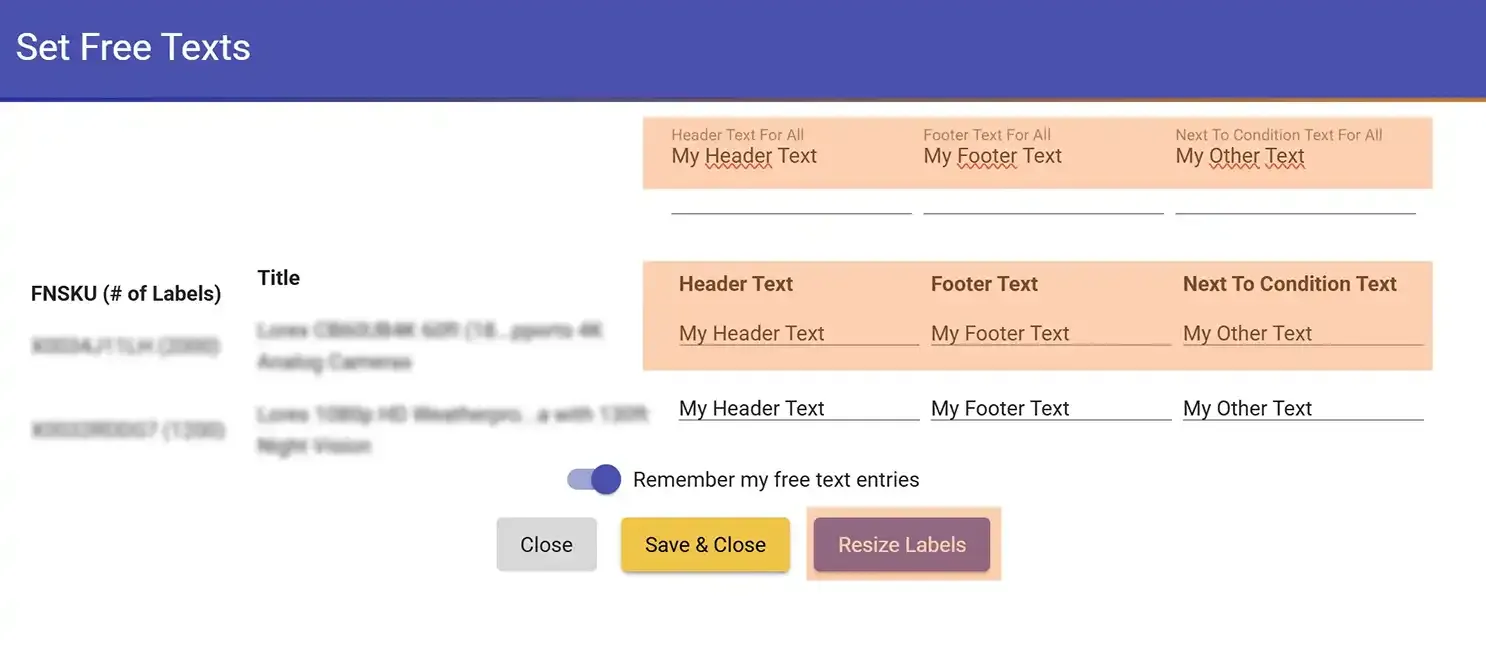
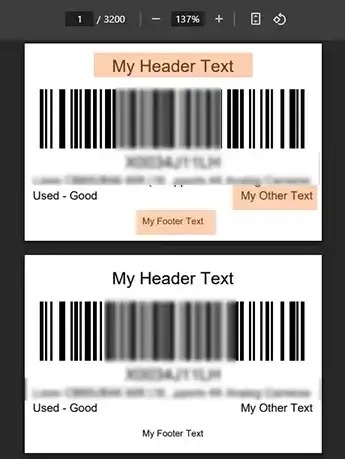
- 4When you click Resize Labels, resized labels with font-adjusted free text are automatically downloaded to your computer.
- 5
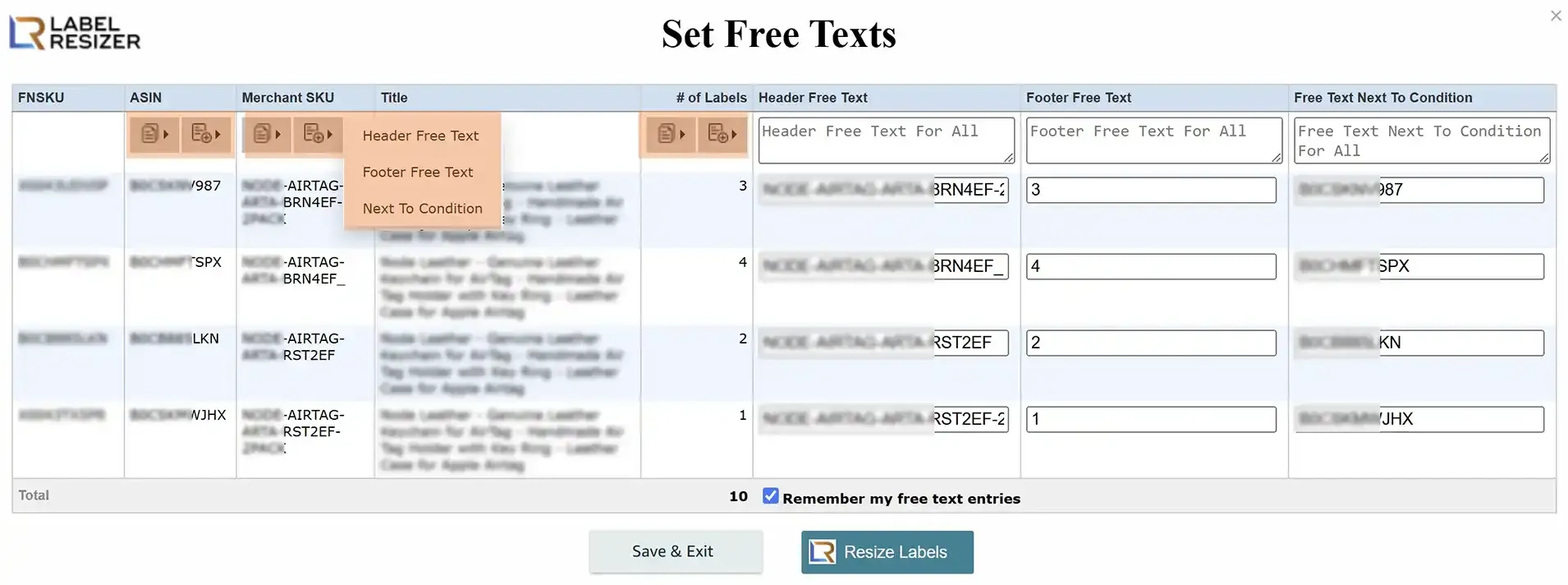
In the extension, you can easily insert ASIN, MSKU, or Number of Labels into any Free Text field with special buttons. Text entered in the top Free Text boxes will be applied to all labels during printing.