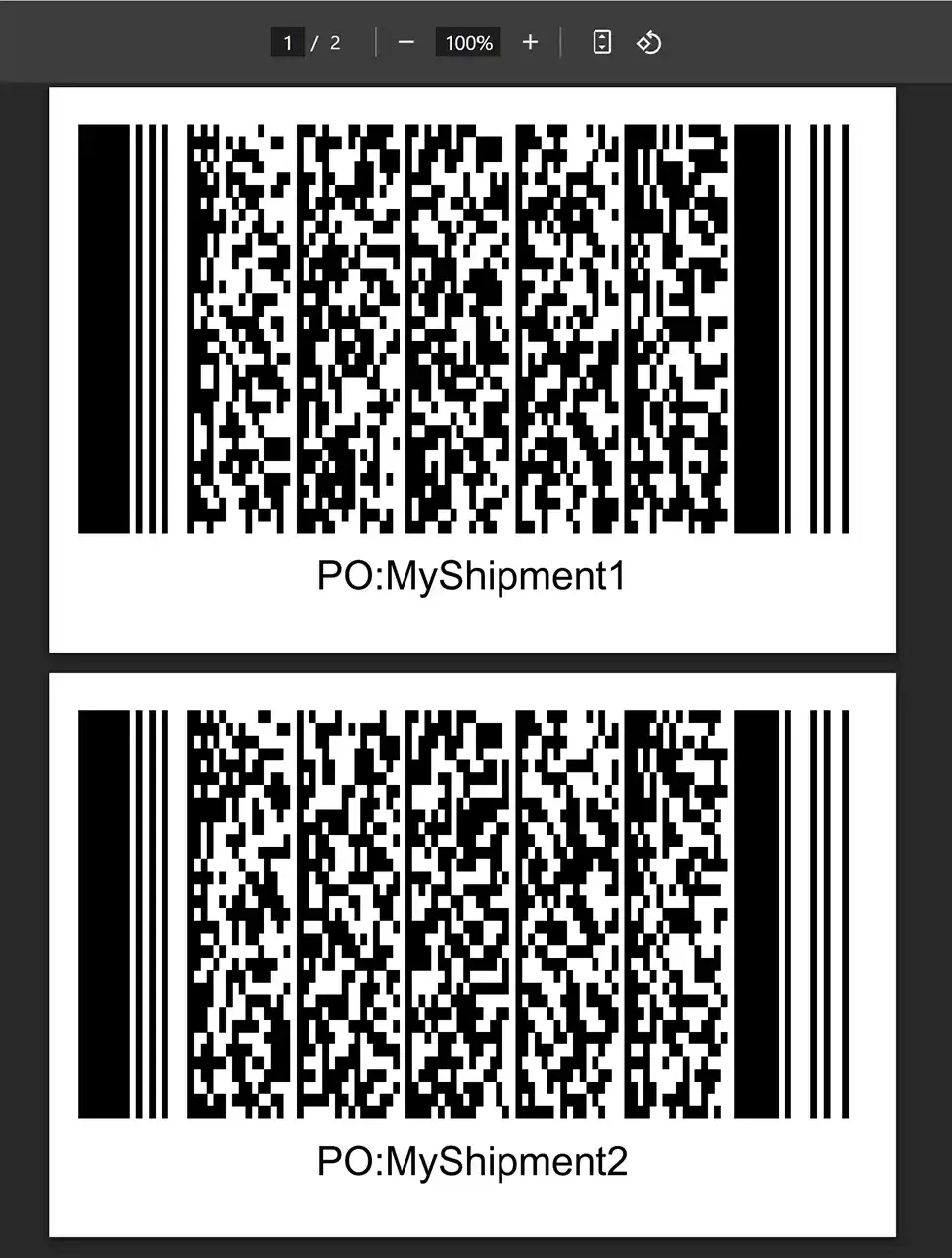
Step by Step Guide
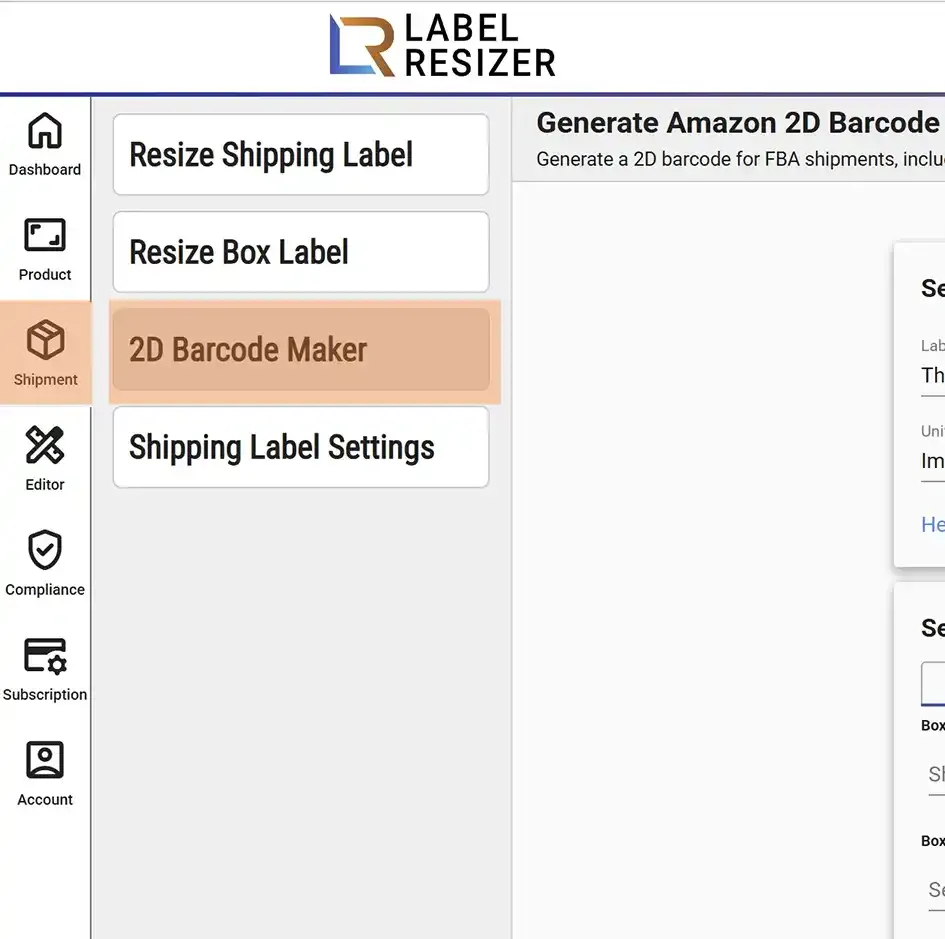
- 1After logging into Label Resizer, click on Shipping from the leftmost menu, then select FBA 2D Barcode Maker from the sub-menu.
- 2
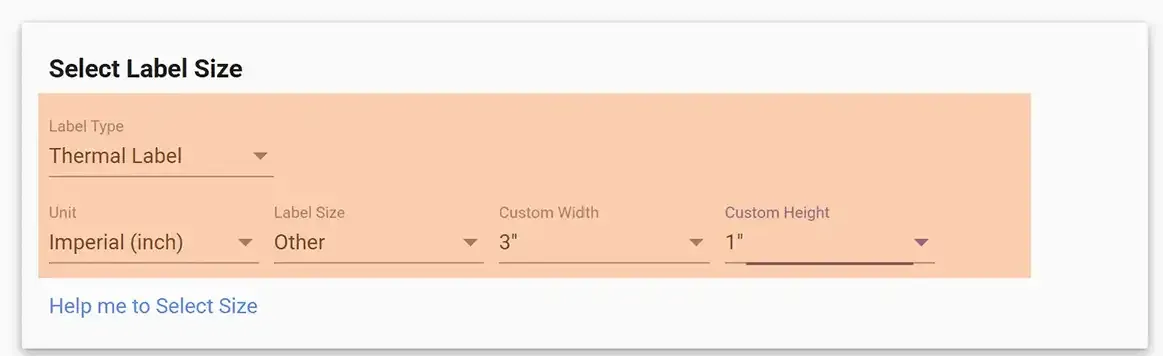
Determine the Label Type, then adjust your settings such as metric preference and label size details.
Manual Input
- 1Select the Manual Input tab. Enter the Shipment ID or Box ID for the box you want to generate the Amazon 2D barcode for.
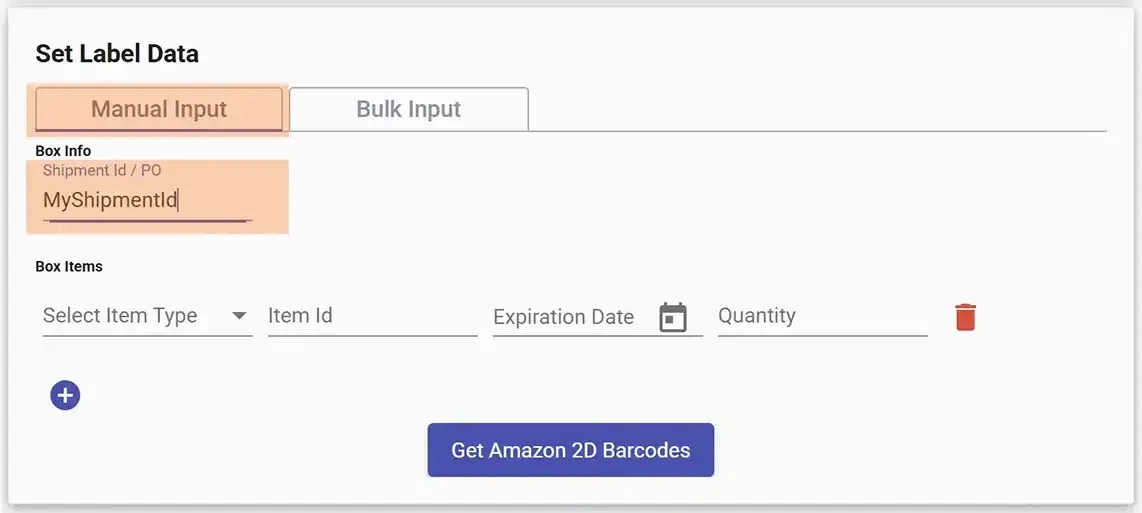
- 2Select the Item type (ASIN, EAN, FNSKU, ISBN, or UPC) and enter the corresponding Item ID. Fill in the Expiration Date and Quantity for each item. Add one row per different item type in your box using the add icon, and delete rows using the delete icon.
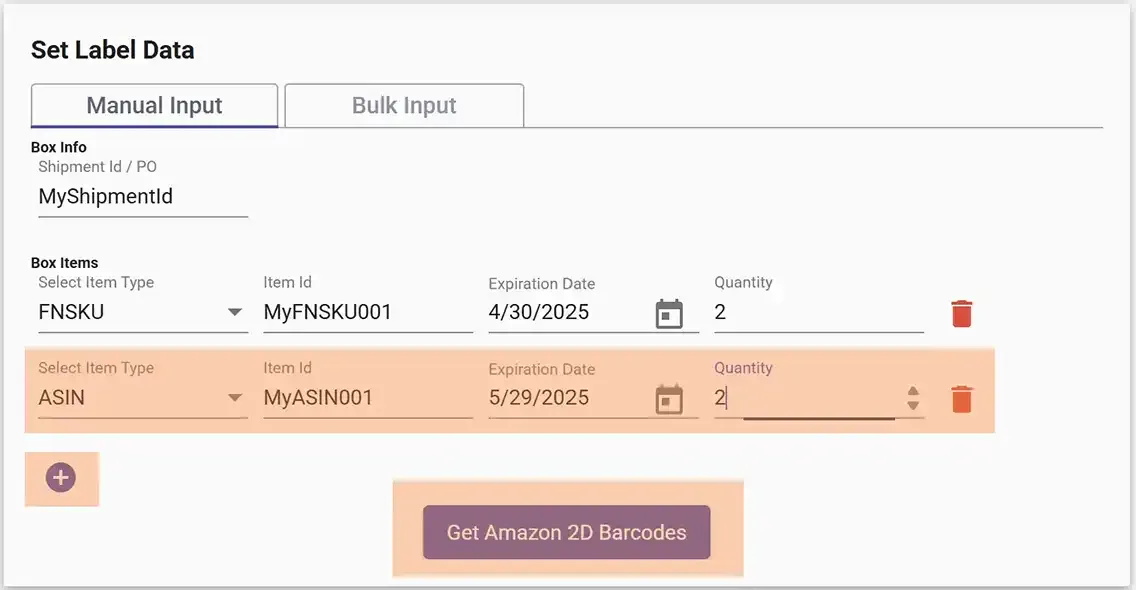
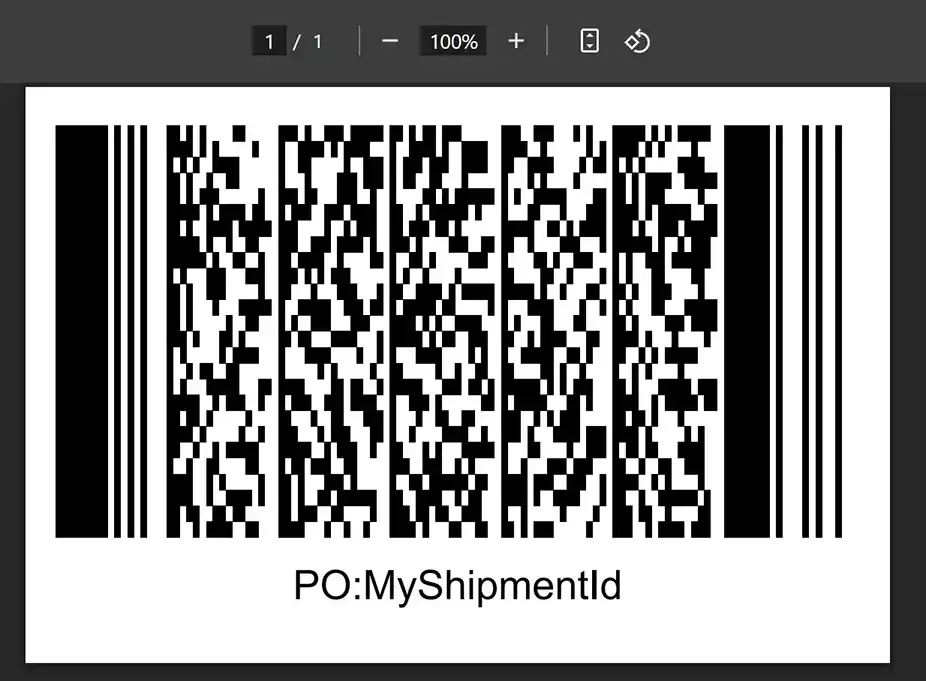
- 3Click the Generate Amazon 2D Barcode button. Your labels will be downloaded as a PDF file and opened in a new browser tab.
Bulk Input
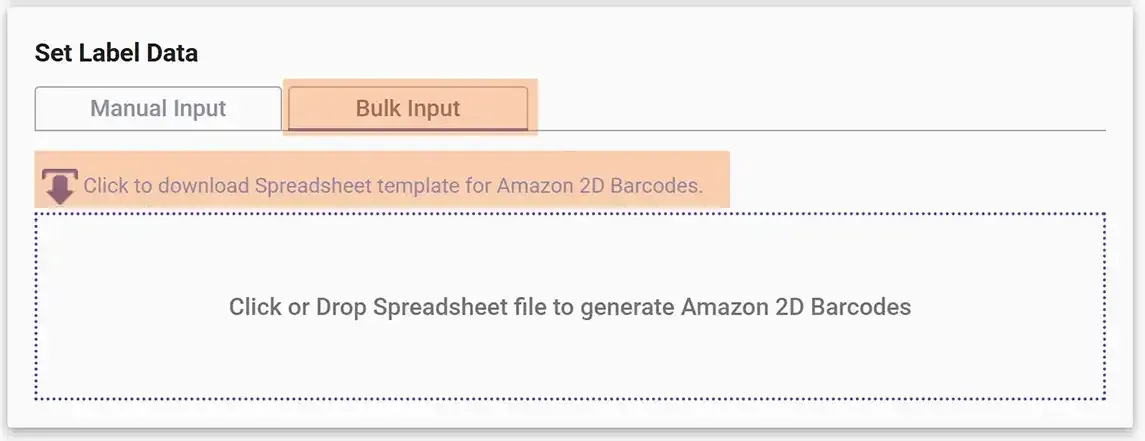
- 1Click on the Bulk Input tab, then download the spreadsheet template for Amazon 2D barcodes. This feature is only available for registered users.
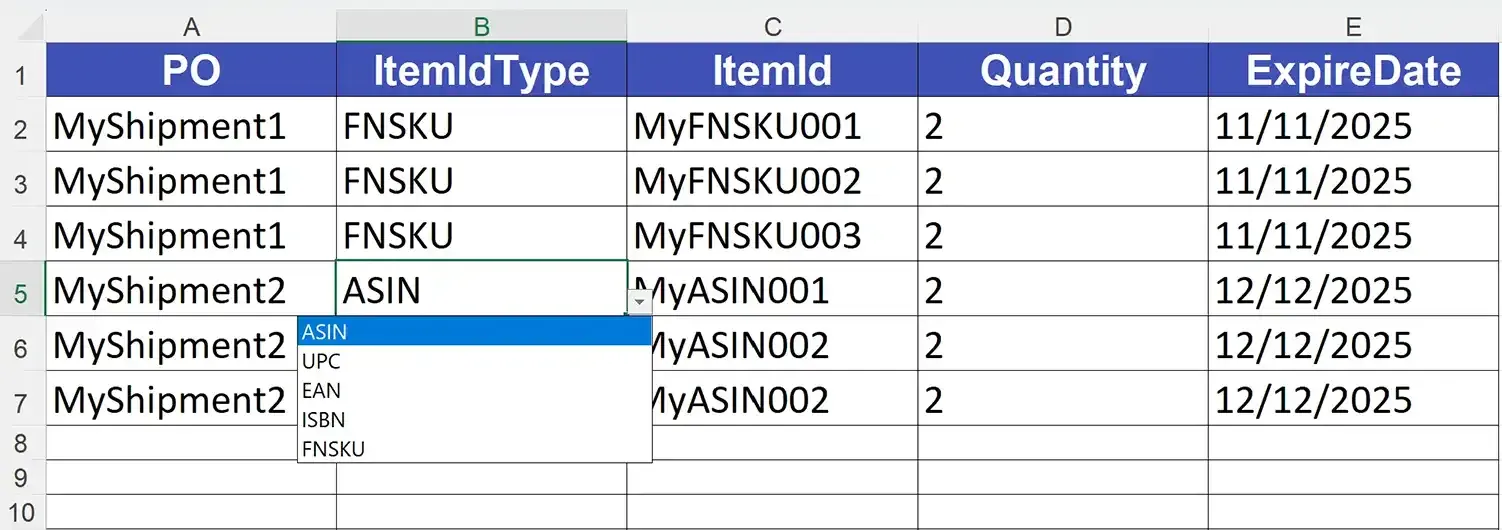
- 2Enter the Shipment ID in the Box Info column. If a box has multiple item types, add the same Shipment ID in multiple rows. Select the Item Type from the dropdown for each row, enter the Item ID, Expiration Date, and Quantity. Save the spreadsheet file.
- 3
Click the dotted area to select your spreadsheet file or drag and drop it. Your labels will be downloaded as a PDF file and opened in a new browser tab.