
Preview Your Design

After you've created your label design in the Label Editor, it's important to preview it before moving on to resizing or printing. The preview feature allows you to see exactly how your labels will look when they're generated, helping you catch any layout issues or content misplacements early.

By generating a test preview, you can get a sample PDF version of your design filled with placeholder text and images. This makes it easy to check if your layout works well for different text lengths, image placements, and overall alignment. You can even do a test print to see how everything looks on paper.

Note: All generic texts and any custom texts you type on the popup screen are only for preview mode. They will not be added to your actual printed labels.


Step by Step Guide

  1. 1
    When you are ready with your label design, click on the Preview Label icon on the upper right panel.
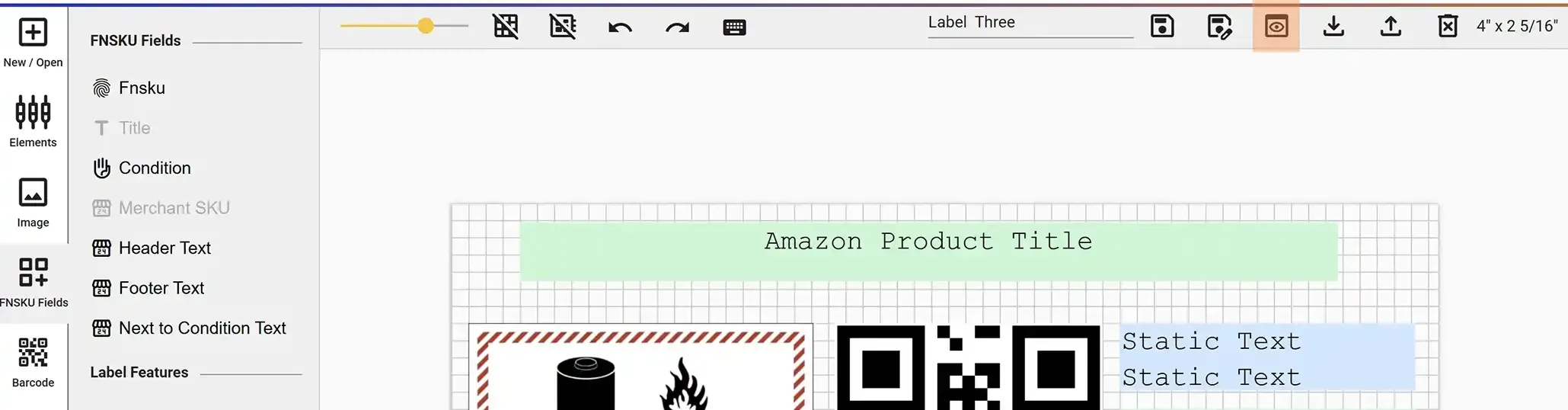
    Preview Label icon
  2. 2
    Enter your preview information for the Label Components on the popup screen. You also have the option to add a Dynamic Image link in preview mode. Click on the Preview button on the popup screen to download the sample PDF file containing your labels with your own label design.
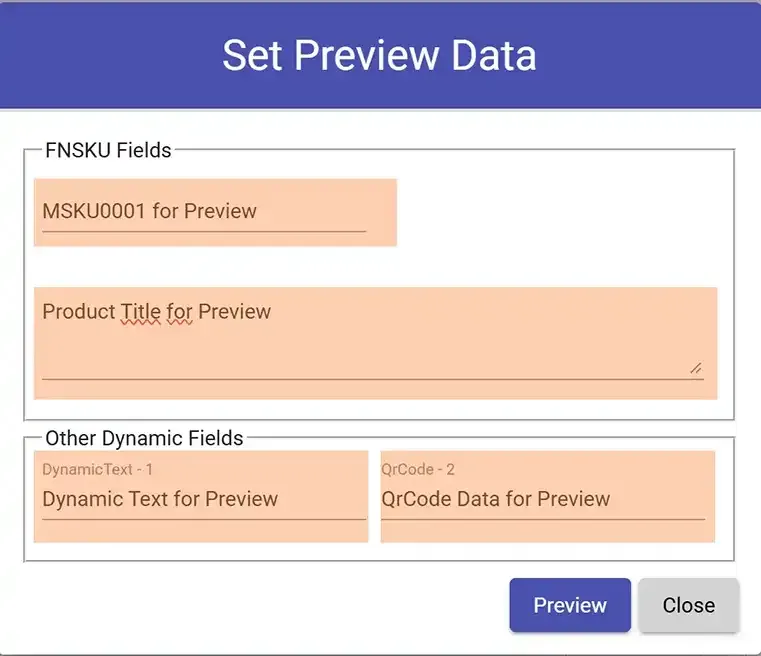
    Preview popup screen
  3. 3

    As soon as you click on the Preview button, the PDF file is downloaded to your computer. Check your download folder. The generated label includes a watermark and is intended for testing purposes only.
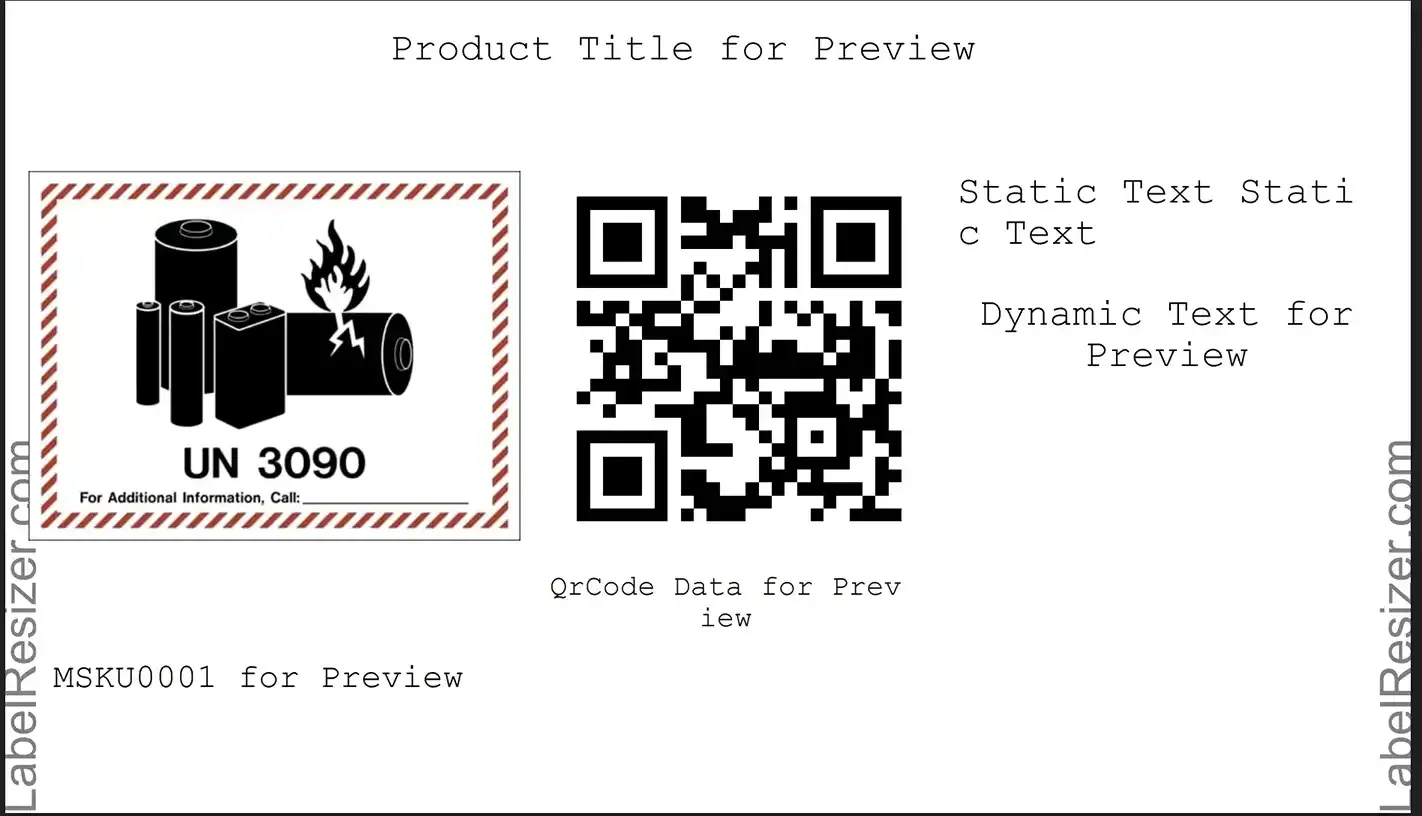
    Preview PDF with watermark