
Step by Step Guide
- 1Check the Download folder: After you click on the Resize Labels buttons or use our Web Uploader, the new PDF file is generated and downloaded to your Download folder on your computer. The new PDF file is also opened in a new tab on your browser.
- 2Try Firefox and Chrome extensions: Label Resizer has both Firefox and Chrome extensions. If you experience issues with one of the Label Resizer extensions, please try the alternative one on the other browser. Newly added extensions on your computer might prevent Label Resizer extensions from working.
- 3Uninstall and Reinstall Label Resizer extension: Reinstalling the Label Resizer extension might eliminate the issues. Uninstall the extension and reinstall it again.
- 4Use the latest version of the extension: We update our extensions and services in line with your latest needs. Be sure that you use the latest version of our extensions: LR Chrome extension and LR Firefox extension.
- 5Can you get Amazon original labels: Our services depend on the original labels provided by Amazon. In some cases, the issue might be related to Amazon Seller Central services. To test this, please click on the 'Print Labels' button on Amazon to get the original Amazon PDF file. If you cannot get the Amazon original PDF file, then the issue is related to Amazon services.
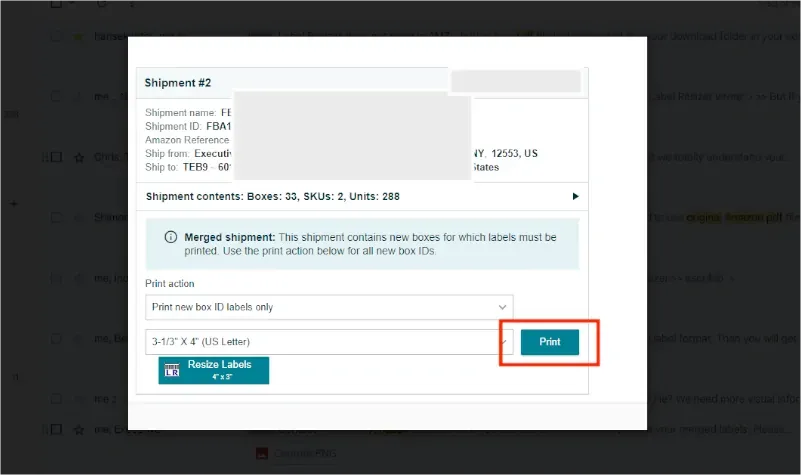
- 6Send the screenshot of error messages: If you get any error messages while using Label Resizer services, please take a screenshot and send it to us through our contact page at info@labelresizer.com.
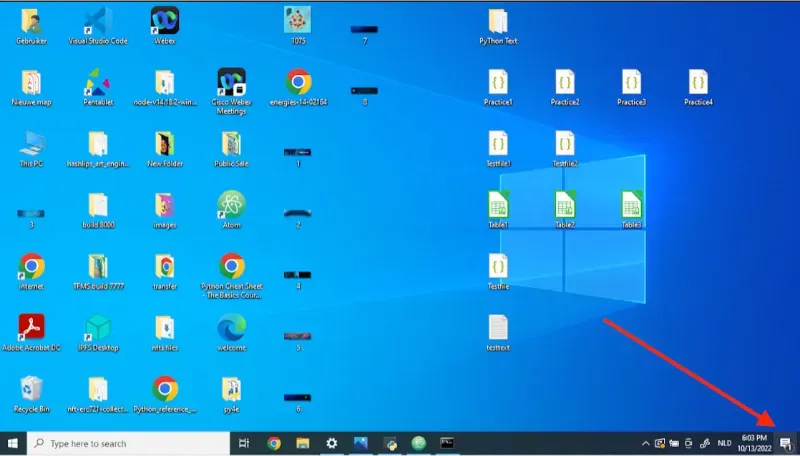
- 7Check Windows Notifications: You also get Windows notifications while using Label Resizer services. In case of trouble, you might also get errors in Windows notifications. To check, click on the letter icon on the bottom right corner of your computer screen. If you see any error message, please send the screenshot to info@labelresizer.com.
- 8Use Label Resizer on a different computer: Your newly installed programs might limit Label Resizer usage. To figure out whether the issue is related to your computer or Label Resizer itself, please try to use your Label Resizer account on a different computer.
- 9Try Label Resizer extension on an Incognito page:
Open Manage Extensions in incognito
Open an incognito page on your browser, then click on the puzzle extension icon. Click on Manage Extensions.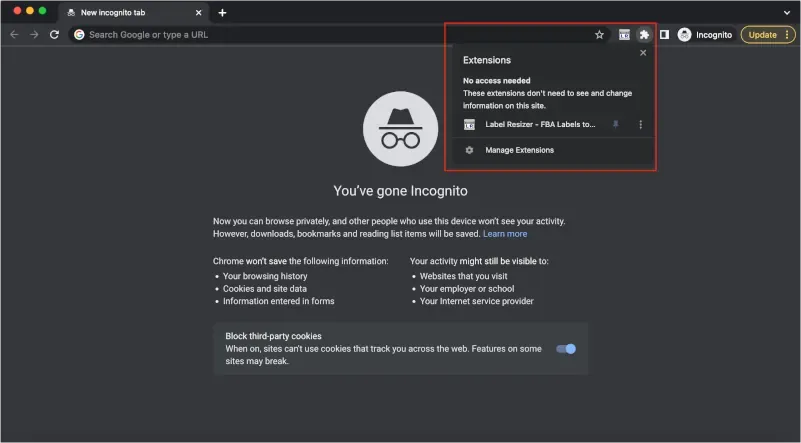
Click Details on Label Resizer extension
Click on the Details button of the Label Resizer extension.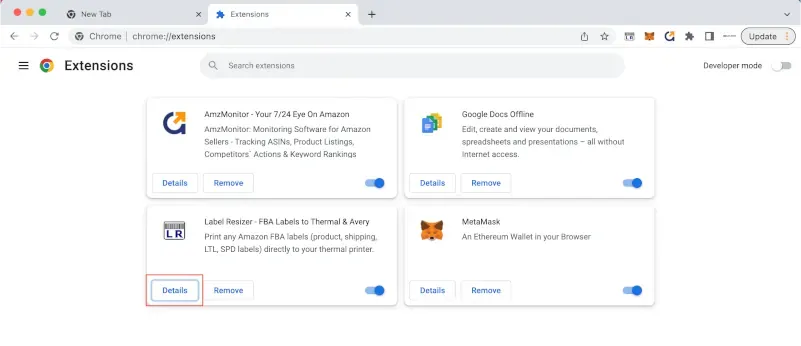
Enable Allow in Incognito
Scroll down the new page and enable the slider next to Allow in Incognito. Then save.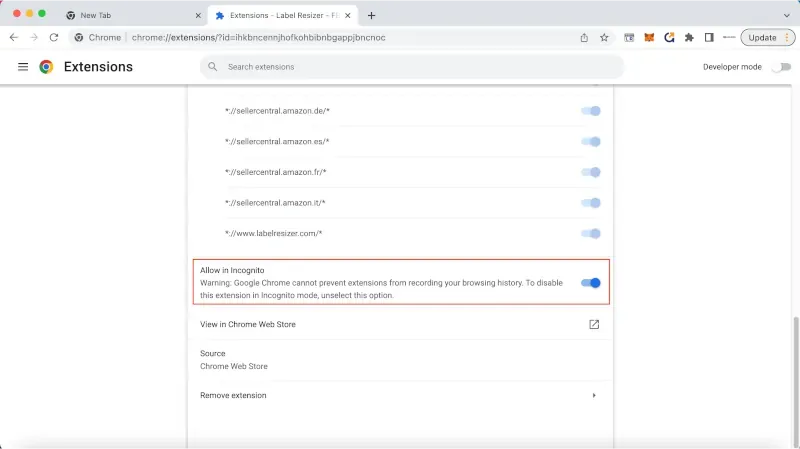
Use extension on incognito page
Use the Label Resizer extension on the incognito page just like using a normal browser page. Stay on the incognito page.