Put Item Number To Labels

The Numbering feature allows you to keep track of labels by adding sequential numbers to them. This feature is particularly helpful for monitoring the order of labels during product labeling and ensuring that the correct number of items are sent, preventing shipping errors.

There are two types of numbering:

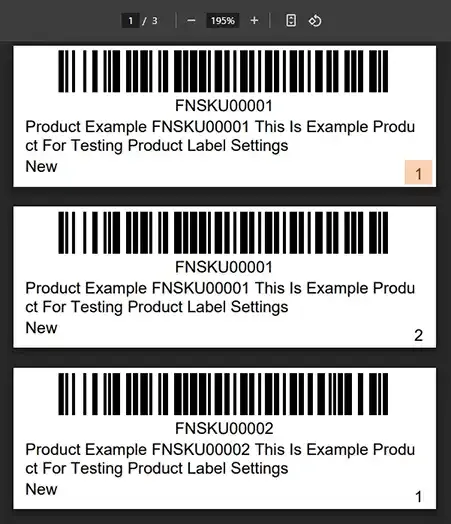
  • Number: Each label displays a number in the lower-right corner, incrementing sequentially (e.g., 1, 2, 3, etc.).
  • Number/Total Piece: The label displays the number in the format of "current number / total number of items" (e.g., 1/100, 2/100, 3/100, etc.).

For example, if you are sending 100 items, choosing the Number/Total Piece option will number your labels from 1/100 to 100/100, helping you track all items effectively.

Note: If you are designing labels using the Label Editor, place the Item Number or Item Number/Total element where you want the numbering to appear. There is no need to adjust any settings in Product Label Settings.


Step by Step Guide

  1. 1
    After logging into Label Resizer, click on Product from the leftmost menu then select Product Label Settings from the sub-menu.
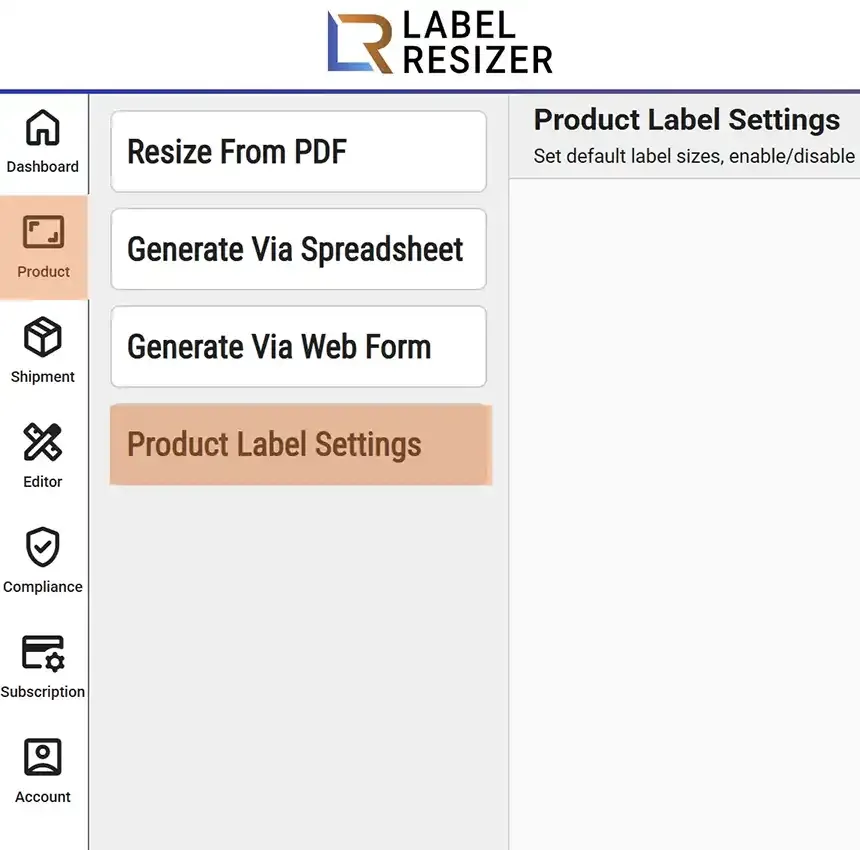
    Product menu
  2. 2
    In product settings, enable the Add Item Number slider. Then select your desired numbering type from the dropdown menu and save the settings.
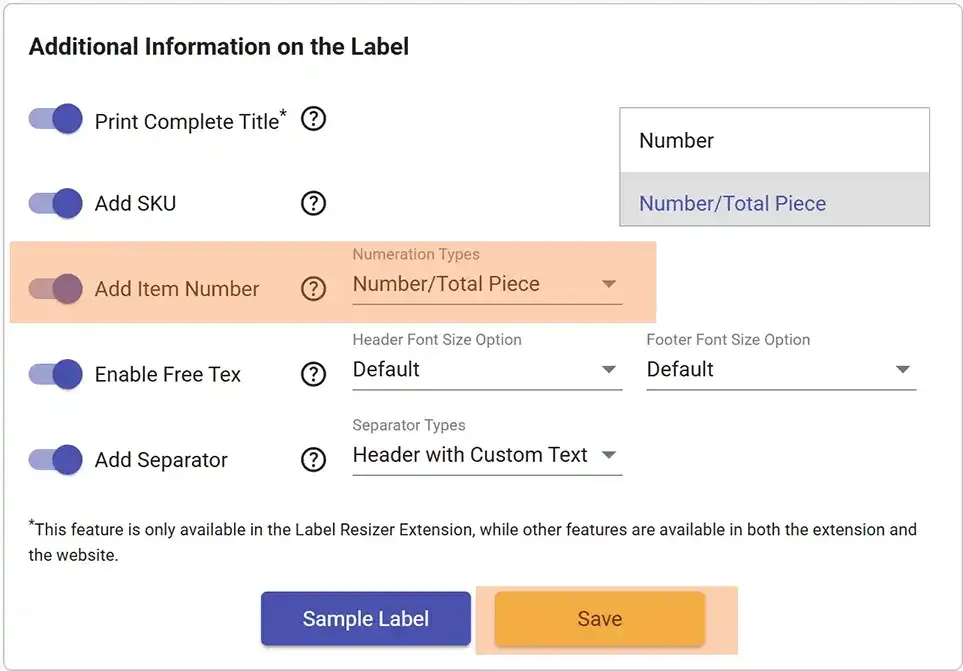
    Item number setting
  3. 3
    The Add Item Number option places item numbers in the lower-right corner of your resized labels. Numbering is applied within the same FNSKU group and resets for each new group. The images below show how the Number and Number/Total Piece options appear on labels.
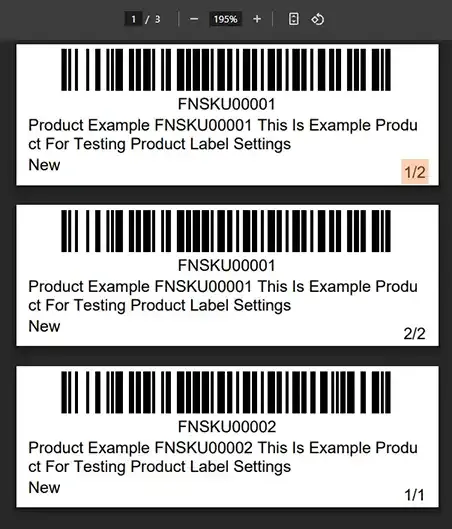
    Number option resultNumber/Total option result