
Using Extension with your Label Templates

You can use your custom label designs directly within the Label Resizer Extension while working on Amazon Seller Central. Once you've created and saved your design on the Label Resizer dashboard, it becomes available inside the extension. This makes it easy to apply your layout to Amazon's product labels without leaving the platform.

However, only designs that include FNSKU Fields as dynamic elements will be available in the extension. If your design contains other types of dynamic fields (like custom Dynamic Text or Dynamic Image), it will not be compatible and won't show up in the dropdown list inside the extension.

To use your design inside the extension:

  • Make sure it includes FNSKU Fields for dynamic content.
  • Avoid using other dynamic elements that depend on spreadsheet uploads.

Step by Step Guide

  1. 1

    The extension icon is automatically highlighted as soon as Seller Central is active.

  2. 2
    The extension puts a "Resize Labels" button on Seller Central pages where you normally get Amazon labels.
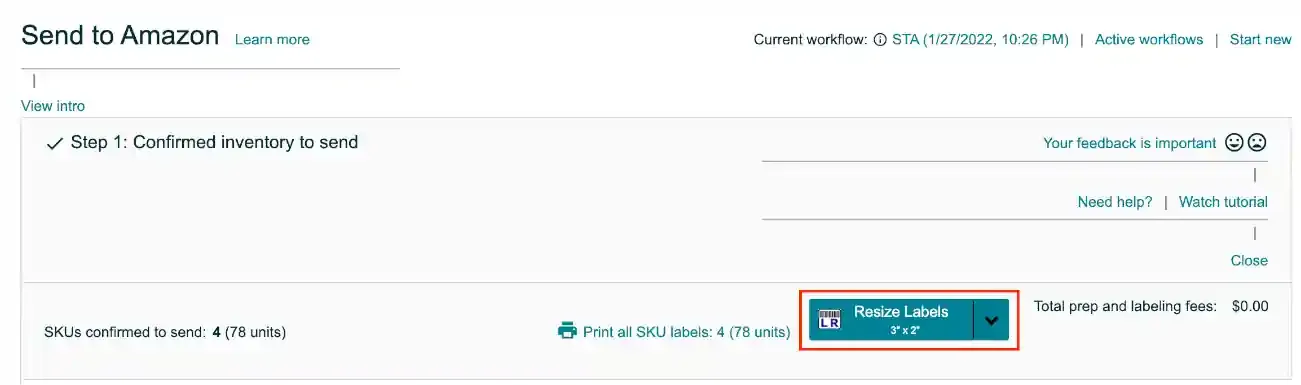
    Resize Labels button on Seller Central
  3. 3
    After you save your own label templates on the Label Resizer dashboard, the names of your custom designs are listed under the Resize Labels button. To see the list and make a selection, click on the drop down icon on the Resize Labels button.
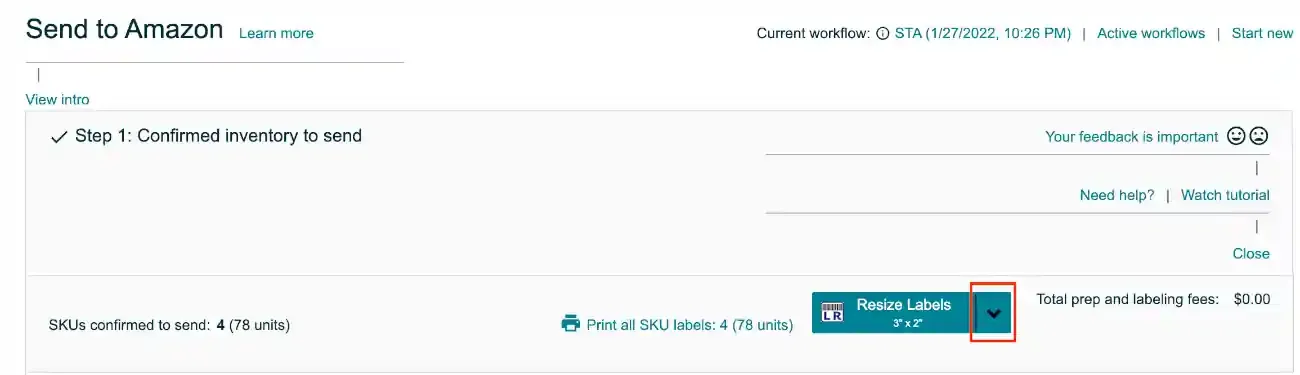
    Custom design dropdown in extension
  4. 4
    On the dropdown list, select your own label template that you would like to use when you resize your labels.

    Select label template from dropdown
  5. 5
    As soon as you select your label template, a popup screen is opened. On the popup screen, you will be asked to determine inputs for the Free Text components on your label design. Then click on the Resize Labels button.
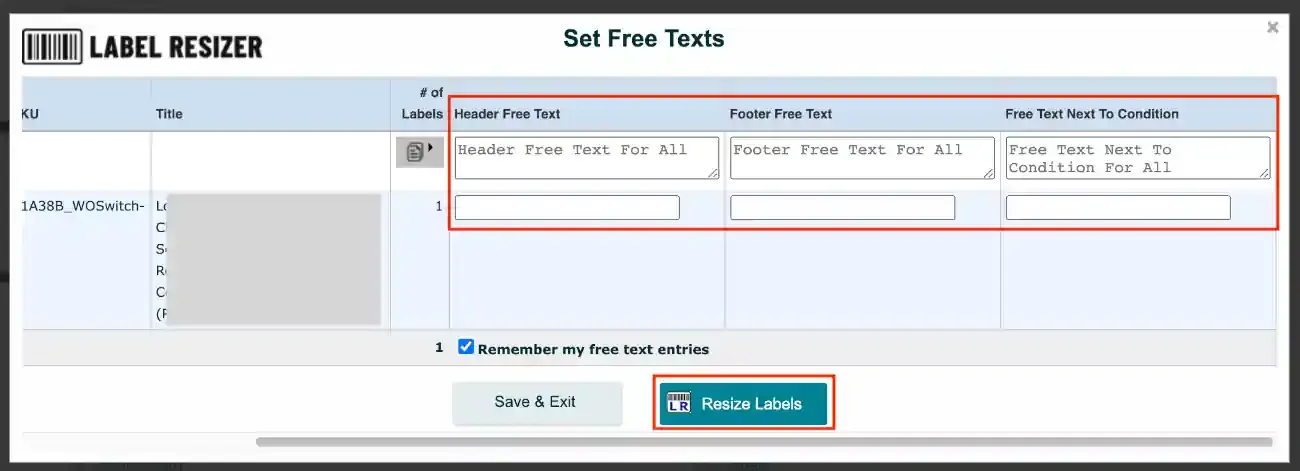
    Free text input popup