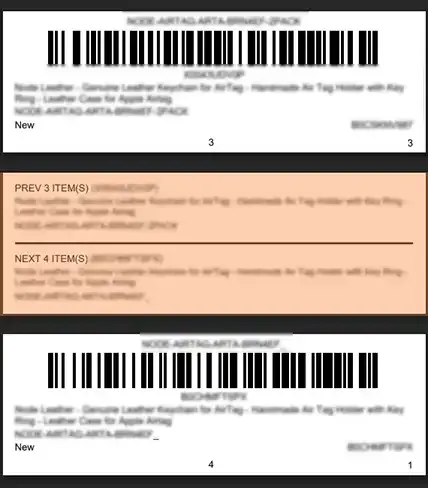
Manage Product Label Transitions with Separator

The Separator feature is designed to help mark the transition between products during labeling, indicating that the labeling for one product has been completed and the labeling for a new product is about to begin. This helps prevent labeling errors by clearly distinguishing between different products.

There are three types of separators available:

  • Prev/Next Separator: Creates a label containing information for the completed product and the new product, helping to clearly indicate the change when moving from one product label to another.
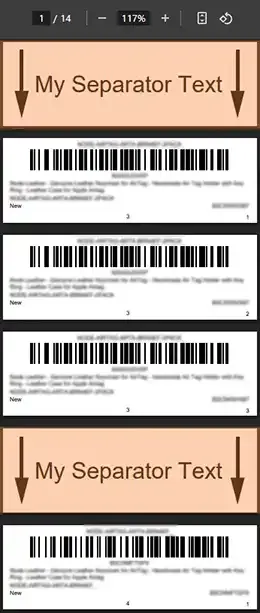
  • Header with Custom Text: Creates a label at the beginning of the product labeling process containing custom text that you define, to clearly mark the transition between products.
  • Page Break: Useful for paper/sticker-type labels (like 24-up labels). Inserts a page break, leaving the current page incomplete and starting a new one when transitioning between products.

This feature reduces labeling mistakes and improves product organization during the labeling process.


Step by Step Guide

  1. 1
    After logging into Label Resizer, click on Product from the leftmost menu then select Product Label Settings from the sub-menu.
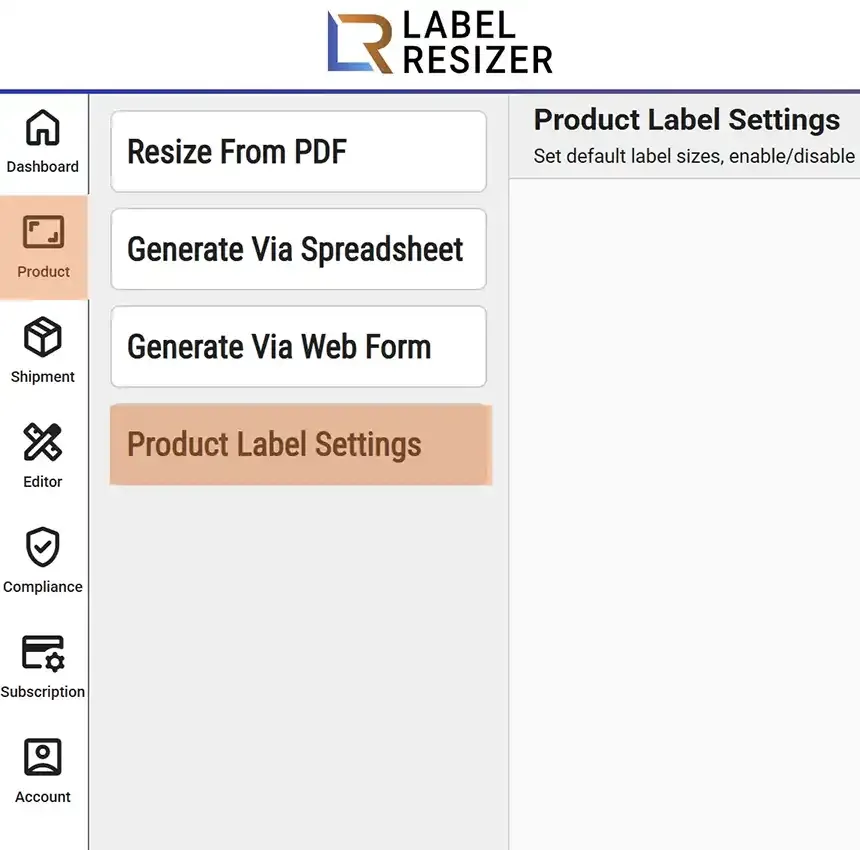
    Product menu
  2. 2
    In product settings, enable the Add Separator slider. Then select your desired separator type from the dropdown menu and save the settings.
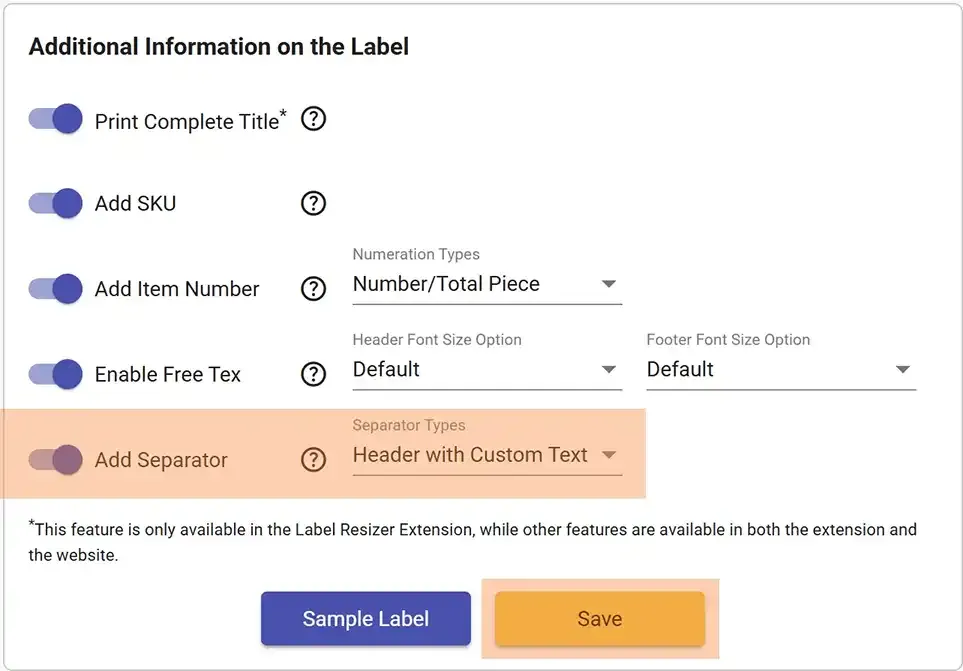
    Separator setting
  3. 3
    When you choose Custom Text Separator, a popup will appear before generating the labels, asking you to enter the custom text you want to use.
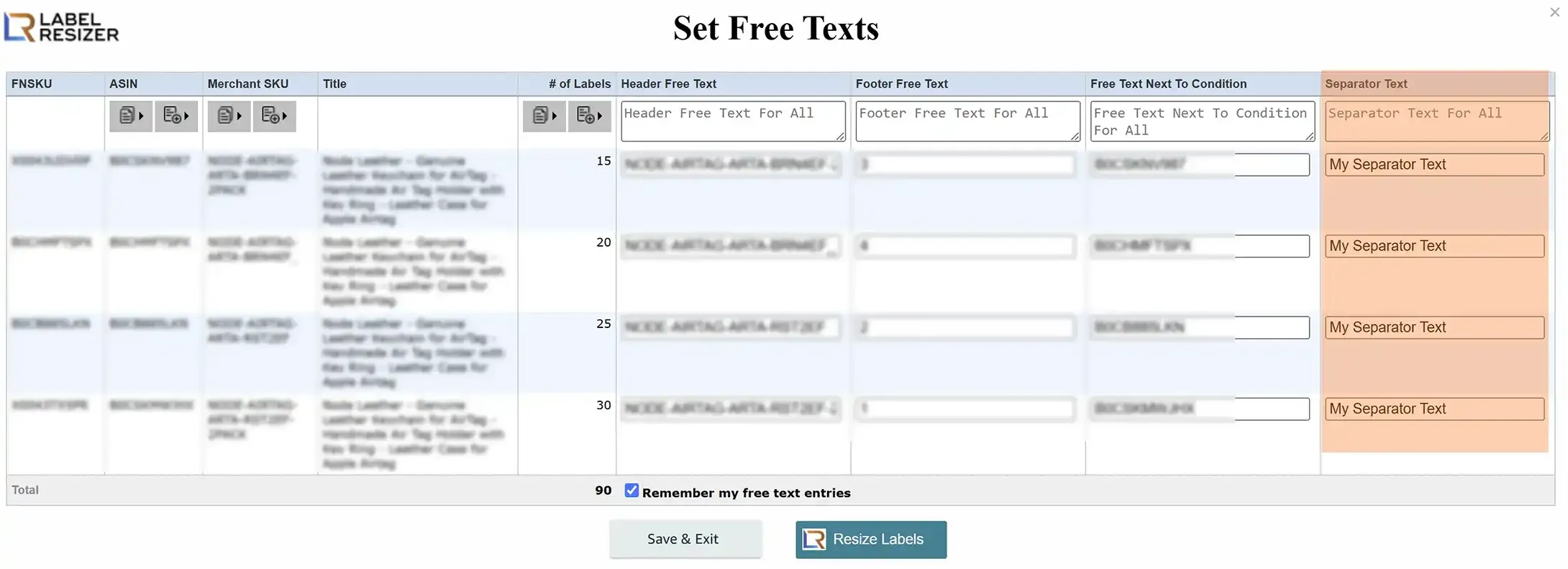
    Custom text popup
  4. 4
    The Add Separator option inserts an additional informative label between different FNSKU groups, clearly marking where one group ends and the next begins. The images below show examples of the separator label.
    Separator example 1Separator example 2