
The Image menu lets you enhance your label design by adding various types of images. Whether it's a company logo, background, product photo, or a warning icon, images help bring clarity and branding to your labels. This section supports both locally uploaded images and system-defined assets to simplify your design process.
This how-to section will introduce each tool available under the Image menu one by one.
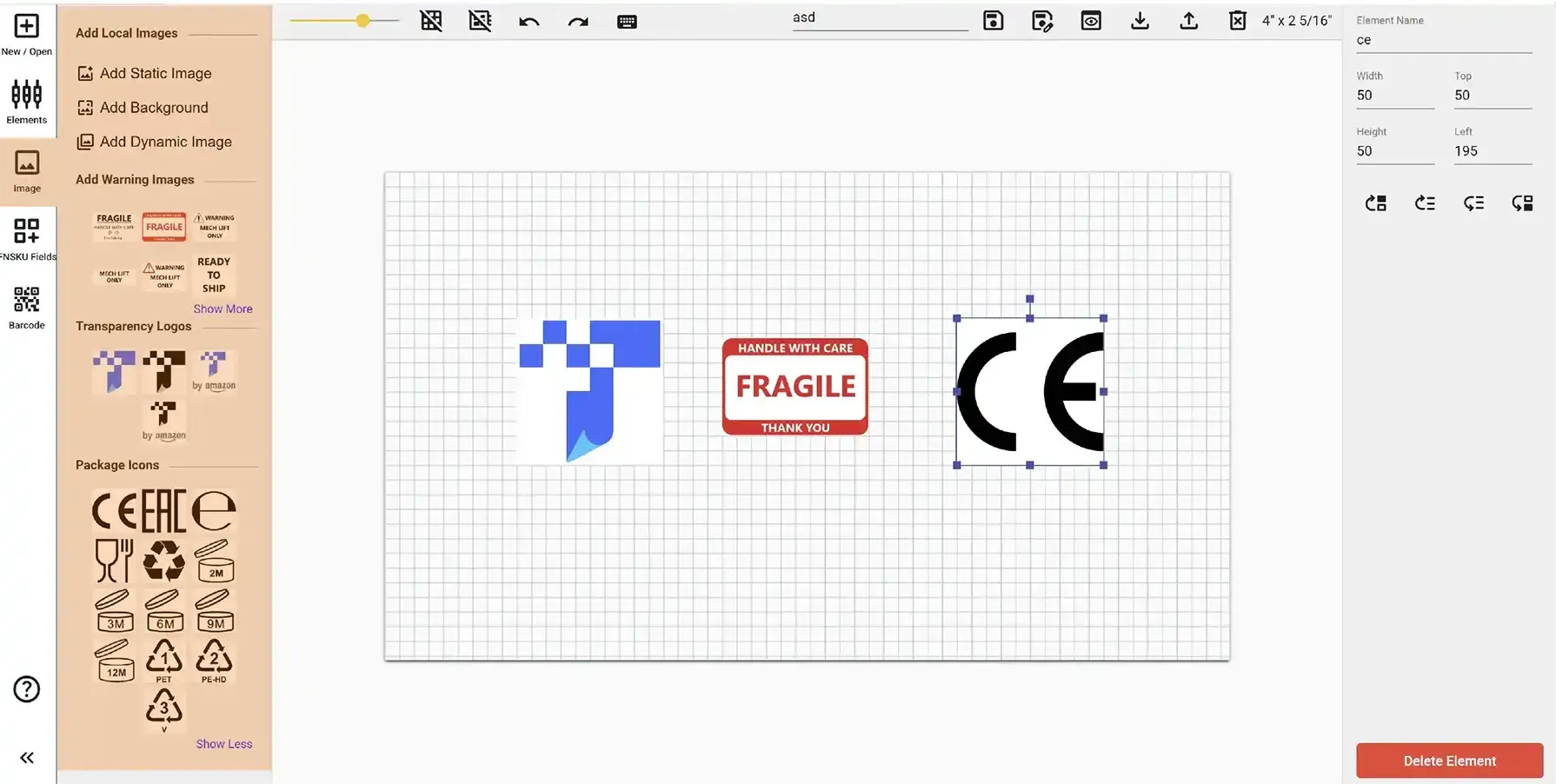
When you select Static Image from the Image panel, you can upload an image from your computer, and it will be added directly to the canvas, appearing the same on every label that uses this design. This is useful for adding consistent elements such as logos, certification marks, or product visuals.
After placing the image on the canvas, you can move, resize, and position it freely to fit your label layout. In the Properties panel, you can control the layer positioning of the image.
When you select Background from the Image panel, you can upload an image from your computer. Once uploaded, the image will be automatically fitted to cover the entire label area as the background.
If a background image is already added, the Add Background button will automatically change to Remove Background. Clicking it will remove the current background image from the design.
When you select Dynamic Image from the Image panel, a placeholder image will be added to the canvas. Unlike static images, dynamic images change for each label based on the data you provide in a spreadsheet file.
During label generation, the image from the provided URL in your spreadsheet will automatically replace the placeholder. This feature is useful when you want to load different images onto each label - such as product photos or any other variable images.
The Element Name field in the Properties panel is crucial when working with dynamic images. The name you assign here must exactly match one of the column headers in your spreadsheet template. Each row in that column should contain a valid image URL (for example: https://example.com/image1.png).
As with dynamic text, each dynamic image element must have a unique element name. Duplicate names will cause an error and the design cannot be saved.