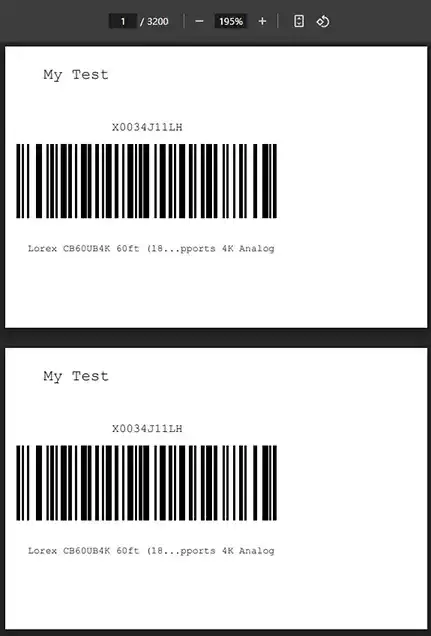
Using Website Resizer with your Label Templates

Label designs created with the Label Editor are specifically used for generating product labels. After designing your template, you can apply it when resizing label PDFs or generating new labels using spreadsheet data - both through the Label Resizer web tool and browser extension.

This allows you to customize how your product labels look, using your own branding, layout, and variable content. Whether you're working with labels from Amazon, Walmart, or any other platform, you can apply your design to personalize and organize your product information exactly the way you need.

Keep in mind that your label designs are not used for shipping labels - they are intended only for product labeling purposes.

Depending on the types of elements used in your design, you can generate labels in two different ways:

  • If your design contains only static elements and dynamic fields from the FNSKU Fields menu, then it is compatible with both Spreadsheet Upload and PDF Upload.
  • If your design includes any other dynamic text fields outside of the FNSKU Fields menu, it will only work with Spreadsheet Upload, as custom dynamic text elements require external data from a spreadsheet.

PDF Upload

As detailed in this guide, once you upload your product label PDF - downloaded from Amazon or Walmart - to the system, your labels will be automatically generated according to your selected label design.

PDF Upload for label generation

Step by Step Guide

Spreadsheet Upload

  1. 1
    There are two ways to download the Spreadsheet template:

    Option A: from the Label Editor

    After saving your design in the Label Editor, click the upload icon in the top-left corner.
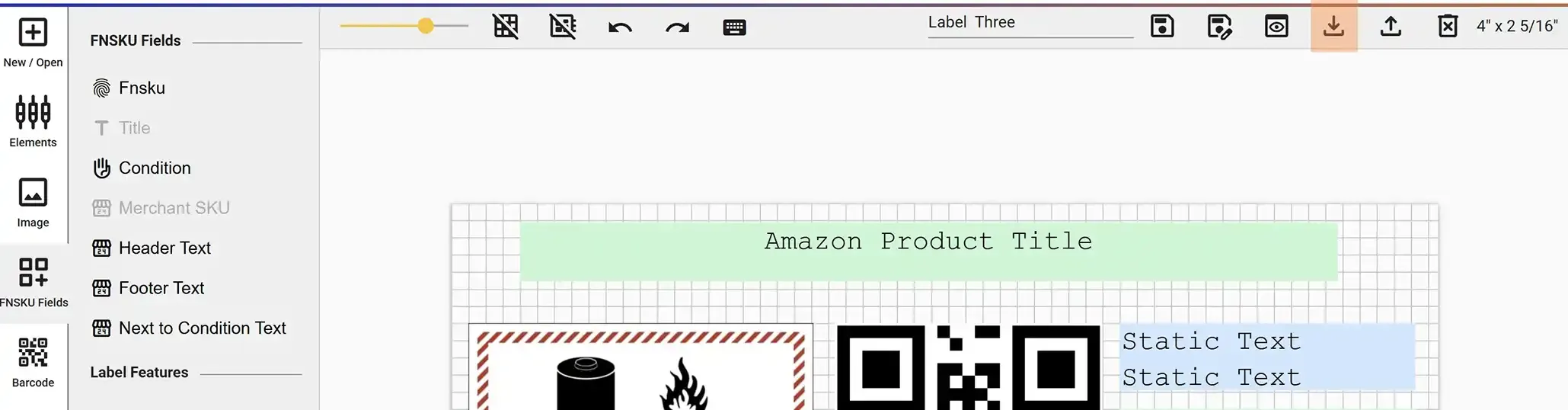
    Upload icon in Label Editor

    Option B: from the Label from Design page

    Click on Editor from the leftmost menu, then select Label from Design, select your design, and click the Download Spreadsheet Template link below.
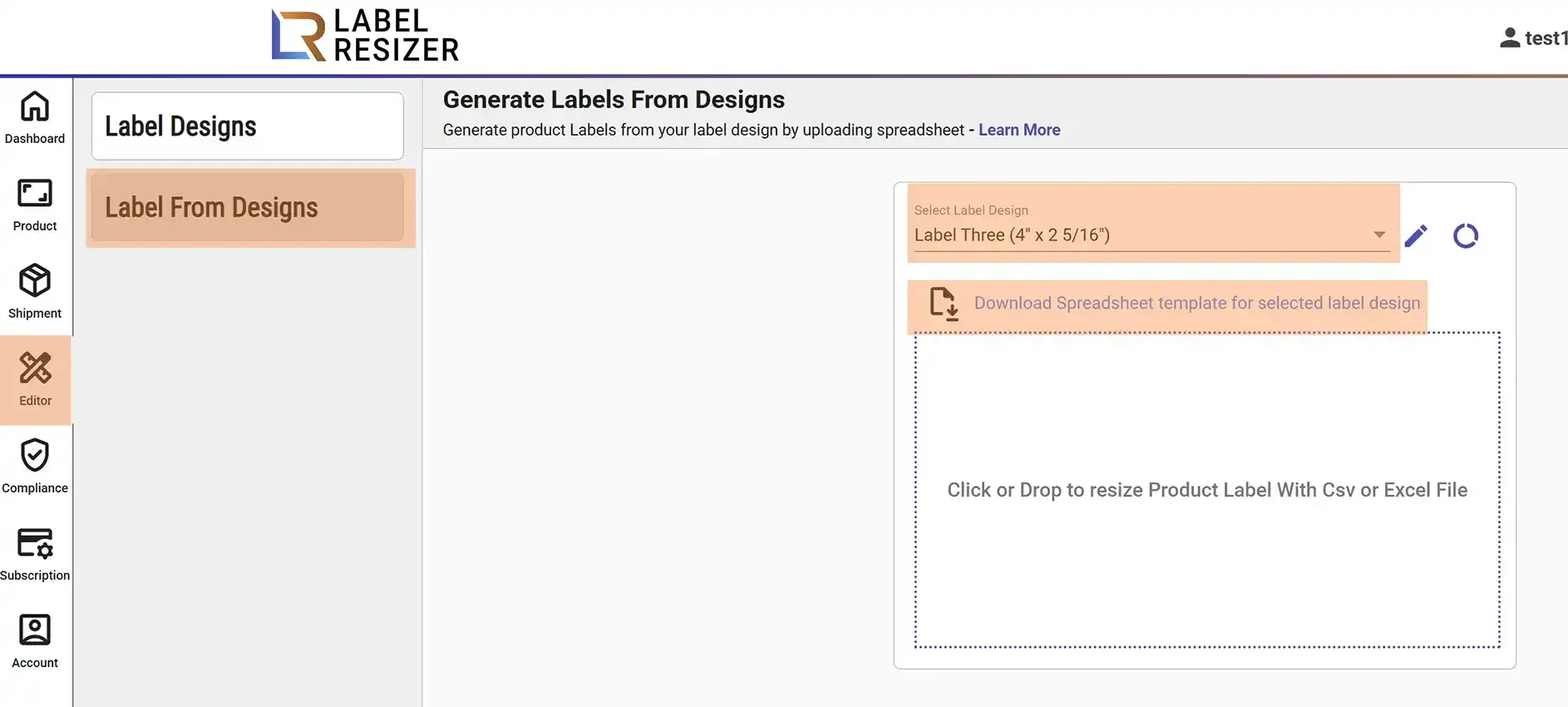
    Download Spreadsheet Template
  2. 2

    Once you have downloaded the template, fill in the required data, and return to the Label from Design page.
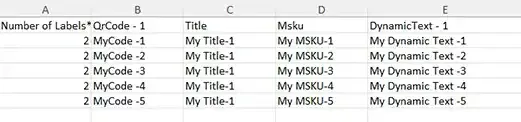
    Label from Design page
  3. 3
    Choose your design, upload the completed spreadsheet file, and the system will automatically generate labels based on your layout and the data in the spreadsheet. Make sure the spreadsheet file matches the selected design - uploading the wrong file to the wrong design will result in an error.
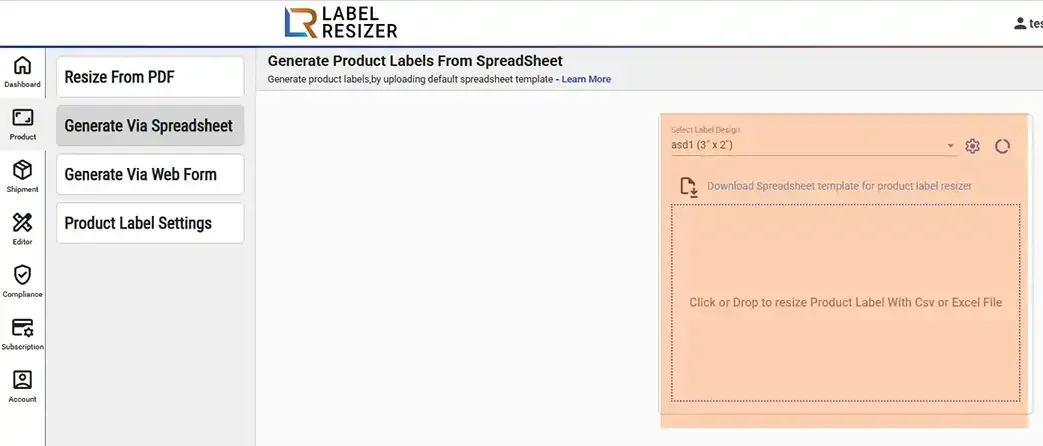
    Upload spreadsheet file
  4. 4

    After a successful upload, your labels will be automatically created and downloaded to your computer.
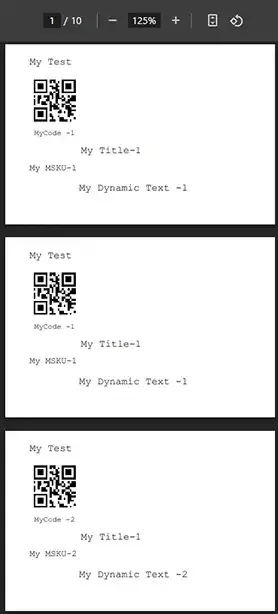
    Generated labels