Step by Step Guide
- 1Install the Label Resizer Extension for Chrome or Firefox.
- 2
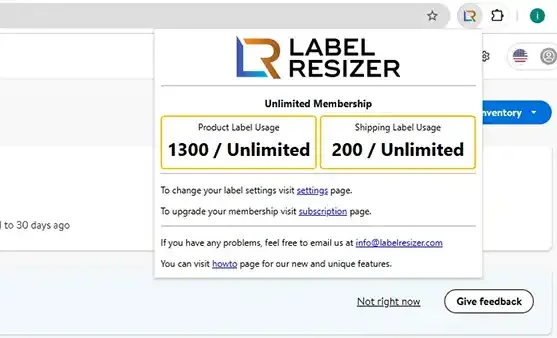
The extension icon is automatically highlighted as soon as Walmart Seller Center is active.
- 3
The extension locates the "Resize Labels" buttons on Walmart Seller Center pages:
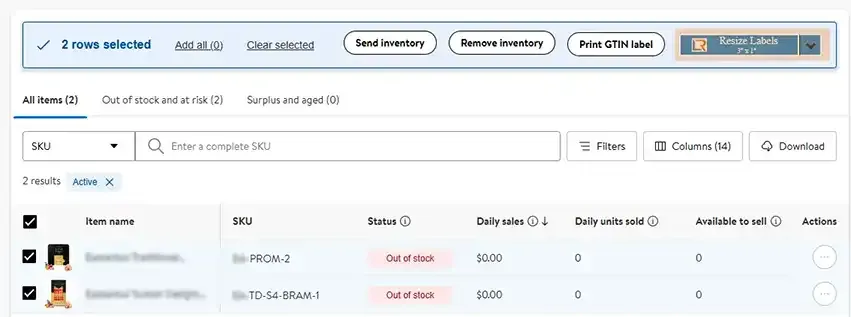
- When you select multiple products on the Manage Inventory page, a "Resize Labels" button appears at the top, allowing you to generate labels for all selected items at once.
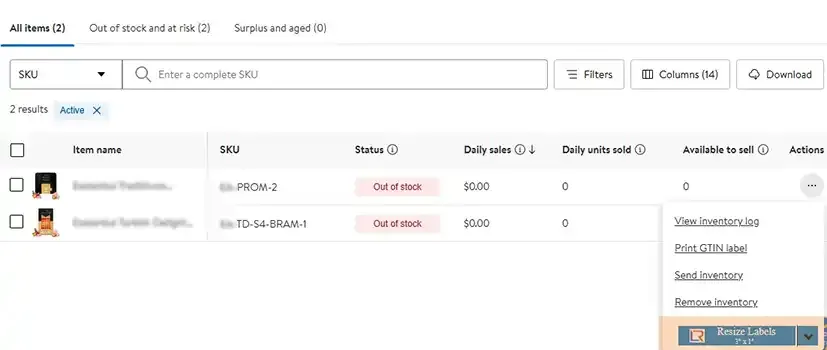
- Alternatively, you can print a label for a single product by clicking the "Resize Labels" option from the action list next to that specific item.
- On the Create Inbound Order page, a "Resize Labels" button appears at the top for all products in the shipment. You can also generate labels for individual products by clicking the button next to each item.
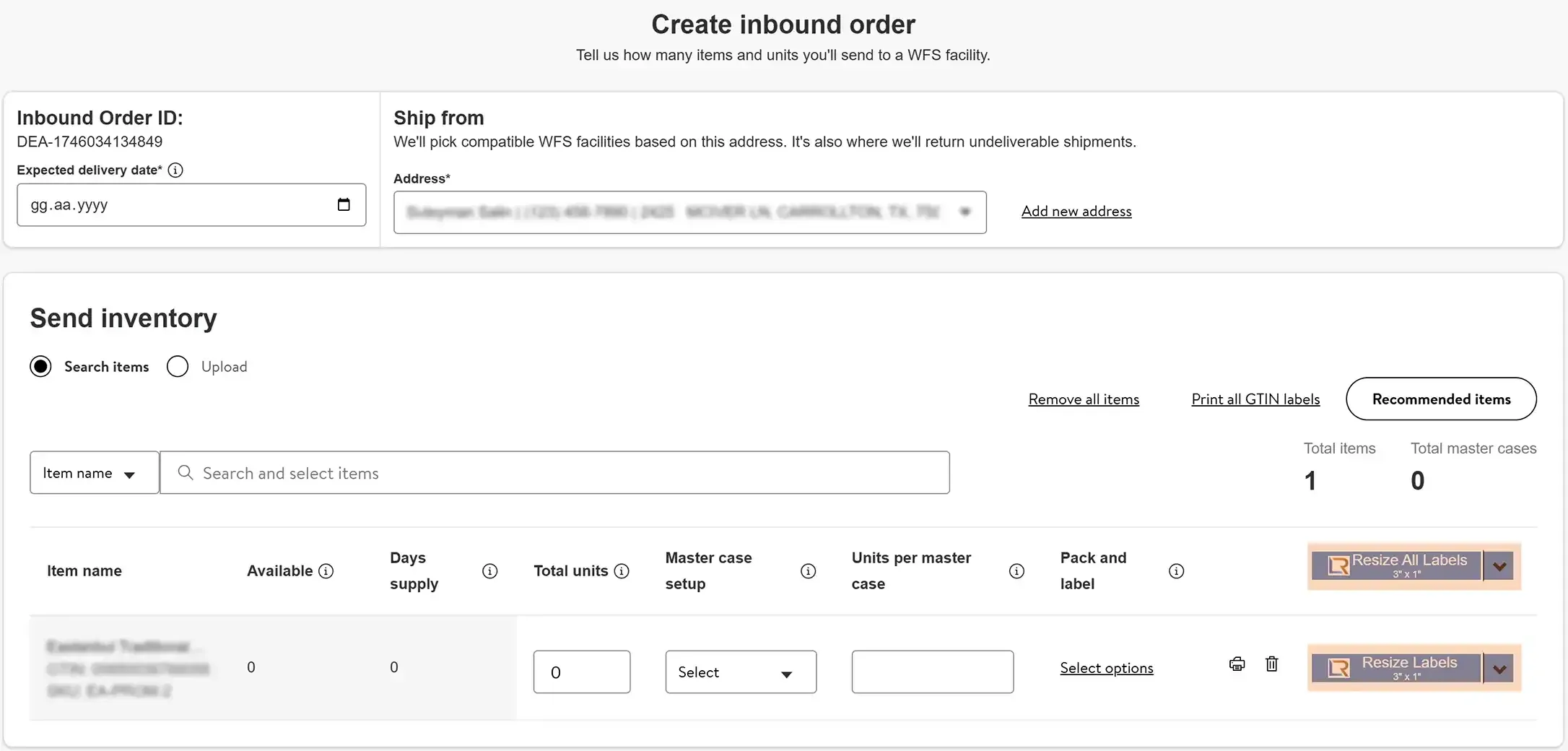
- 4
Click the Resize Label button to get your resized label in line with your settings. Label Resizer opens the new labels in a new tab and downloads the PDF file.
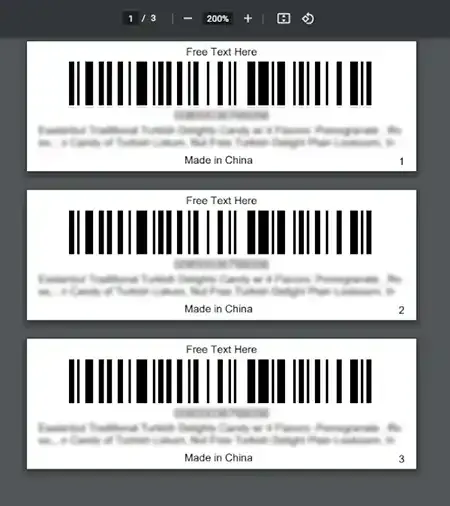
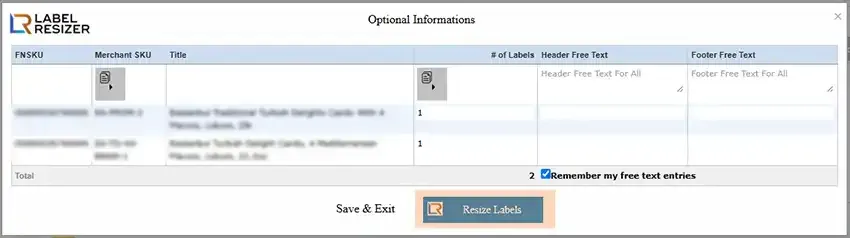
- 5If your Free Text setting is enabled, a popup will appear before each resize operation prompting you to enter your custom text. Once you fill out this popup, the label resizing process will proceed. For more details, visit the Free Text How-to page.