Adding Barcode Elements to Your Design
The Barcode section of the Elements panel allows you to add both 1D (one-dimensional) and 2D (two-dimensional) barcodes to your label design. Once placed on the canvas, you can resize, move, and align the barcode as needed.
You can choose to make your barcode static (with fixed content) or dynamic, where the barcode content is automatically generated based on the data from your spreadsheet source during label creation. This makes it possible to personalize barcodes for each label - ideal for serial numbers, product codes, or unique identifiers.
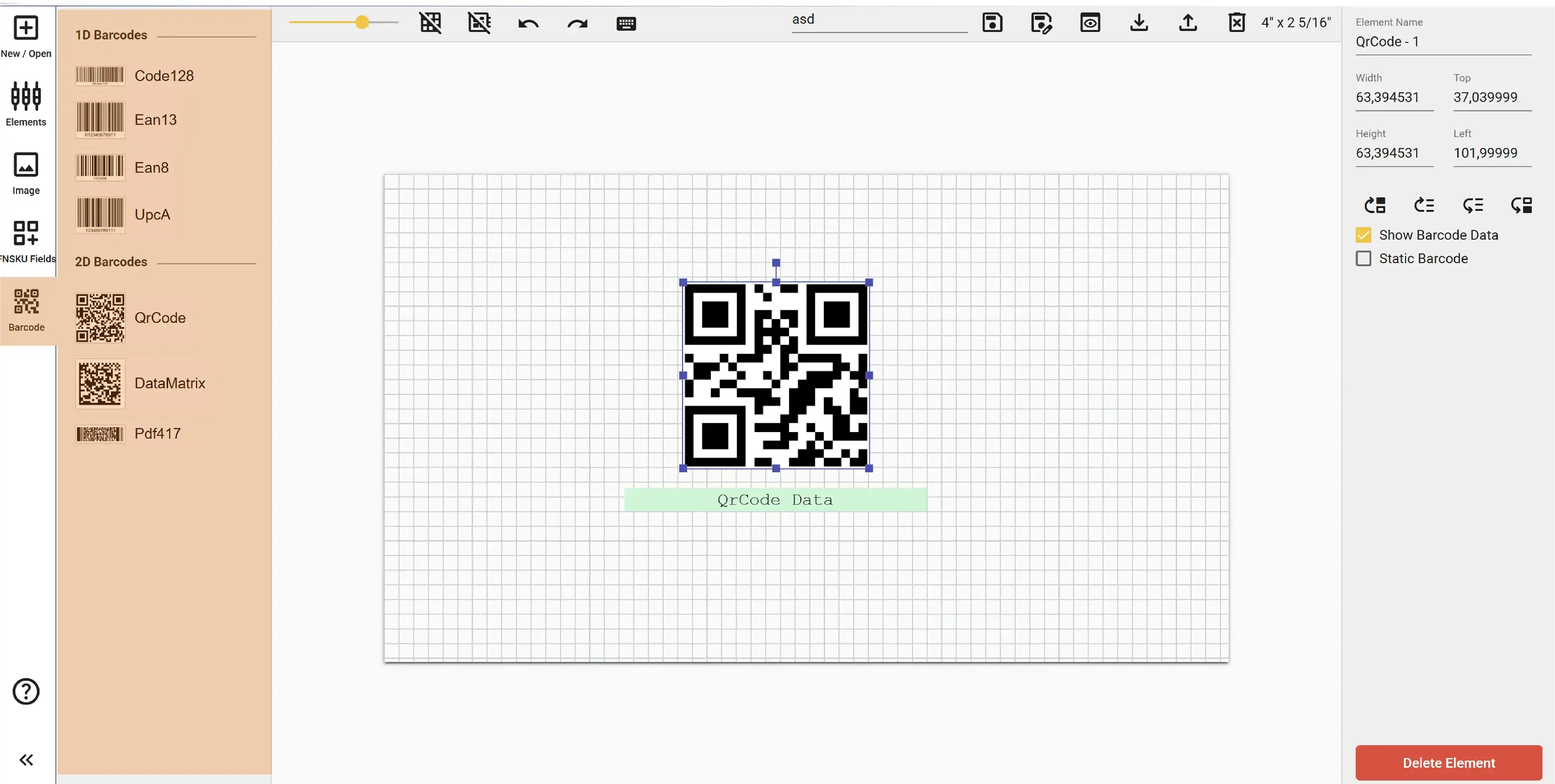
The Label Editor currently supports the following barcode formats:
- 1D Barcodes: Code 128, EAN-13, EAN-8, and UPC-A
- 2D Barcodes: QR Code, DataMatrix, and PDF417
After adding your desired barcode type to the design, you will see two checkboxes in the Properties panel:
- Show Barcode Data: When this checkbox is selected, the data used to generate the barcode will also be displayed as text below it. This text element is internally linked to the barcode. You can move and resize both elements freely on the canvas. If you delete the text area later, only the barcode will remain visible on your labels.
- Static Barcode: By default, all barcodes are dynamic. This means the Element Name you assign to the barcode will be used as the column name in your uploaded spreadsheet. During label generation, the barcode will be created using the data from this column. However, if you check the Static Barcode box, the barcode becomes static. You can then enter a fixed value into the Static Barcode Data input field, and this same value will be used for every label.
