
Step by Step Guide
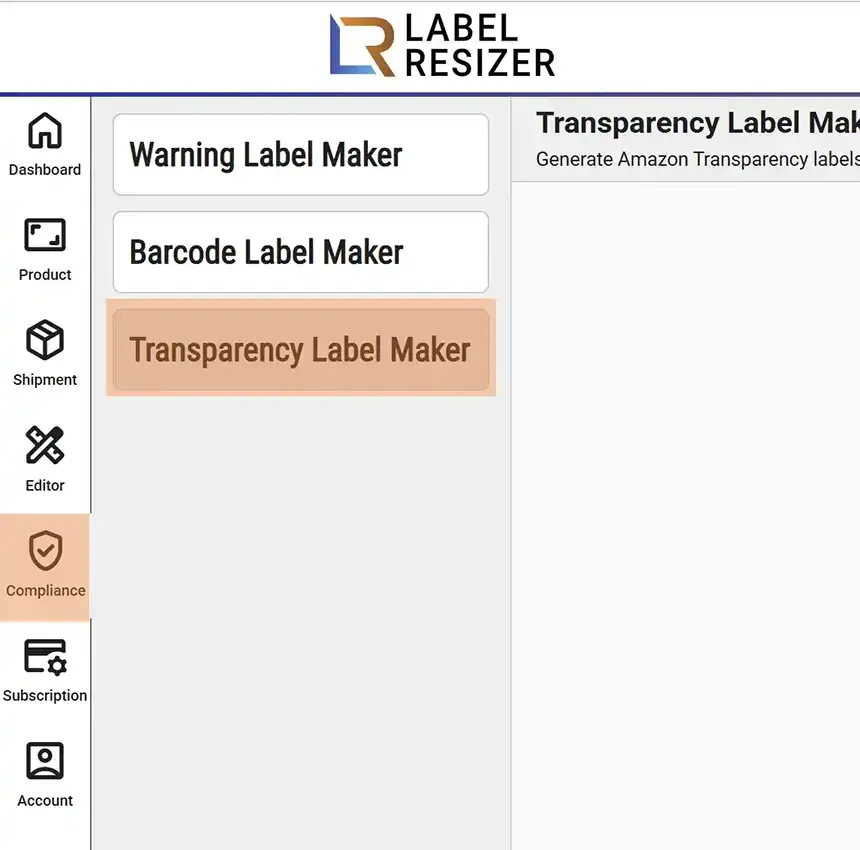
- 1After logging into Label Resizer, click on Tools from the leftmost menu, then select Transparency Label Maker from the sub-menu.
- 2Determine the Transparency Label Layout, then select the CTA option - Scan with the Transparency app or Amazon Shopping app.
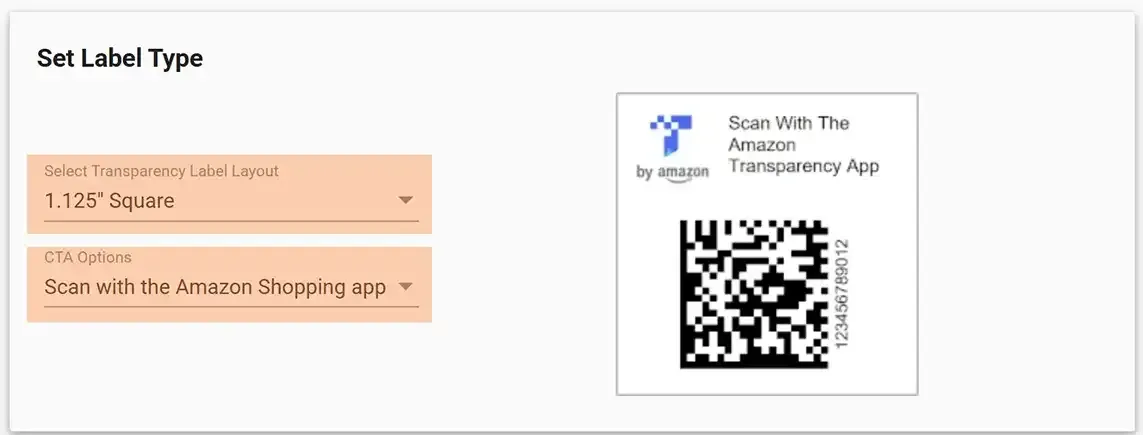
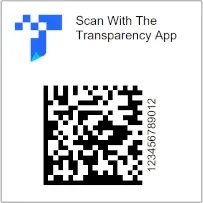
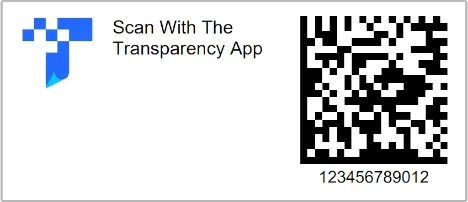
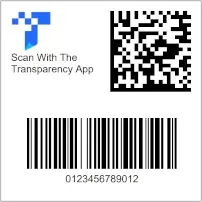
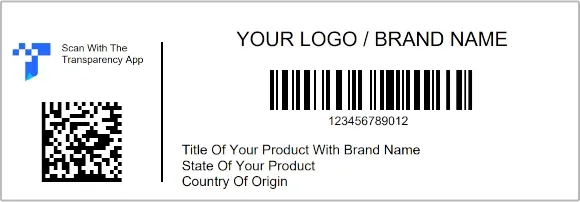
- 3After setting your layout and CTA option, you will see the label template on the right. There are 4 layout options and 2 CTA types - a total of 8 different layout variations.
Manual Input
- 1Click on the Manual Input tab and fill in the required fields based on your layout type:
1.125" Square or 0.75" × 1.75" Rectangle
Enter the Lot/SKU information.
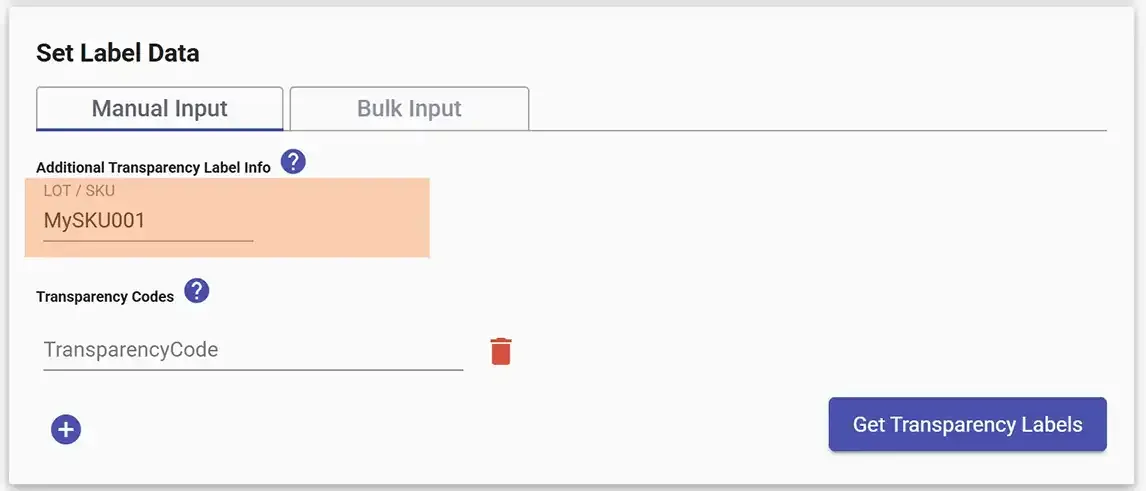
1.375" Square
Select the Barcode type and enter the Barcode text.
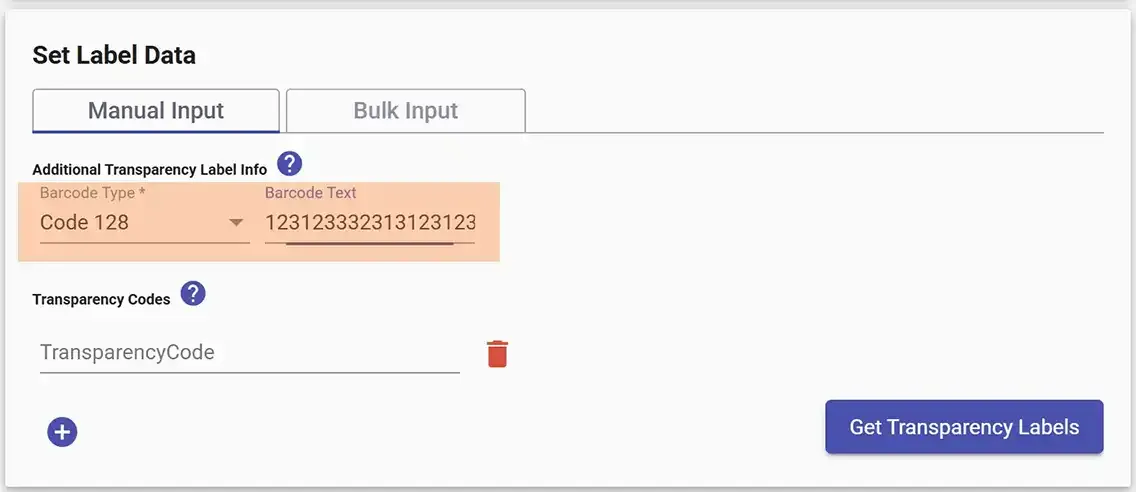
1.375" × 4.000" Rectangle
Select Barcode type, enter barcode text, type your Brand Name, and optionally add up to 3 description lines.
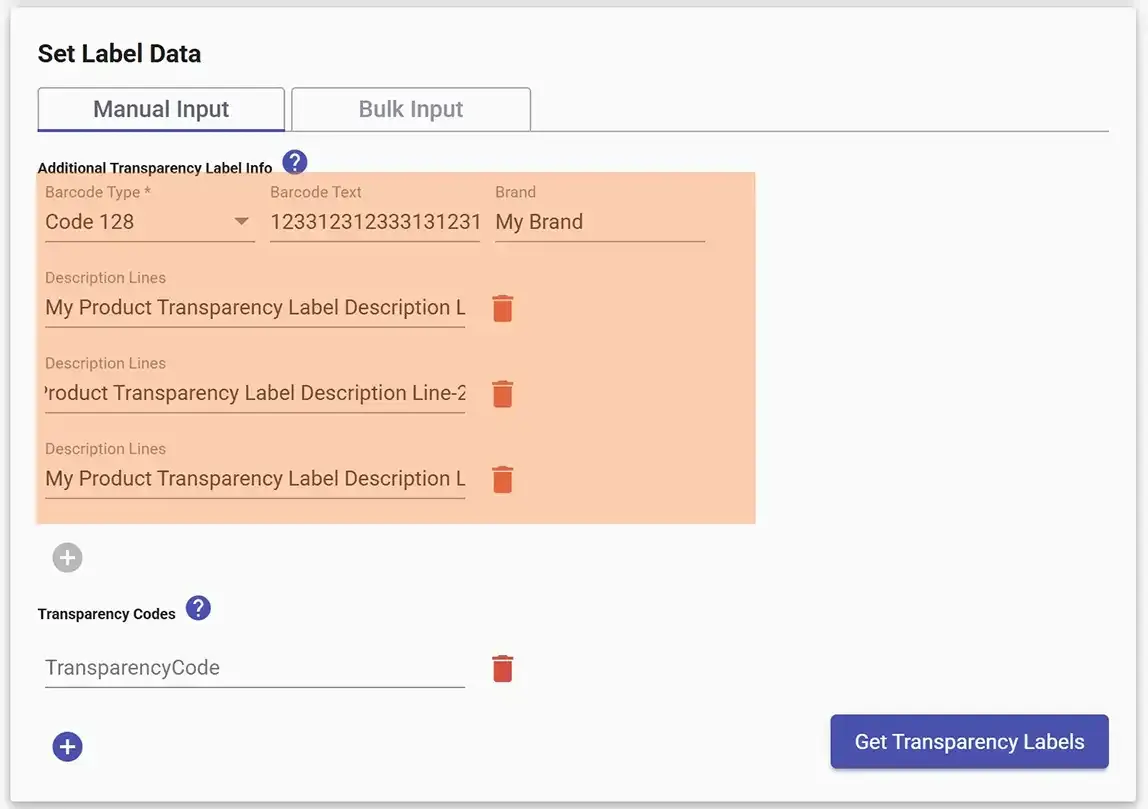
- 2Input your Transparency codes. Click the + icon to generate more labels with unique Transparency codes.
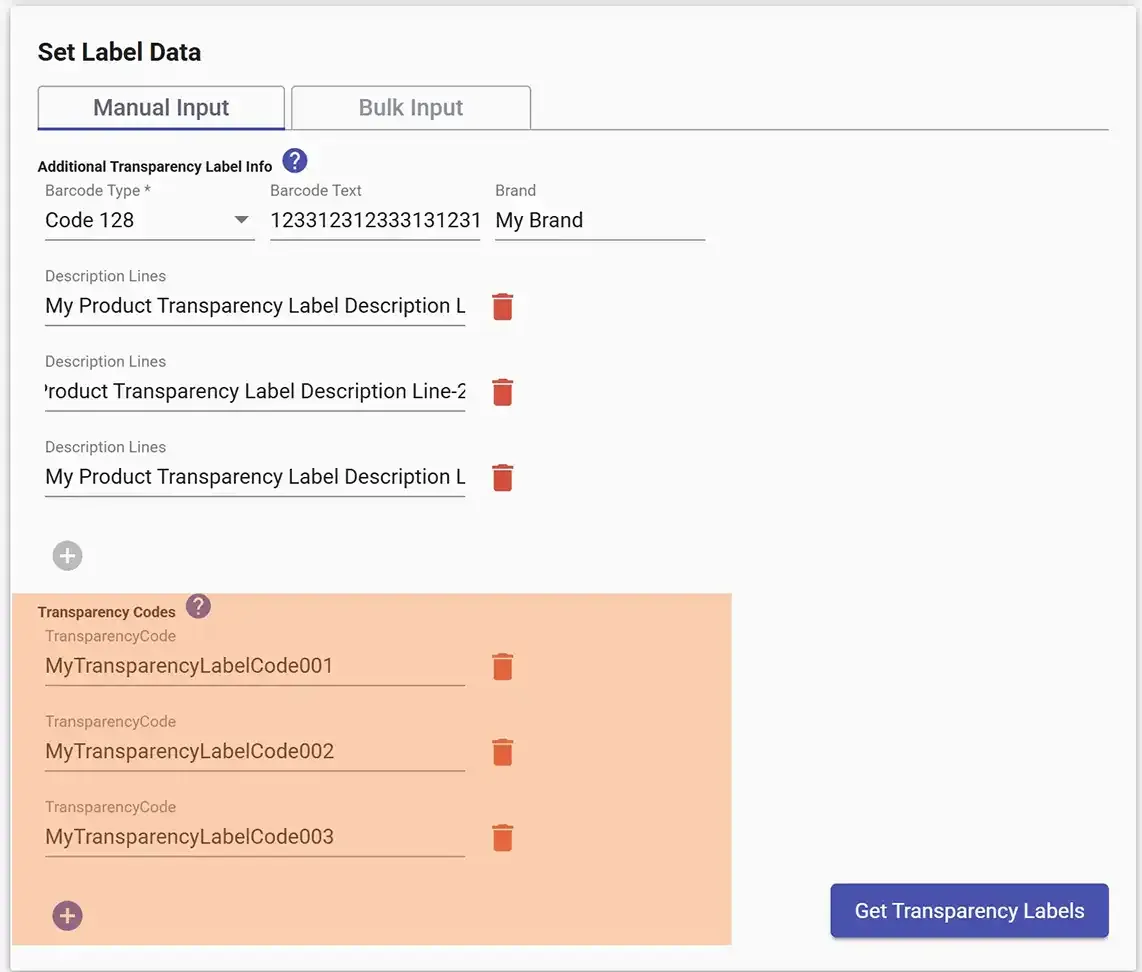
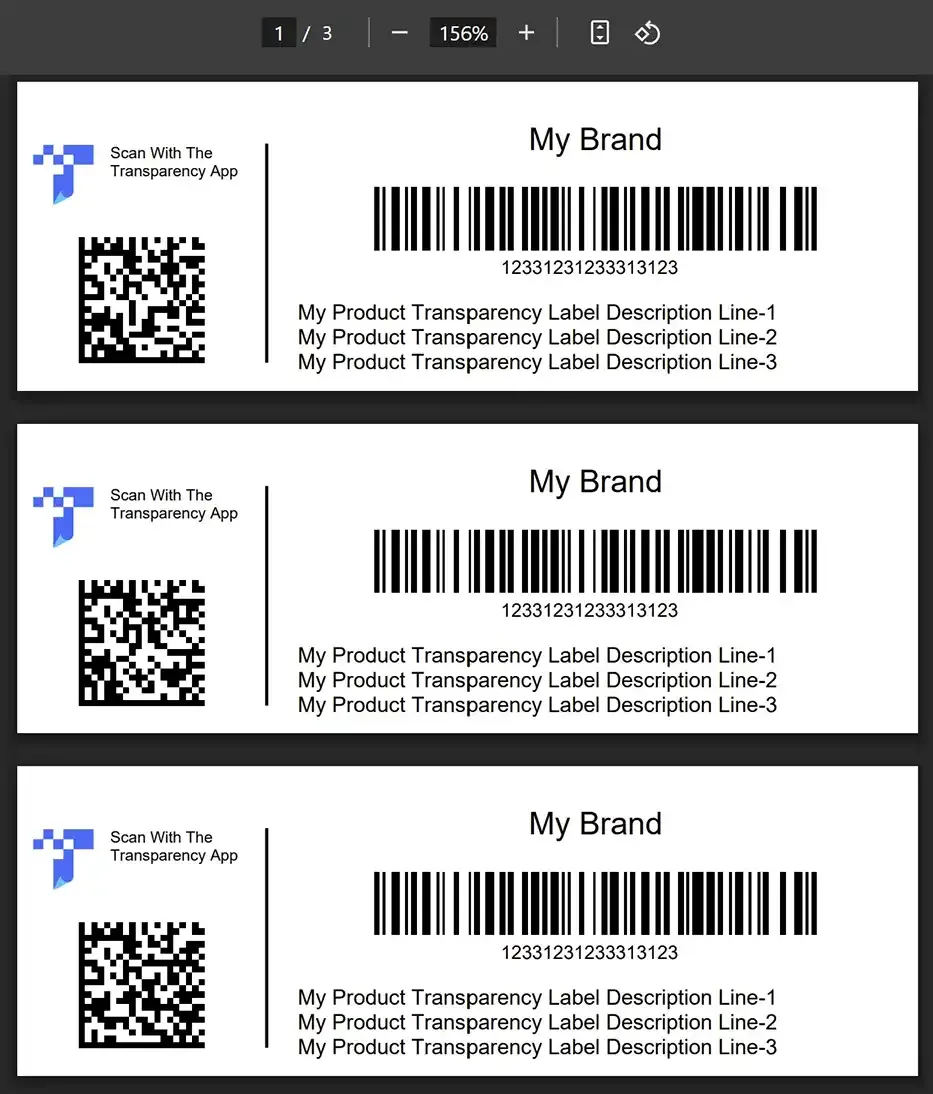
- 3Click the Get Transparency Labels button. Your labels will be downloaded as a PDF and opened in a new browser tab.
Bulk Input
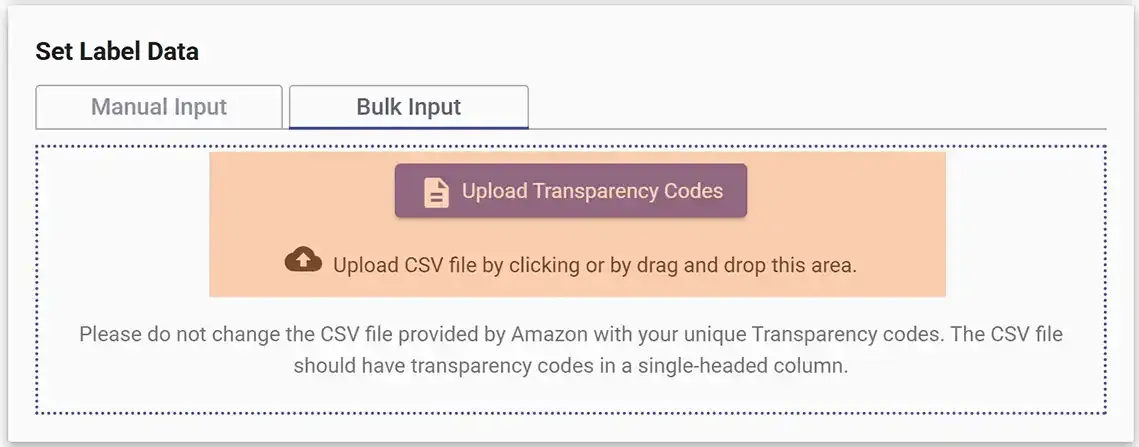
- 1Click the Bulk Input tab. Upload the CSV file by clicking or dragging and dropping. You can use the CSV file provided directly by Amazon - do not modify the column headers. The CSV should have Transparency codes in a single-headed column.
- 2Click the Get Labels button. Your labels will be downloaded as a PDF and opened in a new browser tab.